Getting Started - Data Preparation
Introduction
Terrestrial laser scanning (TLS) provides highly detailed 3D information about forest structure, allowing us to measure individual trees, reconstruct their geometry, and derive a wide range of forestry-related metrics. However, turning raw TLS point clouds into useful information requires several processing steps, from preparing the input data to detecting and reconstructing individual trees.
In this tutorial series, we will explore how to perform these tasks using LIS Pro 3D. Starting with the basic forestry tools in the graphical user interface, we will gradually develop a complete workflow for TLS-based forestry analysis, including data preparation, ground classification, stem detection, individual tree segmentation, 3D tree reconstruction, and the extraction of tree-level metrics such as tree height, diameter, wood volume, and biomass.
We will begin with relatively small datasets and individual trees to become familiar with the tools, understand their underlying principles, and explore how different parameter settings influence the results. From there, we will move on to larger forest areas and learn how to organize the processing into manageable spatial units.
An important aspect of working with TLS data is that we rarely start with a single, perfectly prepared point cloud. Instead, forest plots are typically captured from multiple scan positions that have been georeferenced or aligned in a common coordinate system. To obtain reliable results, these scans need to be analyzed together.
Fortunately, LIS Pro 3D does not require us to merge all scan positions into one large point cloud file. Using the Virtual Point Cloud concept, the software can access multiple point cloud files and treat them as a single dataset when performing spatial queries. This allows us to work with the complete TLS dataset while keeping the original scan files separate.
As our datasets become larger, we will introduce tile-by-tile processing, buffered processing units, and strategies for managing memory requirements. We will first explore these workflows through the LIS Pro 3D graphical user interface before translating them into Python scripts.
In the later parts of the series, we will use Python to automate the complete processing workflow, introduce parallel processing, and organize processing parameters through a central project configuration. Finally, we will explore how to combine LIS Pro 3D with additional Python libraries to create informative graphs, individual tree reports, and interactive web maps.
By the end of this tutorial series, you will have learned not only how to use the individual LIS Pro 3D forestry tools, but also how to combine them into a complete, reproducible, and largely automated workflow that can be adapted to your own TLS datasets.
We will start with the basics: preparing our TLS point clouds and setting up a virtual point cloud dataset for further analysis.
Tutorial Data
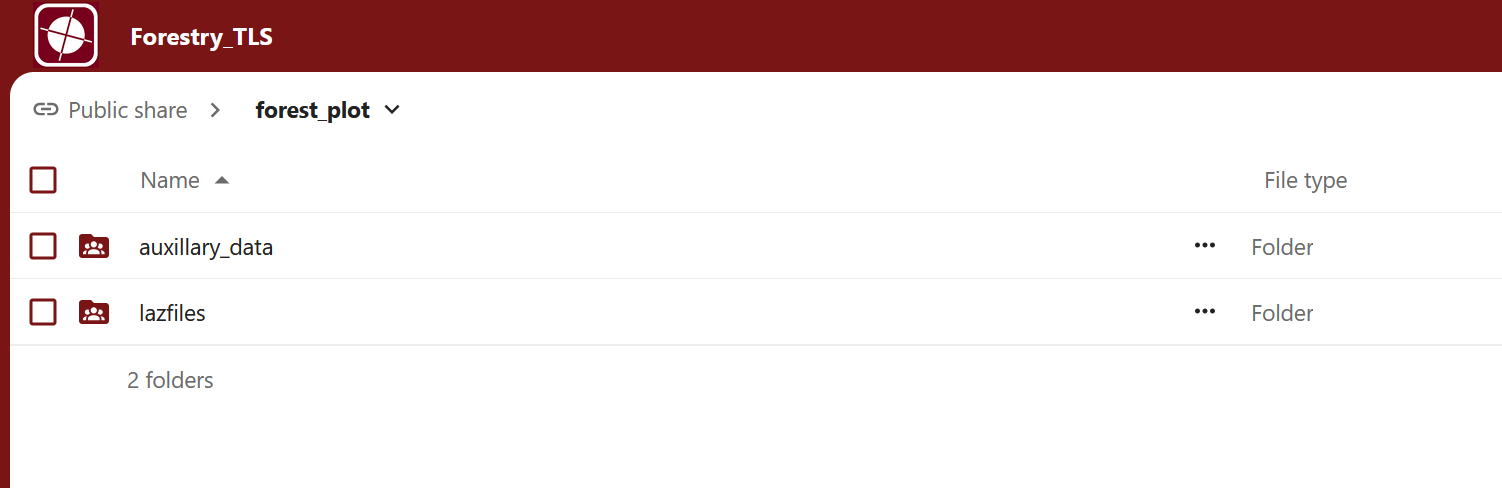
You can download the input data for this tutorial series from here.
The forest_plot/lazfiles/ folder contains 22 LAZ files (and 22 LAX files) and a shapefile with the scan positions. We will use these files throughout the tutorial series.
The forest_plot/auxillary_data/ folder contains several shapefiles describing the area of interest.
Download both folders before continuing with the tutorial.
Prerequisites
Please note that this tutorial requires the LIS Pro 3D’s Forestry Addon if you want to process the data yourself.
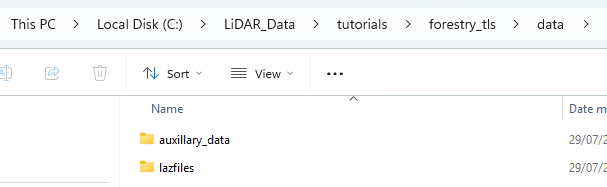
Your local folder structure should look like this:
project # top-level folder
└── data
    ├── auxillary_data
    │   └── ...
    └── lazfiles
        └── ...
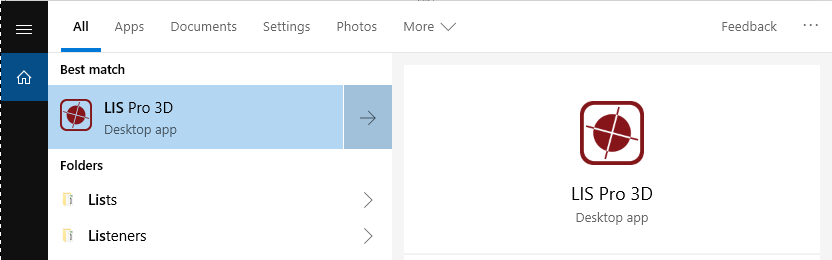
Start LIS Pro 3D
Search for LIS Pro 3D in your programs and start it!
The provided LAZ files come with corresponding LAX files. In case you have no LAX-files available, run the Create LAS/LAZ Index tool first!
This step may take some time, as each input file needs to be scanned to create its spatial index.
In the Tools tab, navigate to LIS Pro 3D > Import/Export > Create LAS/LAZ Index and open the tool.
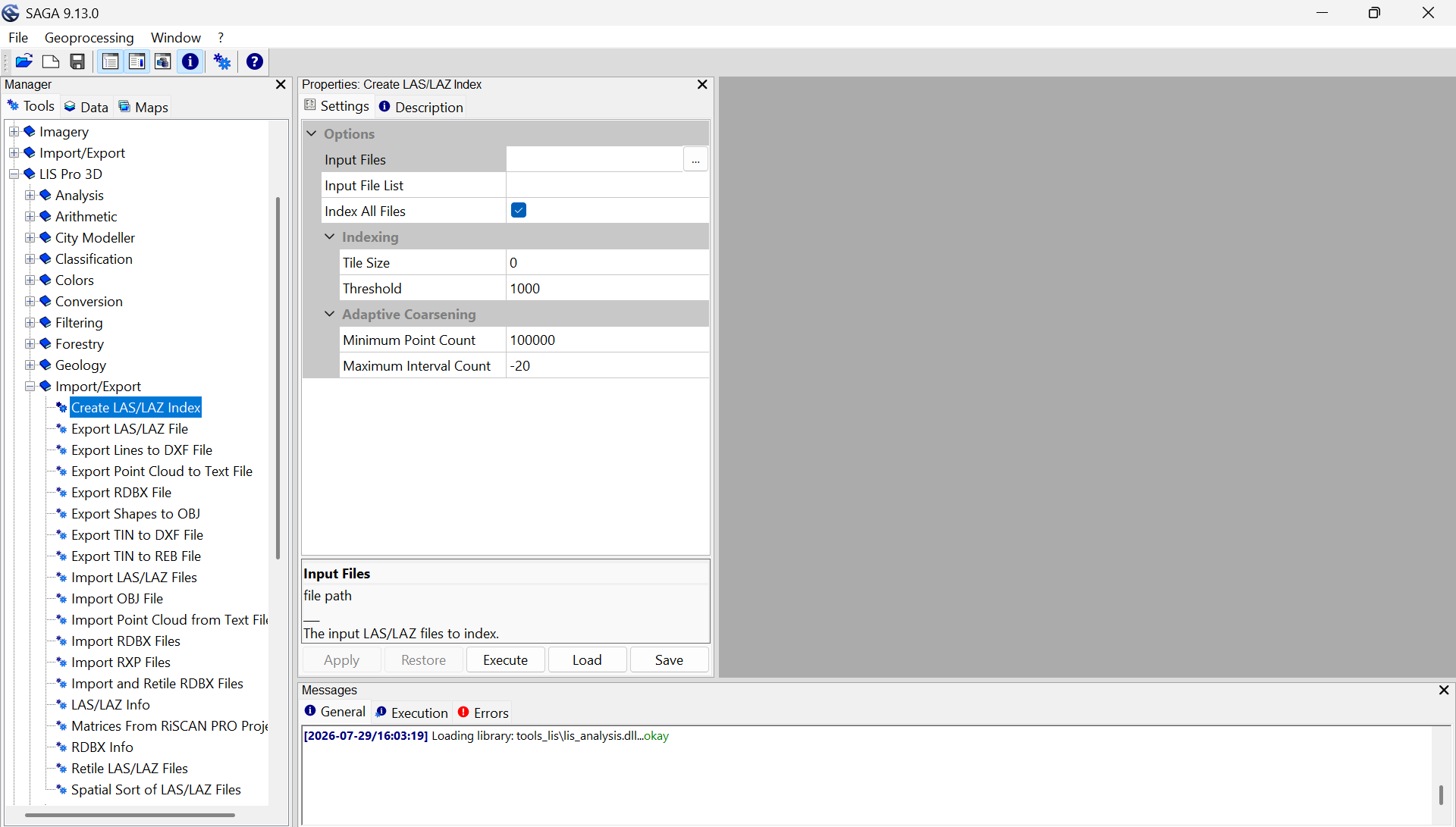
Under Input Files, click the Browse button and navigate to the forest_plot/lazfiles/ folder containing the downloaded LAZ files. Select all 22 .laz files.
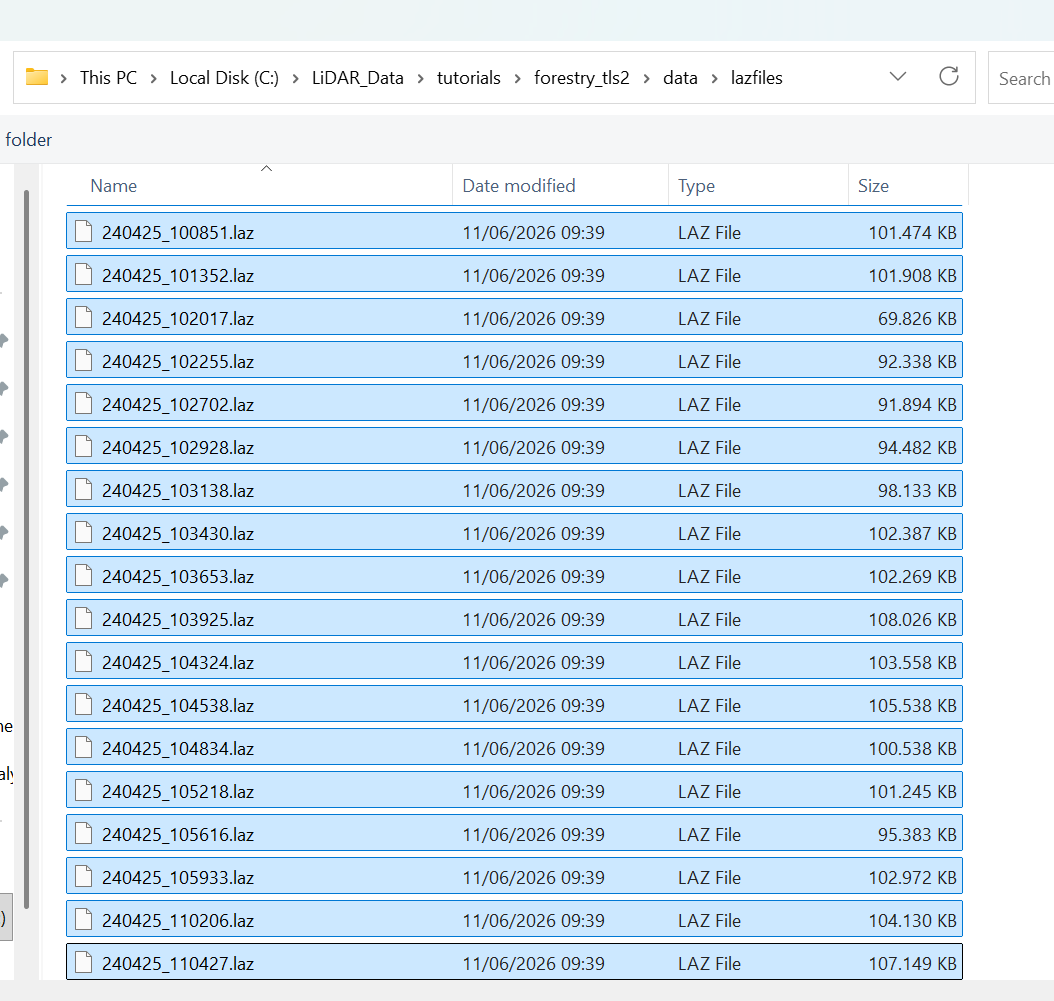
The file selection dialog should now look like this:
Tool: Create LAS/LAZ Index
Geoprocessing → LIS Pro 3D → Import/Export → LAS/LAZ // Tools → LIS Pro 3D → Import/Export
| Parameter | Setting |
|---|---|
| Options | |
| Input Files | “C:/LiDAR_Data/tutorials/forestry_tls/data/lazfiles/240425_095411.laz” “C:/LiDAR_Data/tutorials/forestry_tls/data/lazfiles/240425_095952.laz” “C:/LiDAR_Data/tutorials/forestry_tls/data/lazfiles/240425_100315.laz” “C:/LiDAR_Data/tutorials/forestry_tls/data/lazfiles/240425_100605.laz” “C:/LiDAR_Data/tutorials/forestry_tls/data/lazfiles/240425_100851.laz” “C:/LiDAR_Data/tutorials/forestry_tls/data/lazfiles/240425_101352.laz” “C:/LiDAR_Data/tutorials/forestry_tls/data/lazfiles/240425_102017.laz” “C:/LiDAR_Data/tutorials/forestry_tls/data/lazfiles/240425_102255.laz” “C:/LiDAR_Data/tutorials/forestry_tls/data/lazfiles/240425_102702.laz” “C:/LiDAR_Data/tutorials/forestry_tls/data/lazfiles/240425_102928.laz” “C:/LiDAR_Data/tutorials/forestry_tls/data/lazfiles/240425_103138.laz” “C:/LiDAR_Data/tutorials/forestry_tls/data/lazfiles/240425_103430.laz” “C:/LiDAR_Data/tutorials/forestry_tls/data/lazfiles/240425_103653.laz” “C:/LiDAR_Data/tutorials/forestry_tls/data/lazfiles/240425_103925.laz” “C:/LiDAR_Data/tutorials/forestry_tls/data/lazfiles/240425_104324.laz” “C:/LiDAR_Data/tutorials/forestry_tls/data/lazfiles/240425_104538.laz” “C:/LiDAR_Data/tutorials/forestry_tls/data/lazfiles/240425_104834.laz” “C:/LiDAR_Data/tutorials/forestry_tls/data/lazfiles/240425_105218.laz” “C:/LiDAR_Data/tutorials/forestry_tls/data/lazfiles/240425_105616.laz” “C:/LiDAR_Data/tutorials/forestry_tls/data/lazfiles/240425_105933.laz” “C:/LiDAR_Data/tutorials/forestry_tls/data/lazfiles/240425_110206.laz” “C:/LiDAR_Data/tutorials/forestry_tls/data/lazfiles/240425_110427.laz” |
| Input File List | |
| Index All Files | 🗹 |
| Indexing | |
| Tile Size | 0 |
| Threshold | 1000 |
| Adaptive Coarsening | |
| Minimum Point Count | 100000 |
| Maximum Interval Count | -20 |
The tool creates a .lax file for each .las or .laz file. A .lax file is a spatial index that allows software to quickly locate points within a specific area without scanning the entire point cloud. Rather than storing the point data itself, it stores spatial indexing information, making operations such as clipping, filtering, and extracting subsets of large point clouds much faster.
The .lax format was originally introduced by the LAStools project and is also supported by other LiDAR applications.
Create Virtual Point Cloud
Let’s create a virtual point cloud from our 22 LAZ files.
In the Tools tab, select the tool LIS Pro 3D > Virtual > Create Virtual LAS/LAZ Dataset and provide the 22 LAZ files.
Tool: Create Virtual LAS/LAZ Dataset
Geoprocessing → LIS Pro 3D → Virtual → LAS/LAZ // Tools → LIS Pro 3D → Virtual
| Parameter | Setting |
|---|---|
| Options | |
| Input Files | “C:/LiDAR_Data/tutorials/forestry_tls/data/lazfiles/240425_095411.laz” “C:/LiDAR_Data/tutorials/forestry_tls/data/lazfiles/240425_095952.laz” “C:/LiDAR_Data/tutorials/forestry_tls/data/lazfiles/240425_100315.laz” “C:/LiDAR_Data/tutorials/forestry_tls/data/lazfiles/240425_100605.laz” “C:/LiDAR_Data/tutorials/forestry_tls/data/lazfiles/240425_100851.laz” “C:/LiDAR_Data/tutorials/forestry_tls/data/lazfiles/240425_101352.laz” “C:/LiDAR_Data/tutorials/forestry_tls/data/lazfiles/240425_102017.laz” “C:/LiDAR_Data/tutorials/forestry_tls/data/lazfiles/240425_102255.laz” “C:/LiDAR_Data/tutorials/forestry_tls/data/lazfiles/240425_102702.laz” “C:/LiDAR_Data/tutorials/forestry_tls/data/lazfiles/240425_102928.laz” “C:/LiDAR_Data/tutorials/forestry_tls/data/lazfiles/240425_103138.laz” “C:/LiDAR_Data/tutorials/forestry_tls/data/lazfiles/240425_103430.laz” “C:/LiDAR_Data/tutorials/forestry_tls/data/lazfiles/240425_103653.laz” “C:/LiDAR_Data/tutorials/forestry_tls/data/lazfiles/240425_103925.laz” “C:/LiDAR_Data/tutorials/forestry_tls/data/lazfiles/240425_104324.laz” “C:/LiDAR_Data/tutorials/forestry_tls/data/lazfiles/240425_104538.laz” “C:/LiDAR_Data/tutorials/forestry_tls/data/lazfiles/240425_104834.laz” “C:/LiDAR_Data/tutorials/forestry_tls/data/lazfiles/240425_105218.laz” “C:/LiDAR_Data/tutorials/forestry_tls/data/lazfiles/240425_105616.laz” “C:/LiDAR_Data/tutorials/forestry_tls/data/lazfiles/240425_105933.laz” “C:/LiDAR_Data/tutorials/forestry_tls/data/lazfiles/240425_110206.laz” “C:/LiDAR_Data/tutorials/forestry_tls/data/lazfiles/240425_110427.laz” |
| Input File List | |
| Filename | C:/LiDAR_Data/tutorials/forestry_tls/data/lazfiles/scans.lasvf |
| File Paths | relative |
| Color Depth | 16 bit |
| Extra Bytes | 🗹 |
| Ignore LAS File Version | ☐ |
| Ignore Point Data Record Format | ☐ |
| Ignore Coordinate Reference System | ☐ |
The tool creates a .lasvf file in the lazfiles folder. Since the individual .laz files represent the TLS scan positions of our project, we name the file scans.lasvf.
By using this .lasvf file instead of the individual .laz files in the following steps, we can treat the entire scanning project as a single virtual point cloud without physically merging the individual scan positions.
Load Area of Interest and Scan Positions
In the auxillary_data and lazfiles folders, you will find the following shapefiles:
project # top-level folder
└── data
    ├── auxillary_data
    │   ├── AOI_CMP.shp
    │   └── AOI_getting_started.shp
    └── lazfiles
        └── scanner_positions_transformed.shp
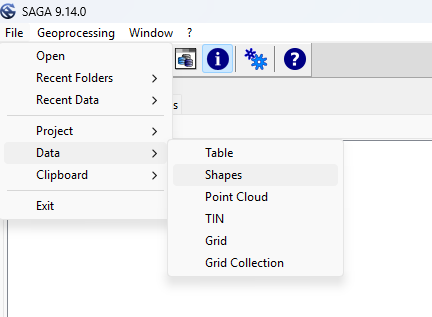
From the top menu, select File > Data > Shapes to load the AOI_CMP.shp and scanner_positions_transformed.shp files. Alternatively, you can simply drag and drop both files into the LIS Pro 3D GUI.
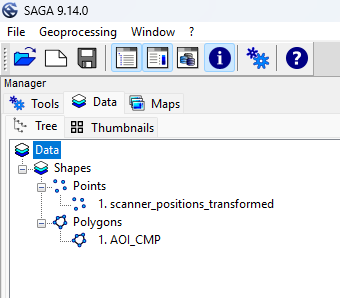
Once loaded, both files will appear in the Data tab.
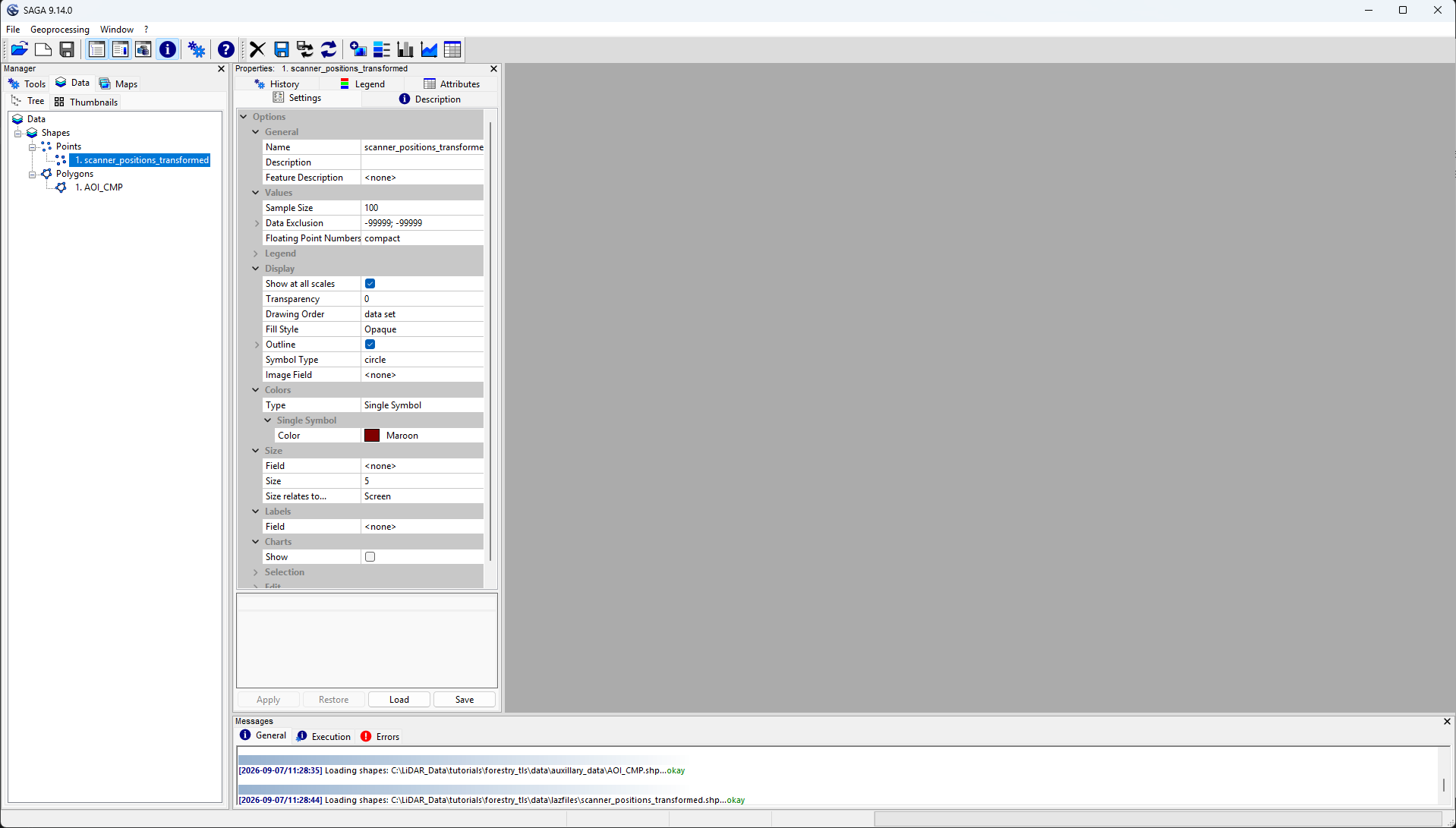
Double-click AOI_CMP.shp to create a new map displaying the shapefile.
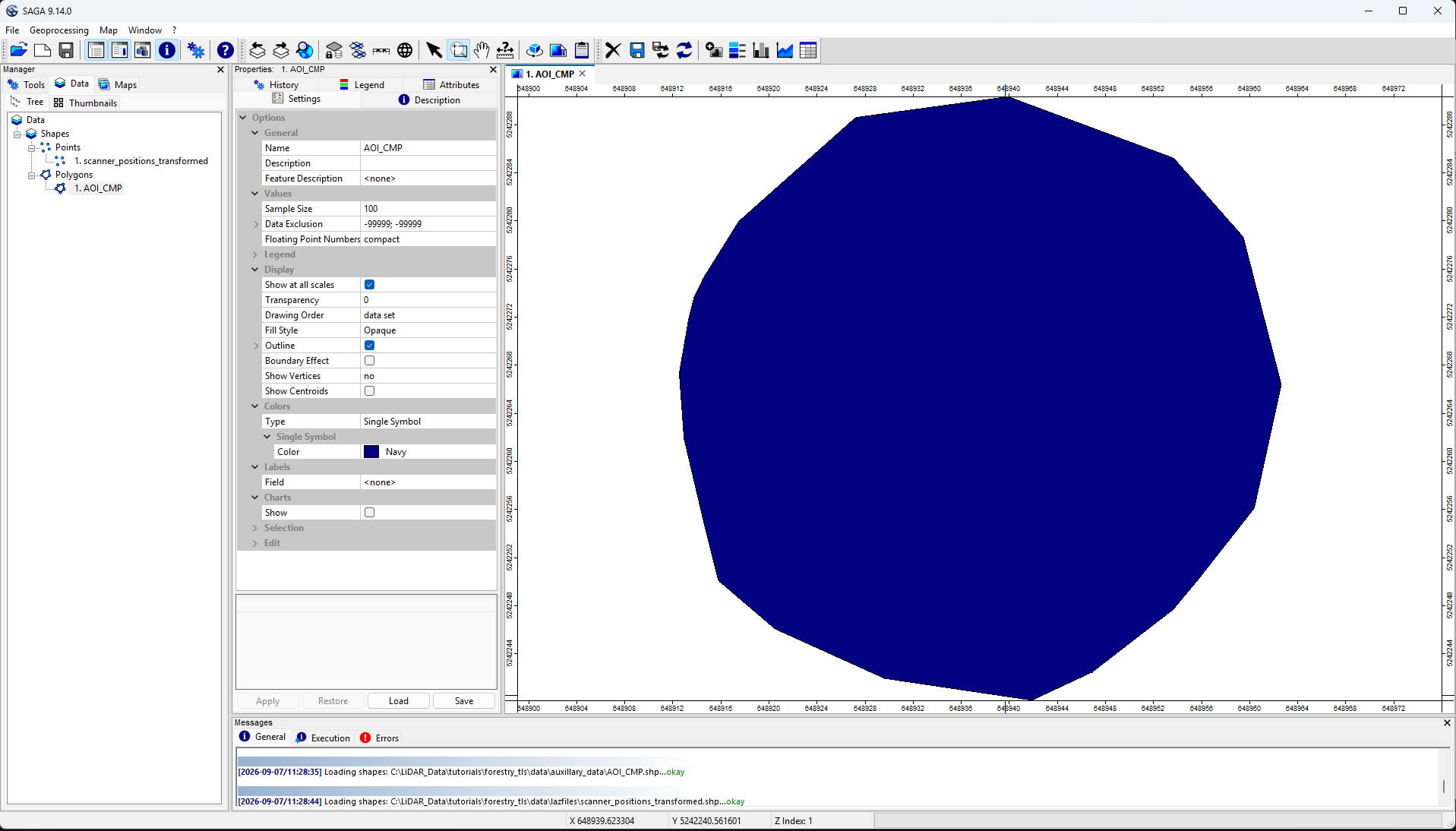
The polygon layer represents the area of interest of our forest plot.
Next, double-click scanner_positions_transformed.shp to add the scan positions to the map. In the pop-up window, select the existing AOI_CMP map to display both layers together.
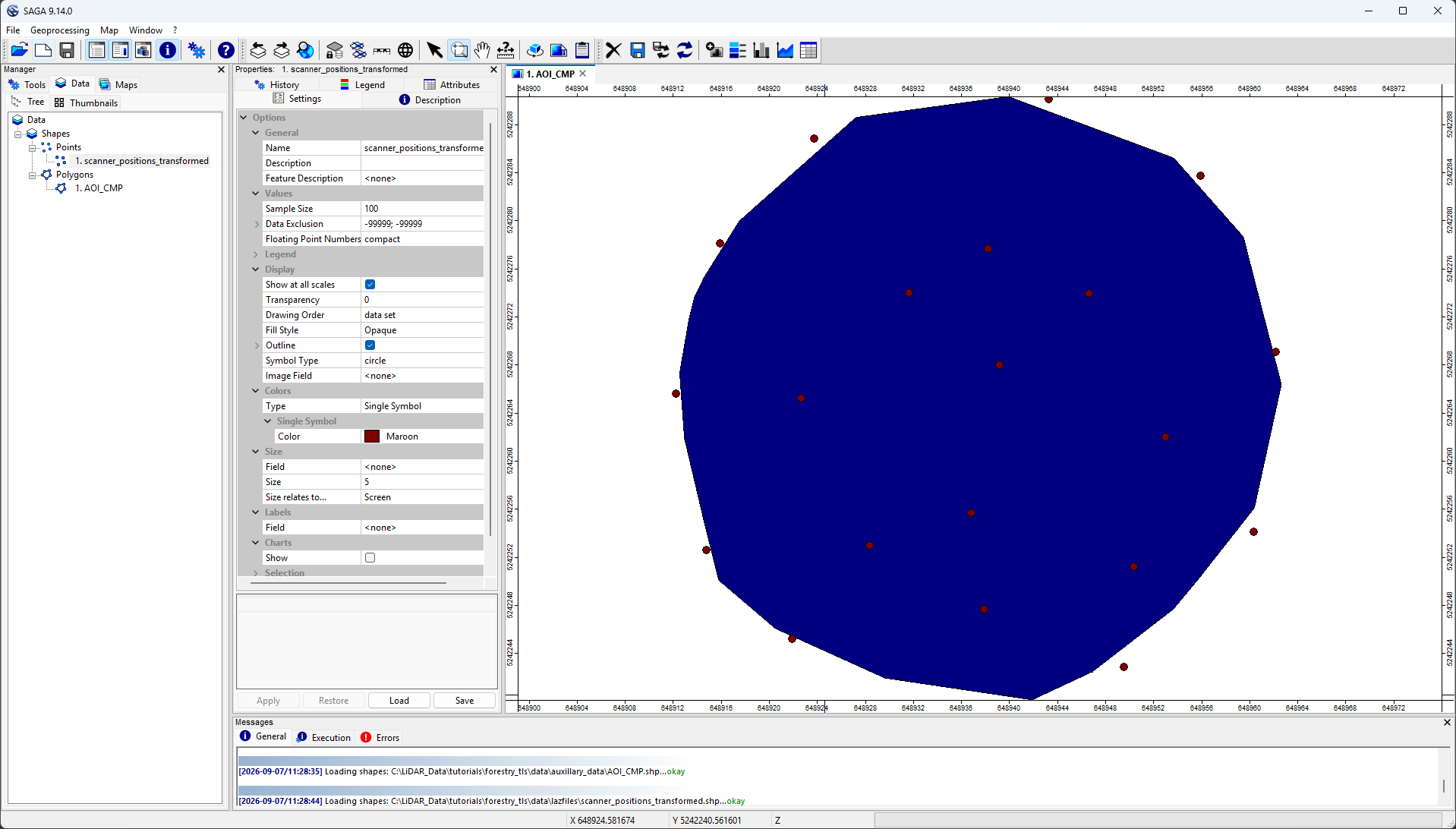
The map now shows the extent of the scanning project and the distribution of individual scan positions.
For this Getting Started tutorial, however, we will focus on processing a small subset of the dataset. We will learn how to process the entire dataset in a later tutorial.
Load the Small Area of Interest
Next, load the AOI_getting_started.shp file into the GUI and add it to the existing map.
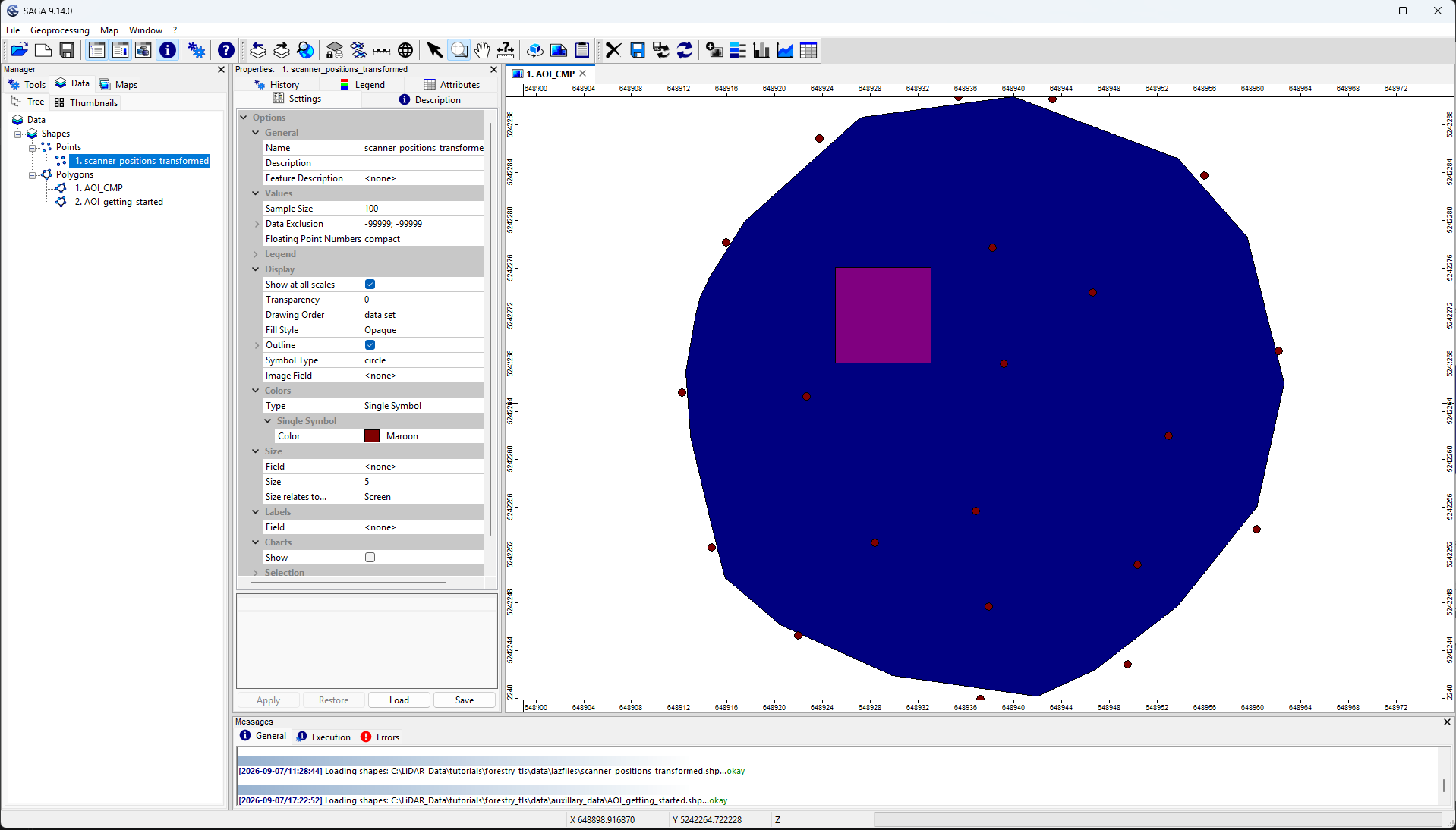
As you can see, this area covers only a small portion of the full dataset.
In the following steps, we will focus on analyzing all trees located within this smaller area of interest.
Extract a Subset from the Virtual Point Cloud
Next, we want to extract the LiDAR points needed for our tree analysis.
For a reliable tree analysis, we need to consider not only the area of interest itself but also its surrounding spatial context.
In particular, accurate individual tree delineation requires us to include points beyond the area of interest to account for trees whose crowns extend across its boundary. As a general guideline, the overlap should be at least as large as the expected average tree crown diameter.
Therefore, we run the Get Subset from Virtual LAS/LAZ tool with an Overlap of 8 m.
Tool: Get Subset from Virtual LAS/LAZ
Geoprocessing → LIS Pro 3D → Virtual → LAS/LAZ // Tools → LIS Pro 3D → Virtual
| Parameter | Setting |
|---|---|
| Options | |
| Filename | C:/LiDAR_Data/tutorials/forestry_tls2/data/lazfiles/scans.lasvf |
| Optional Output Filepath | |
| Copy existing Attributes | 🗹 |
| Add Dataset ID | 🗹 |
| Classes | |
| Last Returns | ☐ |
| Constrain Query | 🗹 |
| Attribute Field | Deviation |
| Value Range | 0;10 |
| Value List | |
| File Compression | 🗹 |
| Fail on Empty Point Clouds | ☐ |
| Point Cloud Thinning | ☐ |
| AOI | |
| > Shape | AOI_getting_started |
| Tilename | <not set> |
| Grid system | <not set> |
| > Grid | <not set> |
| X-Extent | 0;0 |
| Y-Extent | 0;0 |
| Add Overlap | 🗹 |
| Overlap | 8 |
| Skip Empty AOIs | ☐ |
| Optional Tile Info Filename | |
| One Point Cloud per Polygon | ☐ |
A new point cloud layer named las_subset_scans now appears in the Data tab.
Point Cloud Thinning
At this stage, the point cloud has a highly heterogeneous point density, with very high densities close to the scan positions and decreasing densities as the distance from the scanner increases.
For tree analysis at this scale, a spatial resolution of approximately 1 cm is usually sufficient. We therefore apply voxel-based thinning to obtain a more uniform point distribution.
Within each 1 × 1 × 1 cm voxel, we retain the point with the highest intensity value, as this generally provides a strong LiDAR return within the voxel.
For this operation, the standard LAS Intensity values (stored as 16-bit unsigned integers) can be used. However, if available, we recommend using the original floating-point intensity measurements provided by the scanner.
In this example, we use data acquired with a RIEGL VZ-2000i scanner. RIEGL provides range-normalized intensity measurements as Reflectance values, which are stored in the LAS/LAZ Extra Bytes.
First, set the Method Thinning tool parameter to max(attribute). This enables the Thinning Attribute parameter and makes it visible in the tool’s parameter interface.
Tool: Block Thinning 3D
Geoprocessing → LIS Pro 3D → Thinning → Point Cloud // Tools → LIS Pro 3D → Thinning
| Parameter | Setting |
|---|---|
| Data Objects | |
| Point Clouds | |
| >> Point Cloud | las_subset_tiles |
| Filter Attribute | <not set> |
| Thinning Attribute | Reflectance |
| << Point Cloud Thinned | <create> |
| Options | |
| Copy existing Attributes | 🗹 |
| Method Thinning | max(attribute) |
| Horizontal Spacing | 0.01 |
| Vertical Spacing | 0.01 |
| Point Count Filter | ☐ |
| Method Baseline | lowest point |
A new point cloud layer named las_subset_scans_thinned now appears in the Data tab.
Select the layer in the Data tab. In the Settings tab of the Properties window, rename it to tutorial_pc and click Apply.
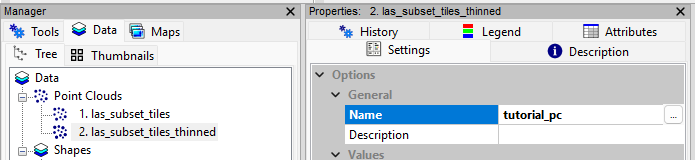
Create a new folder named results in your project directory and save the tutorial_pc point cloud there.
project # top-level folder
├── data
│   ├── auxillary_data
│   └── lazfiles
└── results
    └── tutorial_pc.sg-pts-z
Right-click the tutorial_pc layer and select Save as... to save the point cloud in the results folder.
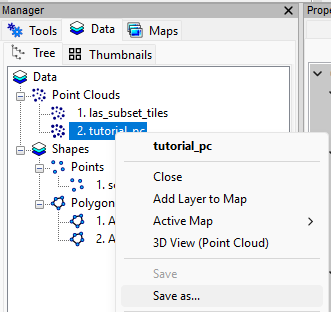
Next, close the original las_subset_scans point cloud layer so that only tutorial_pc remains loaded.
Remove Isolated Points
In most projects, point cloud data comes directly from the scanner without any prior filtering. Therefore, we should check for isolated points, which may appear as unusually high or low outliers. These points can occur for various reasons, such as multipath effects or reflections from moving objects like birds.
To ensure reliable results in the following analysis steps, we first remove these isolated points.
For this, we examine a spherical neighborhood with a radius of 0.1 m around each point. If no other points are found within this neighborhood, the point is classified as isolated and removed from the dataset.
Tool: Remove Isolated Points
Geoprocessing → LIS Pro 3D → Filtering → Point Cloud // Tools → LIS Pro 3D → Filtering
| Parameter | Setting |
|---|---|
| Data Objects | |
| Point Clouds | |
| >> Point Cloud | tutorial_pc |
| Filter Attribute | <not set> |
| > Neighborhood Point Cloud | <not set> |
| < Filtered Point Cloud | <not set> |
| Options | |
| Copy existing Attributes | 🗹 |
| Search Radius | 0.1 |
| Maximum Number of Points | 1 |
| Method | remove points |
The tool removes isolated points directly from the existing tutorial_pc dataset. No additional point cloud layer is created.
Save the updated tutorial_pc point cloud to preserve the changes.
Ground Classification
Finally, we classify the point cloud into ground and non-ground points. This allows us to assign a dz attribute to each LiDAR point, representing its height above the ground.
Additionally, we can use this classification to focus on non-ground points, which may represent vegetation.
Tool: Ground Classification
Geoprocessing → LIS Pro 3D → Classification // Tools → LIS Pro 3D → Classification
| Parameter | Setting |
|---|---|
| Data Objects | |
| Point Clouds | |
| >> Point Cloud | tutorial_pc |
| Classification | <not set> |
| Segment ID | <not set> |
| < Point Cloud Classified | <not set> |
| Shapes | |
| < TIN Polygons | <not set> |
| Options | |
| Copy existing attributes | 🗹 |
| Spatial Sorting | ☐ |
| Attribute Suffix | |
| Seed Generation | |
| Initial Cellsize | 2 |
| Final Cellsize | 0.5 |
| Adjust Cellsize | ☐ |
| Filter Seeds | ☐ |
| TIN Densification | |
| Terrain Angle | 88 |
| Minimum Edge Length | 0.3 |
| Maximum Angle | 25 |
| Maximum Distance | 0.8 |
| Z Tolerance | 0.1 |
| Segments | |
| Point Cloud Normalization | |
| Attach DZ to Point Cloud | 🗹 |
| Classification |
The tool classifies ground points using an iterative TIN (Triangulated Irregular Network) densification approach.
First, an initial ground TIN is constructed from the lowest points within the cells of a 2 m grid (Initial Cellsize = 2 m). The cell size is then progressively reduced until the specified Final Cellsize of 0.5 m is reached, allowing the ground surface to be refined at increasingly finer spatial scales.
During TIN densification, candidate points are evaluated against the current ground TIN. A point is added to the TIN if its angle relative to the TIN does not exceed 25° (Maximum Angle) and its vertical distance from the TIN does not exceed 0.8 m (Maximum Distance). This iterative process progressively incorporates points that are consistent with the estimated terrain surface.
After densification, points within 0.1 m (Z Tolerance) of the final TIN surface are classified as ground points. Additionally, the dz attribute is assigned to each point, representing its height above the final ground TIN surface.
Save the updated tutorial_pc point cloud again and add it to the map.
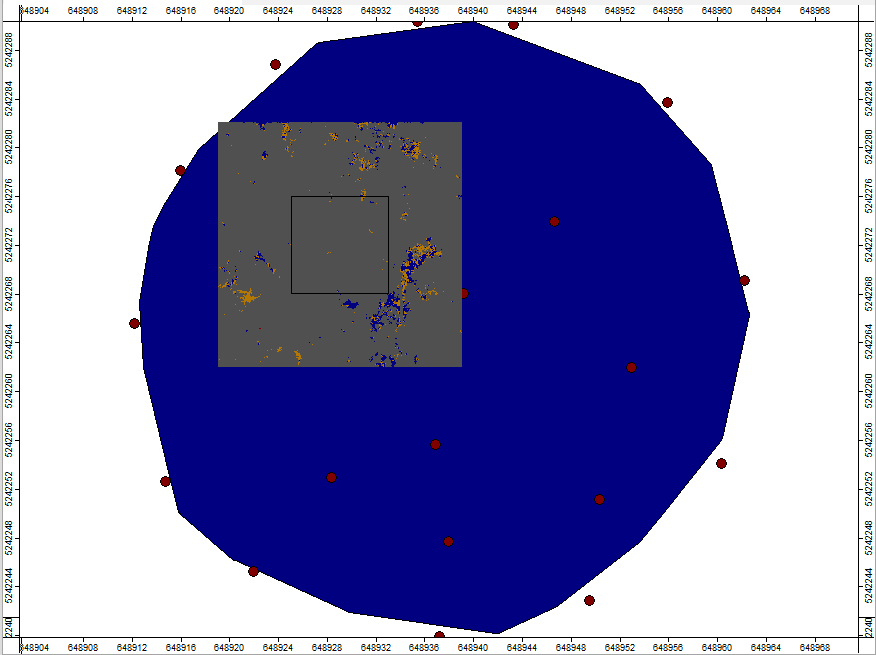
As you can see, the extracted point cloud covers a much larger area than the actual area of interest for this Getting Started tutorial. This is due to the overlap we specified when running the Get Subset from Virtual LAS/LAZ tool. Including this additional spatial context is important for reliable individual tree delineation within our target area of interest.
You can also see that the point cloud is now classified into two classes. In areas with gaps in the canopy, the ground points are visible in light brown, while the remaining non-ground points are displayed in gray.
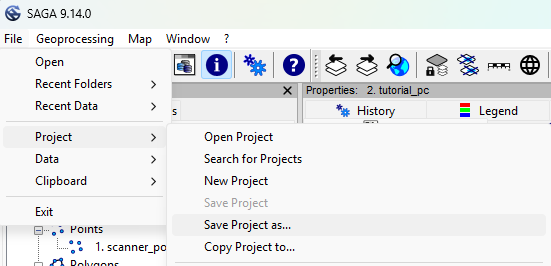
Finally, select File > Project > Save Project as... to save the project to disk. We will continue working with this project in the next tutorial section.
Summary
We have prepared our TLS scan project by creating spatial indices and setting up a virtual point cloud. This allows us to seamlessly access and analyze the entire dataset without physically merging the individual scan positions.
Using this virtual point cloud, we extracted a small subset of the dataset, including sufficient overlap to account for the surrounding spatial context. We then applied voxel-based thinning, removed isolated points, and classified the point cloud into ground and non-ground points. Each point was also assigned a
dzattribute representing its height above ground.Finally, we saved the prepared point cloud and the LIS Pro 3D project, allowing us to continue directly with individual tree analysis in the next tutorial section.