Automate TLS Forestry Analysis - Data Preparation
< Previous section Next section >
Introduction
In the previous tutorial sections, we developed a complete TLS-based forestry analysis workflow using the LIS Pro 3D graphical user interface. Starting with individual tree examples, we gradually extended the workflow to larger forest areas by introducing spatial tiling, buffered processing units, and virtual point clouds.
We then applied stem detection, individual tree segmentation, and 3D tree reconstruction across multiple tiles. By organizing intermediate results and processing the data in manageable units, we demonstrated how larger datasets can be analyzed without loading the entire point cloud into memory.
So far, however, we have executed the individual processing steps manually through the graphical user interface. While this approach is useful for understanding the tools and adjusting their parameters, it becomes increasingly time-consuming when working with larger datasets or repeating analyses.
We will now move toward a Python-based workflow that allows us to automate these processing steps and eventually execute independent tasks in parallel.
In this tutorial section, we will focus on the preparations required for automation. We will create a project configuration to manage input data, output directories, and processing parameters, and develop a data preparation script to establish the necessary processing structure.
In the following tutorial section, we will use this configuration to implement and execute the actual forestry analysis workflow in Python, with a focus on automation, reproducibility, and parallel processing.
If you have no prior experience with automation and LIS Pro 3D, please refer to our Automation Guide. This guide also contains a general introduction to automated point cloud processing and parallelization.
If you have not yet setup LIS Pro 3D for usage with Python (specifically the PySAGA API), please have a look at the Installation of LIS Pro 3D with Python section of the Automation Guide. There, you will find a step-by-step description on how to setup your development environment.
Find the Input Data
You can download the input data for the TLS tutorials here.
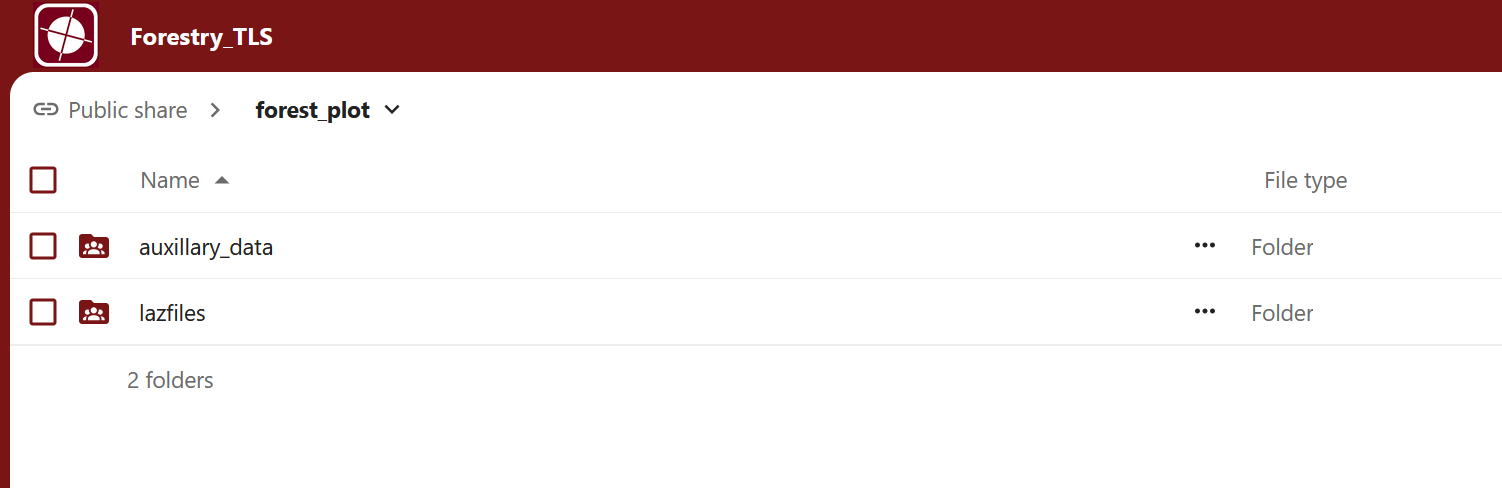
The forest_plot/lazfiles folder contains 22 LAZ files and a shapefile with the scan positions.
The forest_plot/auxillary_data folder contains a set of shapefiles defining the area of interest.
Download both folders to follow this tutorial.
Folder Structure
First, create a new project folder on your computer.
Download and extract the input data into a data subfolder. In addition, create a scripts subfolder, where we will store the Python scripts developed throughout the following tutorial sections.
Your initial project folder structure should look like this:
project # top-level folder
├── data
└── scripts
Make sure there is no additional folder level and that your project directory has exactly the following structure:
project # top-level folder
├── data
│   ├── auxillary_data
│   │   ├── AOI_CMP.cpg
│   │   └── ...
│   └── lazfiles
│       ├── 240425_095411.laz
│       └── ...
└── scripts
Open Visual Studio Code (VS Code)
Open Visual Studio Code (VS Code) and select File > Open Folder from the main menu. Alternatively, use the keyboard shortcut Ctrl + K, followed by Ctrl + O.
Navigate to your project folder and open it in VS Code.
Create the Basic Python Scripts
Next, we will create two Python scripts in the scripts folder:
project_config.py: Stores the project configuration, including input paths, output directories, and processing parameters.01_data_preparation.py: Contains the Python code for preparing the input data and setting up the processing workflow.
In VS Code, open the Explorer using the top icon in the left sidebar. You should see your project folder and its subfolders.
Right-click the scripts folder in the Explorer panel and select New File....
Create the two files, making sure to use the .py extension.
project # top-level folder
├── data
└── scripts
    ├── project_config.py
└── 01_data_preparation.pyBefore running any Python scripts, make sure that VS Code is using the Python interpreter associated with your LIS Pro 3D installation. This is essential because the scripts require access to the LIS Pro 3D Python packages.
In VS Code, press Ctrl + Shift + P to open the Command Palette. Search for Python: Select Interpreter and select the Python environment containing your LIS Pro 3D packages.
If you select a different Python interpreter, the LIS Pro 3D modules may not be available, and the scripts will fail to run.
Once the correct Python interpreter is selected, we are ready to start scripting.
Configure project_config.py
Copy the following code into your project_config.py file:
Use the copy button in the upper-right corner of the code block to copy the entire code snippet at once.
import os
import sys

# make sure to adapt the SAGA_PATH if necessary!
os.environ["SAGA_PATH"] = (
    r"C:\Program Files\Laserdata\LIS Pro 3D"  # SAGA / LIS installation path
)
sys.path.insert(0, os.environ["SAGA_PATH"])

# -----------------------------------------------------------------------------
# processing directories
#
# -----------------------------------------------------------------------------
# the main folder of the project
BASE_DIR = r"C:\...\project"

# e.g.: C:\LiDAR_Data\tutorials\forestry_tls

# -----------------------------------------------------------------------------
# input dirs (both folders should already exist)
LAZ_DIR = os.path.join(BASE_DIR, "data", "lazfiles")
AUXILLARY_DIR = os.path.join(BASE_DIR, "data", "auxillary_data")

# -----------------------------------------------------------------------------
# output dirs
# these folders have to be created
PROCESS_DIR = os.path.join(BASE_DIR, "processing")

# -----------------------------------------------------------------------------
SHAPES_DIR = os.path.join(PROCESS_DIR, "01_shapes")
GRIDS_DIR = os.path.join(PROCESS_DIR, "02_grids")

# -----------------------------------------------------------------------------
CLASS_DIR = os.path.join(PROCESS_DIR, "03_spc_class")

# -----------------------------------------------------------------------------
STEM_DETECTION_DIR = os.path.join(PROCESS_DIR, "04_stem_detect")
STEMS_DIR = os.path.join(STEM_DETECTION_DIR, "01_stems")
SLICES_DIR = os.path.join(STEM_DETECTION_DIR, "02_slices")

# -----------------------------------------------------------------------------
SEGMENTATION_DIR = os.path.join(PROCESS_DIR, "05_segmentation")
TREE_POS_DIR = os.path.join(SEGMENTATION_DIR, "01_tree_positions")
SEGMENTS_DIR = os.path.join(SEGMENTATION_DIR, "02_segments")
OUTLINES_DIR = os.path.join(SEGMENTATION_DIR, "03_outlines")

# -----------------------------------------------------------------------------
METRICS_DIR = os.path.join(PROCESS_DIR, "06_metrics")
POINTCLOUDS_DIR = os.path.join(METRICS_DIR, "01_pointclouds")
TREE_METRICS_DIR = os.path.join(METRICS_DIR, "02_metrics")
SKELETONS_DIR = os.path.join(METRICS_DIR, "03_skeletons")
BRANCH_AXES_DIR = os.path.join(METRICS_DIR, "04_branch_axes")
PIPES_DIR = os.path.join(METRICS_DIR, "05_pipe_models")
TABLES_DIR = os.path.join(METRICS_DIR, "06_tables")

# -----------------------------------------------------------------------------
REPORT_DIR = os.path.join(PROCESS_DIR, "07_report")
TABLES_DIR = os.path.join(REPORT_DIR, "01_tables")
SINGLETREES_LAZ_DIR = os.path.join(REPORT_DIR, "02_singletrees_laz")
SINGLETREES_PNG_DIR = os.path.join(REPORT_DIR, "03_singletrees_png")
SINGLEPIPES_PNG_DIR = os.path.join(REPORT_DIR, "04_singlepipes_png")
DIAGRAMS_DIR = os.path.join(REPORT_DIR, "05_diagrams")
LAYERS_DIR = os.path.join(REPORT_DIR, "06_layers")

# -----------------------------------------------------------------------------
# create (non-existing) dirs
os.makedirs(PROCESS_DIR, exist_ok=True)
os.makedirs(SHAPES_DIR, exist_ok=True)
os.makedirs(GRIDS_DIR, exist_ok=True)
os.makedirs(CLASS_DIR, exist_ok=True)

os.makedirs(STEM_DETECTION_DIR, exist_ok=True)
os.makedirs(STEMS_DIR, exist_ok=True)
os.makedirs(SLICES_DIR, exist_ok=True)

os.makedirs(SEGMENTATION_DIR, exist_ok=True)
os.makedirs(TREE_POS_DIR, exist_ok=True)
os.makedirs(SEGMENTS_DIR, exist_ok=True)
os.makedirs(OUTLINES_DIR, exist_ok=True)

os.makedirs(METRICS_DIR, exist_ok=True)
os.makedirs(POINTCLOUDS_DIR, exist_ok=True)
os.makedirs(TREE_METRICS_DIR, exist_ok=True)
os.makedirs(SKELETONS_DIR, exist_ok=True)
os.makedirs(BRANCH_AXES_DIR, exist_ok=True)
os.makedirs(PIPES_DIR, exist_ok=True)

os.makedirs(REPORT_DIR, exist_ok=True)
os.makedirs(TABLES_DIR, exist_ok=True)
os.makedirs(SINGLETREES_LAZ_DIR, exist_ok=True)
os.makedirs(SINGLETREES_PNG_DIR, exist_ok=True)
os.makedirs(SINGLEPIPES_PNG_DIR, exist_ok=True)
os.makedirs(DIAGRAMS_DIR, exist_ok=True)
os.makedirs(LAYERS_DIR, exist_ok=True)


# -----------------------------------------------------------------------------
# processing files
REFERENCE_TREES = os.path.join(AUXILLARY_DIR, "ReferenceMeasurements.shp")

AOI = os.path.join(AUXILLARY_DIR, "AOI_tutorial.shp")
AOI_BUFFERED = os.path.join(SHAPES_DIR, "AOI_buffered.shp")

PROC_UNITS_GRDCLASS = os.path.join(SHAPES_DIR, "processing_units_grdclass.shp")
PROC_UNITS = os.path.join(SHAPES_DIR, "processing_units.shp")

LASVF = os.path.join(LAZ_DIR, "tiles.lasvf")
SPCVF_CLASS = os.path.join(CLASS_DIR, "tiles.spcvf")
SPCVF_SLICES = os.path.join(SLICES_DIR, "tiles.spcvf")
SPCVF_SEGMENTS = os.path.join(SEGMENTS_DIR, "tiles.spcvf")

# -----------------------------------------------------------------------------
# general parameters for processing
TARGET_COORD = "EPSG:32632"
TILE_SIZE_GRD_CLASSIFICATION = 8.0
TILE_SIZE_PROCESSING = 8.0
OVERLAP_GRD = 2.5
OVERLAP = 8

# -----------------------------------------------------------------------------
# outlier removal parameters
RADIUS_OUTLIER = 0.1
POINTS_OUTLIER = 1

# -----------------------------------------------------------------------------
# stem detection parameters
SLICE_HEIGHT_RANGE = "1.2; 1.8"
SLICE_STEPPING = 0.1
SLICE_THICKNESS = 0.2
SLICE_CONNECT_DIST = 0.2
MIN_INTENSITY = -7.0
MAX_DEVIATION = 10.0
MIN_TREEHEIGHT = 0.000000
SEARCH_RADIUS = 0.05000
MIN_POINT_COUNT = 30
MIN_COMPACTNESS = 0.000000
STEM_DIAMETER_RANGE = "0.05; 0.60"
CIRCLE_FIT_TOL = 20.0
POINTS_ON_CIRCLE = 20
GOODNESS_OF_FIT = 90.0
CIRCLE_COMPLETENESS = 40.0
MIN_DETECTIONS = 3

# -----------------------------------------------------------------------------
# single tree segmentatation parameters
SEED_STEPPING = 0.5
WEIGHT = 6.000000
MAX_GAP_SIZE = 0.4
FOLIAGE_DISTANCE = 1.500000
MIN_INTENSITY_SEG = -7
MAX_DEVIATION_SEG = 14
MIN_PT_DENSITY = 0
MIN_TREE_HEIGHT = 8.000000
MAX_LOWVEG_HEIGHT = 1
CROWN_METRICS_RES = 0.100000
NUM_ITERATIONS = 1
ALL_TREES = True

# -----------------------------------------------------------------------------
# tree metrics parameter
DIAMETER_FACTOR = 1.500000
MIN_INTENSITY_METRICS = -10.000000
MAX_DEVIATION_METRICS = 10
INT_VALUE_RANGE = "-10; 0"
INT_SCALE_FACTOR = 1
SEARCH_RADIUS_METRICS = 0.050000
BRIDGE_DIST = 0.2
ITERATIONS = 10
NODE_STEPPING = 0.05
BRANCHING_DIST = 0.05
NUMBER_PRISMFACES = 12
MIN_CHILDREN = 2
MIN_DIAMETER = 0.005
FORK_RATIO = 90
MIN_FORK_DIAMETER = 0.150000
SIGMA_SMOOTHING = 2.000000
DIRECTION_DETECTION_LENGTH = 0.500000
DBH_REFERENCE_HEIGHT = 1.300000
METHOD_RADIUS = "pipe model approach"
ADJUSTMENT_MODE = "adjust leading axes and branch bases"
ADJUSTMENT_STEPPING = 1
ADJUSTMENT_START = 1
TRUNK_BASE_HEIGHT = 1.0
CROSS_SECTION_MODE = "circular cross-sections"
CIRCULAR_CALC_METHOD = "circle fitting + quantile radius"
REFINE_BRANCH_NODES = True
SEARCH_RADIUS_COMPACTNESS = 0.050000
MIN_COMPACTNESS_METRICS = 60.000000
CIRCLE_FIT_TOL_METRICS = 20.000000
CIRCLE_FIT_RESOLUTION = 0.010000
DIAMETER_CORR_FACTOR = 1.100000
GOODNESS_OF_FIT_METRICS = 95.000000
CIRCLE_COMPLETENESS_METRICS = 50.000000
TAPER_TOLERANCE = 20.000000

# -----------------------------------------------------------------------------
# report parameter
POPULATION_NAME = "LISPro3D trials"
STRATUM_NAME = "scots_pine"
PLOT_NAME = "fair_mieming_cmp"
MIN_TREE_HEIGHT_REPORT = 4.0
MAX_HIERARCHY_REPORT = 2  # including 0;1
IMAGE_RESOLUTION = 0.01
LINE_SPACING = 0.5
Change BASE_DIR
The BASE_DIR variable must point to the main project directory on your computer.
Replace the example path with the actual location of your project folder (for example, C:\path\to\forestry-tls).
# Replace this example path with your actual project directory.
BASE_DIR = r"C:\path\to\forestry-tls"On Windows, we recommend using a raw string (with the r prefix) for paths containing backslashes. This prevents Python from interpreting backslashes as escape characters.
Change LAZ_DIR (If Necessary)
The LAZ_DIR variable defines the location of the input data.
If you are following the tutorial and have organized your folders as described above, you can keep the default setting.
However, if your input data are stored outside the project directory, you will need to adjust this path accordingly.
# Change this path if your input data are stored elsewhere.
LAZ_DIR = os.path.join(BASE_DIR, "data")
Adjust the Processing Tile Size and Overlap (If Necessary)
We will divide our area of interest (AOI) into smaller processing tiles of 8 × 8 m, with an additional 8 m buffer around the processing area.
These settings are suitable for the tutorial dataset and allow us to process the point cloud in manageable units while accounting for trees near tile boundaries.
If you apply the workflow to your own data, you may need to adjust the tile size and overlap depending on the point cloud density, tree dimensions, and available computer memory.
For example, if your computer has sufficient memory, you could consider increasing the tile size to 10 × 10 m, 15 × 15 m, or even 20 × 20 m.
Run project_config.py (If Necessary)
After adjusting the configuration, run project_config.py using the Run button in the upper-right corner of the VS Code editor.
As the script includes the directory creation steps, the required project folders will now be created automatically.
Your project directory should now contain the following folders:
project # top-level folder
├── data
├── scripts
└── processing
    ├── 01_shapes
    ├── 02_grids
    ├── 03_spc_class
    ├── 04_stem_detect
    │   ├── 01_stems
    │   └── 02_slices
    ├── 05_segmentation
    │   ├── 01_tree_positions
    │   ├── 02_segments
    │   └── 03_outlines
    ├── 06_metrics
    │   ├── 01_pointclouds
    │   ├── 02_metrics
    │   ├── 03_skeletons
    │   ├── 04_branch_axes
    │   └── 05_pipe_models
    └── 07_report
        ├── 01_tables
        ├── 02_singletrees_laz
        ├── 03_singletrees_png
        ├── 04_singlepipes_png
        ├── 05_diagrams
        └── 06_layers
Create the 01_data_preparation.py Script
Overview of the Processing Steps
Next, we will create a Python script to automate the data preparation steps that we previously performed manually in the LIS Pro 3D graphical user interface.
The script will carry out the following tasks:
Load the area of interest (AOI) provided with the tutorial data.
Create a file list of the available LAS/LAZ point clouds.
Generate spatial indices (
.laxfiles) for the LAS/LAZ files.Create a virtual point cloud catalog (
.lasvf) referencing all available point clouds.Create a buffer around the AOI to account for neighboring trees and boundary effects.
Generate an 8 × 8 m tiling scheme covering the buffered AOI.
Select the processing tiles that intersect the buffered AOI.
Generate an 8 × 8 m tiling scheme covering the original AOI.
Select the processing tiles that intersect the original AOI.
Save both sets of processing units to disk:
cfg.PROC_UNITS_GRDCLASS: Processing units for point cloud preparation and ground classification, including the buffered area.cfg.PROC_UNITS: Processing units for the subsequent forestry analysis within the original AOI.
This gives us two sets of processing units: one covering the larger buffered area for data preparation and classification, and another covering the actual target area for the subsequent forestry analysis.
Copy the following code into your 01_data_preparation.py script.
import os
import project_config as cfg
from PySAGA import saga_api, lis_cmd
from PySAGA.tools import *


def prepare_data():

    # -----------------------------------------------------------------------------
    # load aoi for processing_units creation
    aoi = saga_api.SG_Get_Data_Manager().Add_Shapes(cfg.AOI)

    if not aoi:
        return lis_cmd.Error_Return(f"Loading aoi failed")

    # -----------------------------------------------------------------------------
    # make list of all laz files in input folder
    inputfiles = lis_cmd.Create_File_List(
        cfg.LAZ_DIR,
        ".las;.laz",
        os.path.join(cfg.LAZ_DIR, "lasvf_input_file_list.txt"),
        True,
    )

    # -----------------------------------------------------------------------------
    # create las-index for better las/laz file access
    if not lis_io.Create_LASLAZ_Index(
        FILES="",
        INPUT_FILE_LIST=inputfiles,
        INDEX_ALL=True,
        TILE_SIZE=0.000000,
        THRESHOLD=1000,
        MIN_POINTS=100000,
        MAX_INTERVALS=-20,
    ):
        return lis_cmd.Error_Return("Failed to execute tool")

    # -----------------------------------------------------------------------------
    # create virtual las dataset
    if not lis_virtual.Create_Virtual_LASLAZ_Dataset(
        FILES="",
        INPUT_FILE_LIST=inputfiles,
        FILENAME=cfg.LASVF,
        METHOD_PATHS="relative",
        COLOR_DEPTH="16 bit",
        EXTRA_BYTES=True,
    ):
        return lis_cmd.Error_Return("Failed to execute tool")

    # -----------------------------------------------------------------------------
    # create buffered processing aoi
    aoi_buffered = saga_api.SG_Get_Data_Manager().Add_Shapes()

    if not shapes_tools.Shapes_Buffer(
        SHAPES=aoi,
        BUFFER=aoi_buffered,
        DIST_FIELD="<not set>",
        DIST_FIELD_DEFAULT=cfg.OVERLAP,
        DISSOLVE=True,
        NZONES=1,
        POLY_INNER=False,
        DARC=5.000000,
        JOIN_TYPE="Round",
    ):
        return lis_cmd.Error_Return("Failed to execute tool")

    aoi_buffered.Get_Projection().Create(cfg.TARGET_COORD)
    aoi_buffered.Save(cfg.AOI_BUFFERED)

    # -----------------------------------------------------------------------------
    # create processing_units with buffered aoi
    processing_units_grdclass = saga_api.SG_Get_Data_Manager().Add_Shapes()

    if not lis_tools.Create_Spatial_Processing_Units(
        SHP_EXTENT=aoi_buffered,
        SHP_UNITS=processing_units_grdclass,
        TILE_SIZE=cfg.TILE_SIZE_GRD_CLASSIFICATION,
    ):
        return lis_cmd.Error_Return("Failed to execute tool")

    selected_processing_units_grdclass = saga_api.SG_Get_Data_Manager().Add_Shapes()

    if not shapes_tools.Select_by_Location(
        SHAPES=processing_units_grdclass,
        COPY=selected_processing_units_grdclass,
        LOCATIONS=aoi,
        CONDITION="intersect",
        METHOD="new selection",
        POSTJOB="copy",
    ):
        return lis_cmd.Error_Return("Failed to execute tool")

    # -----------------------------------------------------------------------------
    # save prepared processing_units
    selected_processing_units_grdclass.Save(cfg.PROC_UNITS_GRDCLASS)

    # -----------------------------------------------------------------------------
    # create processing_units with aoi
    processing_units = saga_api.SG_Get_Data_Manager().Add_Shapes()

    if not lis_tools.Create_Spatial_Processing_Units(
        SHP_EXTENT=aoi,
        SHP_UNITS=processing_units,
        TILE_SIZE=cfg.TILE_SIZE_PROCESSING,
    ):
        return lis_cmd.Error_Return("Failed to execute tool")

    selected_processing_units = saga_api.SG_Get_Data_Manager().Add_Shapes()

    if not shapes_tools.Select_by_Location(
        SHAPES=processing_units,
        COPY=selected_processing_units,
        LOCATIONS=aoi,
        CONDITION="intersect",
        METHOD="new selection",
        POSTJOB="copy",
    ):
        return lis_cmd.Error_Return("Failed to execute tool")

    # -----------------------------------------------------------------------------
    # save prepared processing_units
    selected_processing_units.Save(cfg.PROC_UNITS)

    # -----------------------------------------------------------------------------
    # free memory ressources
    saga_api.SG_Get_Data_Manager().Delete()

    return True


# -----------------------------------------------------------------------------
# -----------------------------------------------------------------------------
# -----------------------------------------------------------------------------
if __name__ == "__main__":

    # -----------------------------------------------------------------------------
    # start the logging
    starttime = lis_cmd.Start_Logging(False)

    # -----------------------------------------------------------------------------
    # call the processing function
    result = prepare_data()

    if not result:
        lis_cmd.Error_Exit("Processing task failed", starttime)

    # -----------------------------------------------------------------------------
    # stop logging
    lis_cmd.Stop_Logging(starttime)
Summary
In this tutorial section, we took the first steps toward automating our TLS-based forestry analysis workflow with Python.
We created a project configuration that defines the input data, output directories, filenames, and processing parameters in a central location. This makes it easier to adjust the workflow for different datasets and computer environments without modifying the individual processing scripts.
We also developed a data preparation script that automates the initial setup of our processing workflow. The script creates spatial indices for the input point clouds, establishes a virtual point cloud dataset, and generates the processing units for the buffered and original areas of interest.
With these preparations complete, we now have a consistent project structure and the spatial framework needed to process our TLS data automatically.
In the next tutorial section, we will move on to the actual forestry processing workflow in Python. Building on the configuration and processing units created here, we will automate ground classification, stem detection, individual tree segmentation, and 3D tree reconstruction. We will also introduce parallel processing to make the workflow more efficient when working with larger forest datasets.