Putting It into Practice - Data Processing
< Previous section Next section >
Recap
In the previous tutorial section, we prepared our TLS dataset for processing larger forest areas. We organized the individual scans into a virtual point cloud, defined the area of interest, and added a buffer to account for neighboring trees and potential boundary effects.
We then divided the study area into smaller processing units and used them to perform the initial point cloud filtering and classification steps. The resulting tiles contain data from all overlapping scan positions and form a consistent dataset that can be processed without loading the entire point cloud into memory.
With these preparations complete, we can now move on to the actual forestry analysis. In this tutorial section, we will apply the tools for stem detection, individual tree segmentation, and tree metric extraction to our tiled dataset, demonstrating how the workflow can be scaled up from a few individual trees to a larger forest area.
Create Additional Output Folders
In the next step, we will save the stem detection results in the 04_stem_detection folder.
To keep the different outputs organized, create two subfolders inside this directory: 01_slice and 02_stem_positions.
project # top-level folder
├── data
└── processing
   ├── ...
   └── 04_stem_detection
      ├── 01_slice
      └── 02_stem_positions
Stem Detection
The first forestry-related step in processing terrestrial LiDAR data is detecting tree stems at breast height.
In this example, we are working with a Scots pine (Pinus sylvestris) forest with a substantial understory of juniper shrubs. The dense understory vegetation makes stem detection particularly challenging, as tree stems may be partially obscured by surrounding vegetation points.
Our main objective is therefore to identify tree stems reliably, even when they are partly hidden within the understory point cloud.
Tool: Tree Trunk and Diameter Detection [multi-tile]
Geoprocessing → LIS Pro 3D → Forestry → [multi-tile] Processing // Tools → LIS Pro 3D → Forestry
| Parameter | Setting |
|---|---|
| Options | |
| Virtual Point Cloud | |
| Virtual Point Cloud File | C:/LiDAR_Data/tutorials/forestry_tls/processing/03_classification/tiles.spcvf |
| Intensity Fieldname | Reflectance |
| Deviation Fieldname | Deviation |
| DZ Fieldname | dz |
| Tree Height Fieldname | |
| Copy existing attributes | 🗹 |
| Tiling | |
| >> Tiling Scheme | AOI_tutorial [Buffer] |
| Overlap | 1 |
| Output | |
| Output Folder Point Clouds | C:/LiDAR_Data/tutorials/forestry_tls/processing/04_stem_detection/01_slice |
| File Compression | 🗹 |
| Output Folder Tree Positions | C:/LiDAR_Data/tutorials/forestry_tls/processing/04_stem_detection/02_stem_detection |
| Attribute Suffix | |
| Stem Detection | |
| Method Stem Detection | multiple slices |
| Slice Height Range | 1.2;1.8 |
| Slice Stepping | 0.1 |
| Connection Distance | 0.2 |
| Slice Thickness | 0.2 |
| Minimum Intensity | -7 |
| Maximum Deviation | 10 |
| Minimum Tree Height | 0 |
| Search Radius | 0.05 |
| Minimum Point Count | 30 |
| Minimum Compactness | 0 |
| Stem Diameter Estimation | |
| Stem Diameter Range | 0.05;0.6 |
| Circle Fitting Tolerance | 20 |
| Filtering | |
| Points on Circle | 20 |
| Goodness of Fit | 90 |
| Circle Completeness | 40 |
| Minimum Detections per Stem | 3 |
| Percentile Radius | 20 |
| Apply Correction Function | ☐ |
After running the tool, a file named tile_0_648909_5242252_slice.sg-pts-z is created in the 01_slice folder.
Drag and drop this file into the LIS Pro 3D interface and add it to a new map.
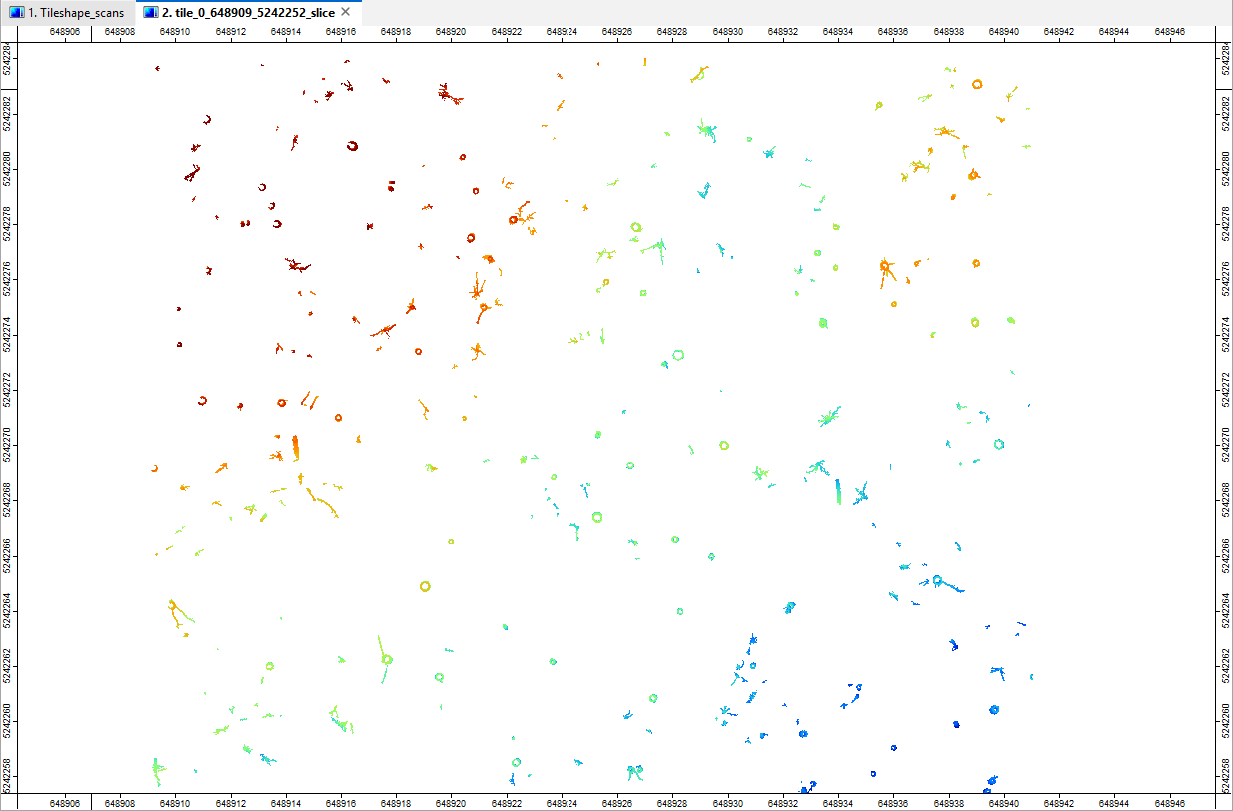
The dataset represents a filtered horizontal slice through the point cloud. Most of the understory vegetation has already been removed, making the circular cross-sections of the tree stems clearly visible.
In addition, a tree_positions.shp file is created in the 02_stem_positions folder. Load this layer into the project and add it to the map as well.
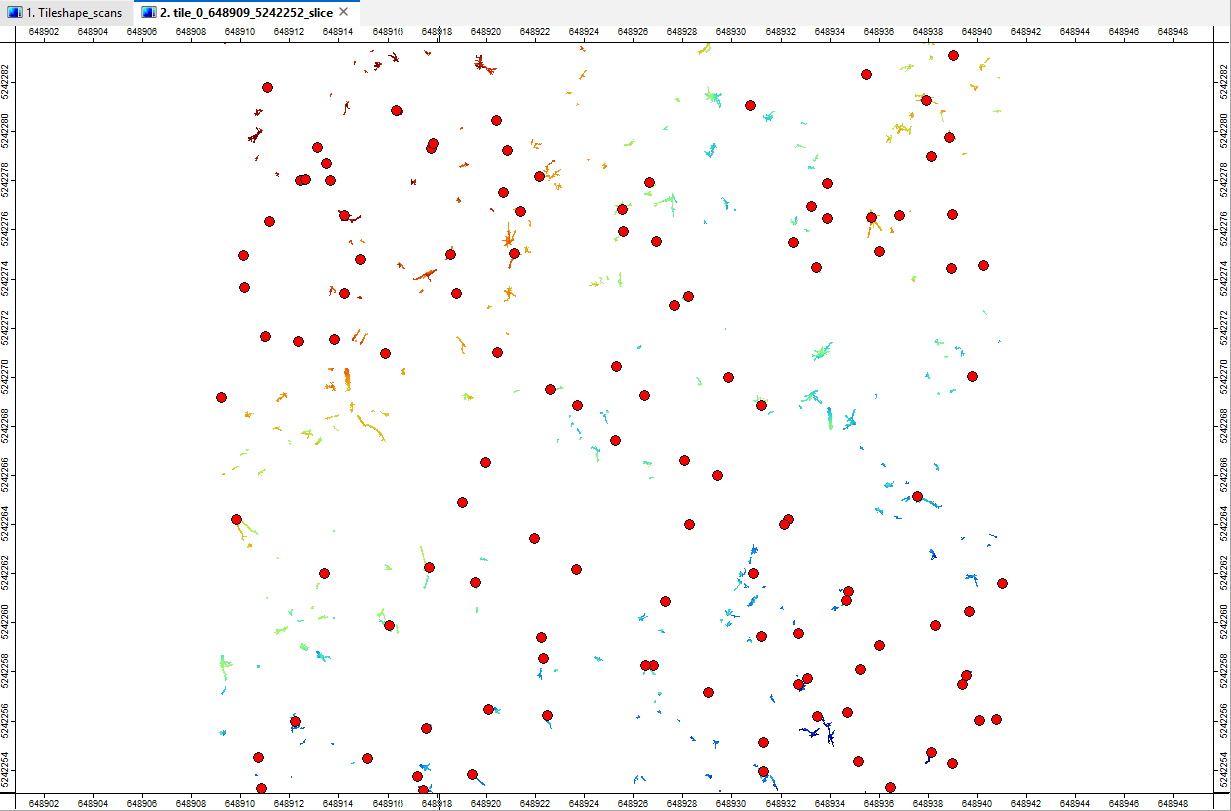
Join Reference Tree IDs (Optional)
Each detected tree position is assigned a treeid, which reflects the order in which the trees were processed. However, these IDs are not necessarily stable and may change when the tool is run with different input data or parameter settings.
For multitemporal projects, we therefore recommend using a consistent set of reference tree IDs. These can be derived from a master tree ID layer, such as the first measurement campaign, or from predefined tree positions and identifiers collected during conventional field surveys.
In our example, we have a reference tree ID layer based on traditional field measurements.
You can find this dataset in your project’s data/auxillary_data folder.
project # top-level folder
└── data
    ├── auxillary_data
    │   └── ReferenceMeasurements.shp
Load ReferenceMeasurements.shp into the LIS Pro 3D project and add it to the map.
You can see that our LiDAR-based stem detection has identified more trees than are included in the reference dataset. Most of these additional detections are located outside the Continuous Monitoring Plot (CMP) and are therefore not included in the reference measurements. A few correspond to smaller understory trees.
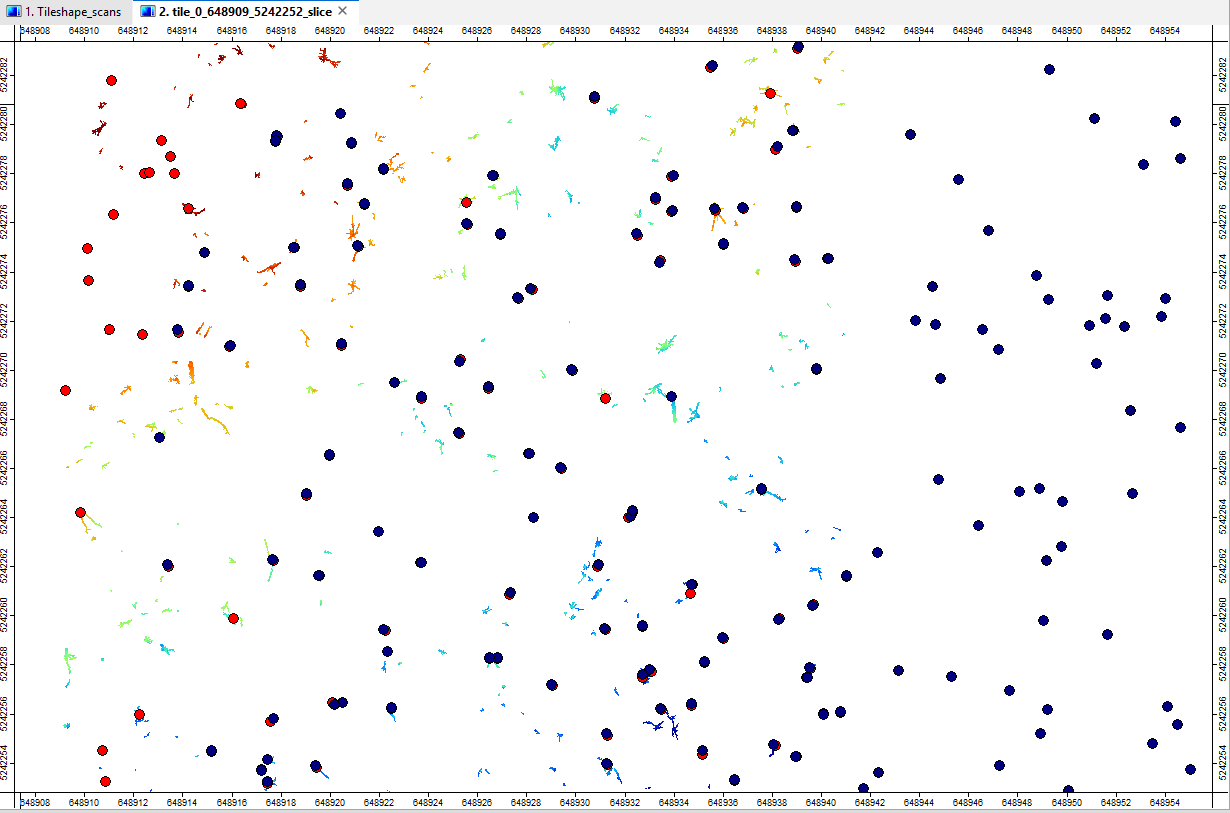
Next, we will join the reference tree IDs to our detected tree positions to establish a consistent identification scheme.
Tool: Join Attributes by NN Search (Shapes)
Geoprocessing → LIS Pro 3D → Tools → Shapes → Attributes // Tools → LIS Pro 3D → Tools
| Parameter | Setting |
|---|---|
| Data Objects | |
| Shapes | |
| >> Shapes | tree_positions |
| Maximum Distance | <not set> |
| >> Shapes to Join | ReferenceMeasurements |
| Attributes | choose “ID” in the Attributes Selection |
| < Shapes | <not set> |
| Options | |
| Attribute Suffix | Reference |
| Dimension | 2D search |
| Maximum Distance | 0.2 |
| Value for Undefined Points | NoData |
| Add Join Flag | ☐ |
Based on the neighborhood analysis, the tree_positions dataset now contains an additional attribute named ID_Reference, which stores the matched reference tree ID.
However, as we saw earlier, some detected tree positions have no corresponding reference measurement. These trees therefore have a NoData value in the ID_Reference field.
To address this, we will select only those tree positions with a valid ID_Reference value.
Tool: Select by Attributes… (Numerical Expression)
Geoprocessing → Shapes → Selection // Tools → Shapes → Tools
| Parameter | Setting |
|---|---|
| Data Objects | |
| Shapes | |
| >> Shapes | tree_positions |
| Attribute | ID_Reference |
| << Copy | <create> |
| Options | |
| Expression | x > 0 |
| Inverse | ☐ |
| Use No-Data | ☐ |
| Method | new selection |
| Post Job | copy |
This creates a new dataset named tree_positions [Selection] in the Data tab.
Save this dataset in the 04_stem_detection/02_stem_positions folder.
Create Additional Output Folders for Individual Tree Segmentation
In the 05_segmentation folder, create three subfolders to organize the outputs of the individual tree segmentation:
01_segments02_tree_positions03_boundaries
project # top-level folder
├── data
└── processing
   ├── ...
   └── 05_segmentation
      ├── 01_segments
      ├── 02_tree_positions
      └── 03_boundaries
Individual Tree Segmentation
We can now run the Single Tree Derivation 3D tool to delineate individual trees using the previously detected stem positions.
We can now use the unbuffered processing_units dataset as our tiling scheme.
During data preparation and stem detection, we processed a larger, buffered area containing 16 tiles to account for neighboring trees and boundary effects.
For the final tree segmentation results, however, we only need the trees within AOI_tutorial, which is covered by four processing units. Note that we still use a tile overlap.
Tool: Single Tree Derivation 3D [multi-tile]
Geoprocessing → LIS Pro 3D → Forestry → [multi-tile] Processing // Tools → LIS Pro 3D → Forestry
| Parameter | Setting |
|---|---|
| Options | |
| Virtual Point Cloud | |
| Virtual Point Cloud File | C:/LiDAR_Data/tutorials/forestry_tls/processing/03_classification/tiles.spcvf |
| Intensity Fieldname | Reflectance |
| Deviation Fieldname | Deviation |
| Classification Fieldname | grdclass |
| DZ Fieldname | dz |
| Copy existing attributes | 🗹 |
| Exclude Point Classes | 2;6;9 |
| Tiling | |
| >> Tiling Scheme | processing_units |
| Overlap | 8 |
| Tree Positions | |
| > Known Tree Positions | tree_positions [Selection] |
| Tree ID | ID_Reference |
| Trunk Diameter | diameter_mean |
| Slice Height | slice_height |
| Seed Blocking Distance | <not set> |
| Initial Gap Size | <not set> |
| Output | |
| Output Folder | C:/LiDAR_Data/tutorials/forestry_tls/processing/05_segmentation/01_segments |
| File Compression | 🗹 |
| Output Folder Tree Positions | C:/LiDAR_Data/tutorials/forestry_tls/processing/05_segmentation/02_tree_positions |
| Output Folder Boundaries | C:/LiDAR_Data/tutorials/forestry_tls/processing/05_segmentation/03_boundaries |
| Attribute Suffix | |
| Segmentation | |
| Step Size | 0.5 |
| Cost Weighting | 6 |
| Maximum Gap Size | 0.4 |
| Foliage Label Distance | 1.5 |
| Minimum Intensity | -7 |
| Maximum Deviation | 14 |
| Minimum Tree Height | 8 |
| Crown Metrics Resolution | 0.1 |
| Iterations | 1 |
| Output All Trees | ☐ |
| Start Cost Synthetic Seeds | 0 |
| Automation | |
| Tree ID Offset | 0 |
Create a Virtual Point Cloud from the Results
To provide seamless access to the individual tiles of our segmented point cloud, we will create another virtual point cloud that references all segmentation results in the 05_segmentation/01_segments folder.
This allows us to work with the entire segmented dataset as a single virtual point cloud without physically merging the individual tiles.
Tool: Create Virtual Point Cloud Dataset
Geoprocessing → LIS Pro 3D → Virtual → SPC // Tools → LIS Pro 3D → Virtual
| Parameter | Setting |
|---|---|
| Options | |
| Input Files | “C:/LiDAR_Data/tutorials/forestry_tls/processing/05_segmentation/01_segments/tile_0_648917_5242260_segmented.sg-pts-z” “C:/LiDAR_Data/tutorials/forestry_tls/processing/05_segmentation/01_segments/tile_1_648925_5242260_segmented.sg-pts-z” “C:/LiDAR_Data/tutorials/forestry_tls/processing/05_segmentation/01_segments/tile_2_648917_5242268_segmented.sg-pts-z” “C:/LiDAR_Data/tutorials/forestry_tls/processing/05_segmentation/01_segments/tile_3_648925_5242268_segmented.sg-pts-z” |
| Input File List | |
| Filename | C:/LiDAR_Data/tutorials/forestry_tls/processing/05_segmentation/01_segments/tiles.spcvf |
| File Paths | relative |
| Use Header File | 🗹 |
| Ignore Table Structure | ☐ |
Load the Segmented Point Cloud into the GUI
We can now use the virtual point cloud to load a spatial subset of the segmented dataset into LIS Pro 3D.
For the query area, select AOI_tutorial [Buffer] to ensure that all available segmentation results within the buffered area are included.
Tool: Get Subset from Virtual Point Cloud
Geoprocessing → LIS Pro 3D → Virtual → SPC // Tools → LIS Pro 3D → Virtual
| Parameter | Setting |
|---|---|
| Options | |
| Filename | C:/LiDAR_Data/tutorials/forestry_tls/processing/05_segmentation/01_segments/tiles.spcvf |
| Optional Output Filepath | |
| File Compression | 🗹 |
| Copy existing Attributes | 🗹 |
| Add Dataset ID | ☐ |
| Constrain Query | ☐ |
| Point Cloud Thinning | ☐ |
| Fail on Empty Point Clouds | ☐ |
| AOI | |
| > Shape | AOI_tutorial [Buffer] |
| Tilename | <not set> |
| Grid system | <not set> |
| > Grid | <not set> |
| X-Extent | 0;0 |
| Y-Extent | 0;0 |
| Add Overlap | ☐ |
| One Point Cloud per Polygon | ☐ |
As a result, a point cloud dataset named spc_subset_tiles appears in the Data tab. Add it to the map.
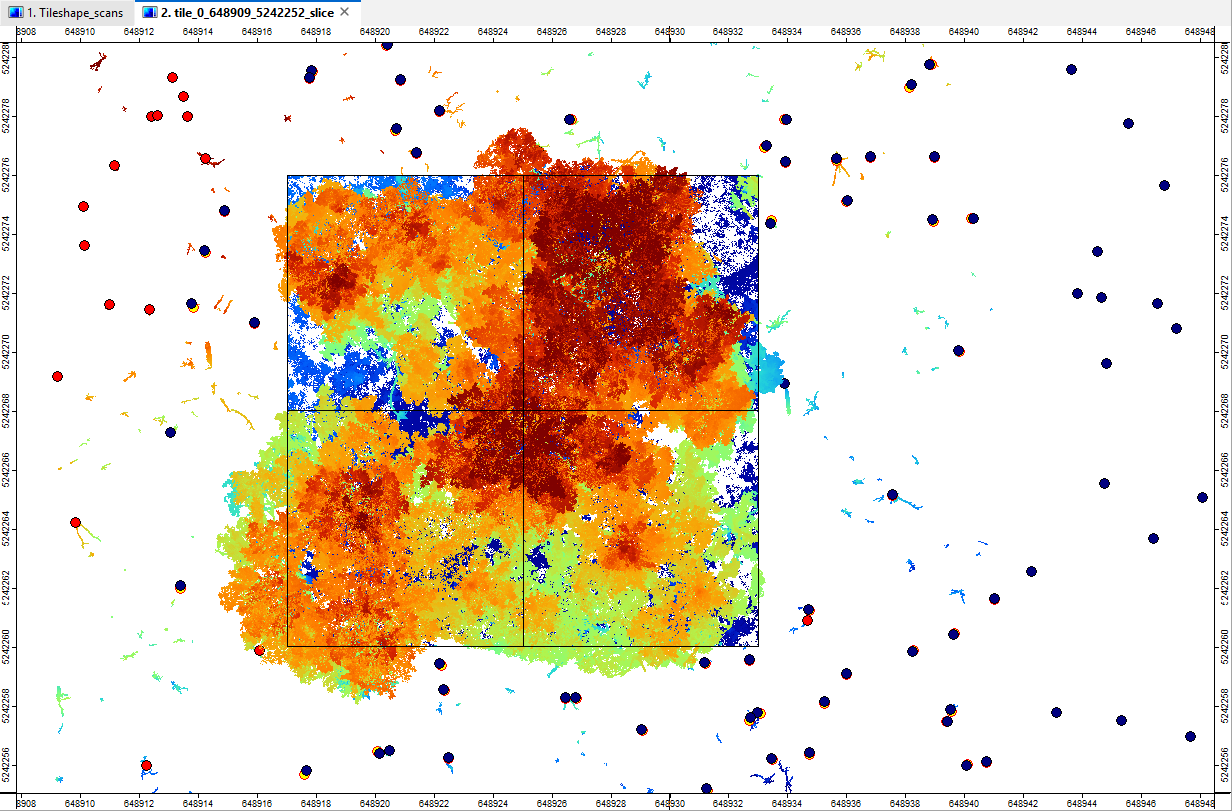
The dataset contains the results from all four processing tiles. Notice that individual tree crowns have been preserved across tile boundaries rather than being cut at the edges of the processing units.
Load Crown Boundaries and Tree Positions
Next, load the four tree position shapes layers from the 05_segmentation/02_tree_positions folder and the corresponding crown boundary shapes layers from the 05_segmentation/03_boundaries folder into the GUI.
Add these layers to the map.
To add multiple layers at once, hold Shift while selecting the loaded crown boundary layers in the Data tab. Then right-click the selection and choose Show to add all selected layers to an existing map.
Repeat the same procedure for the tree position layers.
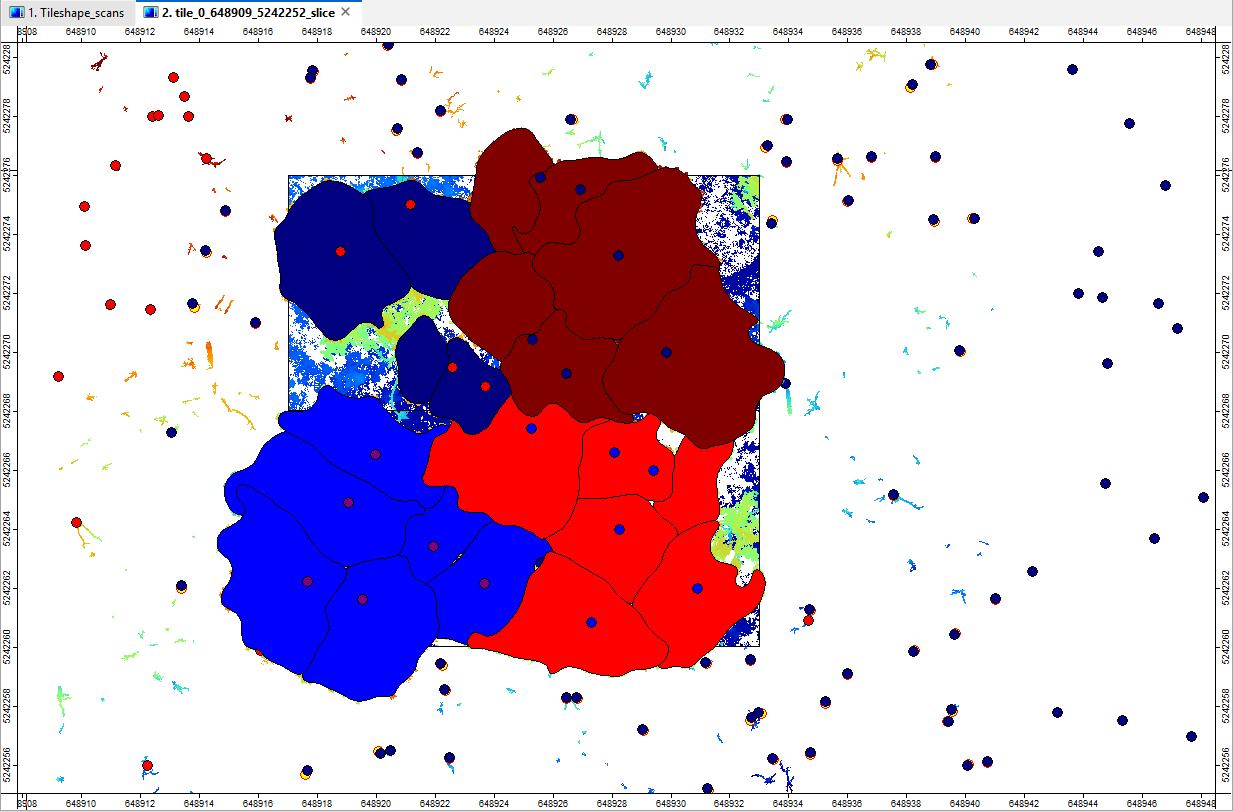
By adjusting the layer colors and transparency settings, we can make the map easier to interpret.
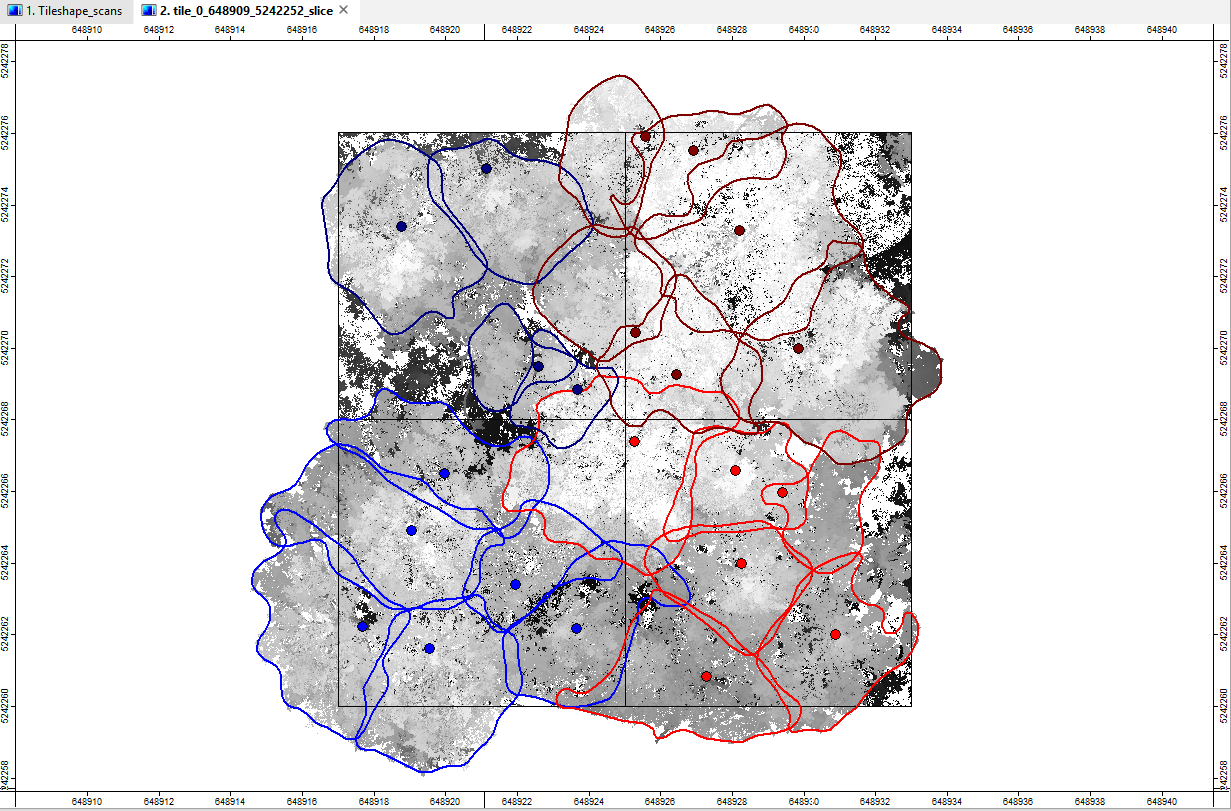
Some tree crowns overlap and extend beyond the actual target area. However, all trees with stem positions inside the target area have been segmented completely, including the parts of their crowns that extend across tile boundaries.
The results from the individual processing tiles fit together like pieces of a puzzle, forming a consistent segmentation of the target area.
As an additional exercise, try merging the tiled shapes layers into a single, consistent dataset.
Tool: Merge Layers
Geoprocessing → Shapes → Construction // Tools → Shapes → Tools
| Parameter | Setting |
|---|---|
| Data Objects | |
| Shapes | |
| >> Layers | 4 objects (tile_0_648917_5242260_boundaries, tile_1_648925_5242260_boundaries, tile_2_648917_5242268_boundaries, tile_3_648925_5242268_boundaries) |
| << Merged Layer | <create> |
| Options | |
| Add Source Information | ☐ |
| Match Fields by Name | ☐ |
| Delete | ☐ |
View the Point Cloud in the Point Cloud Editor
Open the Point Cloud Editor using the following settings:
Tool: Point Cloud Editor
Geoprocessing → LIS Pro 3D → Point Cloud Editor // Tools → LIS Pro 3D → Point Cloud Editor
| Parameter | Setting |
|---|---|
| Data Objects | |
| Point Clouds | |
| >> Point Cloud | spc_subset_tiles |
| Intensity | Reflectance |
| RGB | <not set> |
| Shading | <not set> |
| Classification | grdclass |
| Random | treeid |
| Normal Vector (X) | <not set> |
| Report Attribute 1 | <not set> |
| Report Attribute 2 | <not set> |
| Grids | |
| > Elevation Grids | No objects |
| > Color Grids | No objects |
| Shapes | |
| > Shapes | <not set> |
| Options | |
| Work on Copy of Point Cloud | ☐ |
| Background Color | #3C3C32 |
| Classification LUT | ASPRS LAS (Formats 6-10) |
In the Point Cloud Editor, press P to switch to parallel projection. Press Q to visualize the individual tree segmentation, and press it repeatedly to cycle through the available color schemes.
Press S to enable Eye-Dome Lighting (EDL), which enhances the perception of depth and makes the tree structures easier to distinguish.
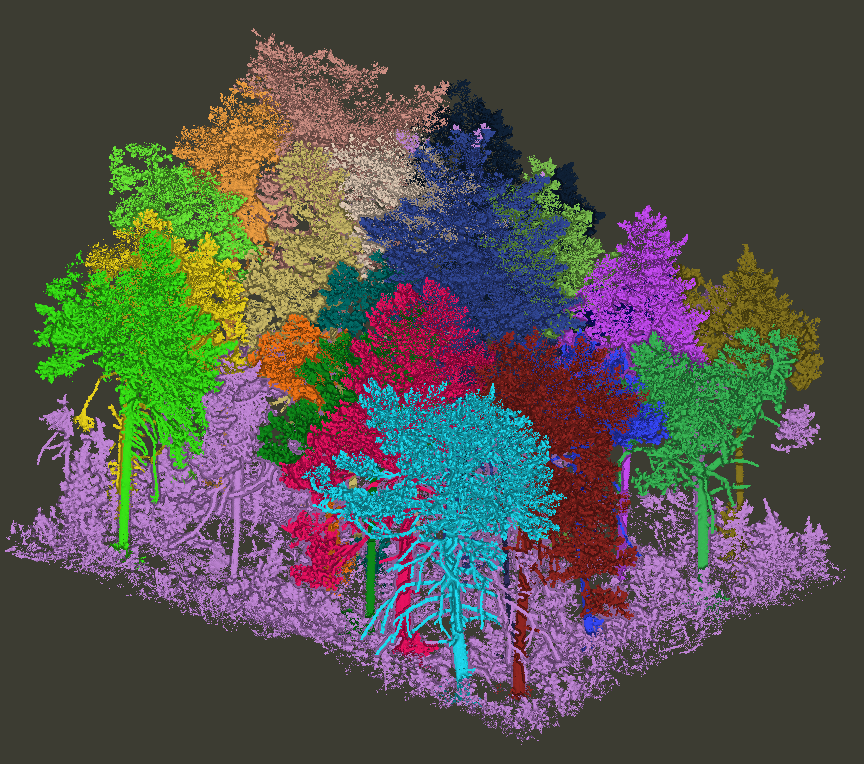
We set the minimum tree height for segmentation to 8 m. As a result, some smaller trees were excluded from the segmentation and do not have a unique treeid assigned.
Export the Segmented Point Cloud to LAZ
To export the segmentation results as a LAZ file with individual trees colorized, use the following tool to convert the treeid attribute into RGB color values.
Tool: Assign Random Colors as RGB
Geoprocessing → LIS Pro 3D → Colors // Tools → LIS Pro 3D → Colors
| Parameter | Setting |
|---|---|
| Data Objects | |
| Point Clouds | |
| >> Point Cloud | spc_subset_tiles |
| Attribute | treeid |
| < Point Cloud | <not set> |
| Options | |
| Copy existing attributes | 🗹 |
| Attribute Suffix | |
| Output SAGA RGB | 🗹 |
The spc_subset_tiles dataset now contains an additional attribute named treeid_rgb, which stores the RGB color values derived from the treeid attribute.
Now run the Export LAS/LAZ tool to save the segmented point cloud as a LAS/LAZ file.
Tool: Export LAS/LAZ File
Geoprocessing → LIS Pro 3D → Import/Export → LAS/LAZ // Tools → LIS Pro 3D → Import/Export
| Parameter | Setting |
|---|---|
| Data Objects | |
| Point Clouds | |
| >> Point Cloud | spc_subset_tiles |
| gps-time | gps-time |
| number of the return | number of the return |
| number of returns of given pulse | number of returns of given pulse |
| intensity | intensity |
| classification | grdclass |
| classification flags | <not set> |
| synthetic flag | <not set> |
| keypoint flag | <not set> |
| withheld flag | <not set> |
| overlap flag | <not set> |
| scanner channel | <not set> |
| red channel color | <not set> |
| green channel color | <not set> |
| blue channel color | <not set> |
| SAGA RGB color | treeid_rgb |
| scan angle | <not set> |
| direction of scan flag | <not set> |
| edge of flight line flag | <not set> |
| user data | <not set> |
| point source ID | <not set> |
| amplitude | Amplitude |
| reflectance | Reflectance |
| deviation | Deviation |
| pulse width | <not set> |
| extra bytes | 21,26,28 |
| Options | |
| Riegl extra bytes | 🗹 |
| Output File | C:/LiDAR_Data/tutorials/forestry_tls/processing/segmented_pc.laz |
| File Format | LAS 1.4 |
| Point Data Record Format | 3 |
| Offset X | 648000 |
| Offset Y | 5.242e+06 |
| Offset Z | 1000 |
| Scale X | 0.001 |
| Scale Y | 0.001 |
| Scale Z | 0.001 |
Create Output Folders for Tree Shape Metrics
Before running the Tree Shape Metrics 3D tool, we need to create five subfolders inside the 06_tree_metrics directory to organize the different output datasets:
01_skeletons02_axes03_pipemodels04_pointcloud05_tree_metrics
project # top-level folder
├── data
└── processing
   ├── ...
   └── 06_tree_metrics
      ├── 01_skeletons
      ├── 02_axes
      ├── 03_pipemodels
      ├── 04_pointcloud
      └── 05_tree_metrics
Tree Shape Metrics
We can now run the Tree Shape Metrics 3D analysis on the individual tiles of our segmented point cloud.
Each tile contains complete, uncut tree segments. Therefore, no additional overlap is required at this stage, and we can process the tiles individually.
For this step, select all segmented point cloud files and their corresponding tree position files as inputs.
Tool: Tree Shape Metrics 3D [multi-tile]
Geoprocessing → LIS Pro 3D → Forestry → [multi-tile] Processing // Tools → LIS Pro 3D → Forestry
| Parameter | Setting |
|---|---|
| Options | |
| Input Point Clouds | |
| Point Cloud Files | “C:/LiDAR_Data/tutorials/forestry_tls/processing/05_segmentation/01_segments/tile_0_648917_5242260_segmented.sg-pts-z” “C:/LiDAR_Data/tutorials/forestry_tls/processing/05_segmentation/01_segments/tile_1_648925_5242260_segmented.sg-pts-z” “C:/LiDAR_Data/tutorials/forestry_tls/processing/05_segmentation/01_segments/tile_2_648917_5242268_segmented.sg-pts-z” “C:/LiDAR_Data/tutorials/forestry_tls/processing/05_segmentation/01_segments/tile_3_648925_5242268_segmented.sg-pts-z” |
| Point Cloud File List | |
| Intensity Fieldname | Reflectance |
| Deviation Fieldname | Deviation |
| Tree ID Fieldname | treeid |
| Input Tree Positions | |
| Tree Positions | “C:/LiDAR_Data/tutorials/forestry_tls/processing/05_segmentation/02_tree_positions/tile_0_648917_5242260_treepositions.shp” “C:/LiDAR_Data/tutorials/forestry_tls/processing/05_segmentation/02_tree_positions/tile_1_648925_5242260_treepositions.shp” “C:/LiDAR_Data/tutorials/forestry_tls/processing/05_segmentation/02_tree_positions/tile_2_648917_5242268_treepositions.shp” “C:/LiDAR_Data/tutorials/forestry_tls/processing/05_segmentation/02_tree_positions/tile_3_648925_5242268_treepositions.shp” |
| Tree Positions File List | |
| Tree ID | treeid |
| Trunk Diameter | trunk_diameter |
| Slice Height | slice_height |
| Diameter Factor | 1.5 |
| Input Stem Axes | |
| Stem Axes | |
| Stem Axes File List | |
| Tree ID Fieldname | treeid |
| Stem Diameter Fieldname | diameter_mean |
| Average Axis Distance Fieldname | avg_axis_distance |
| Stem Direction Fieldname | stem_direction |
| Analysis Length Fieldname | analysis_length |
| Assign Axis | ☐ |
| Consider Axis Diameter | ☐ |
| Extend Stem | ☐ |
| Prioritize Stem | ☐ |
| Intensity and Deviation Processing | |
| Minimum Intensity Value | -10 |
| Maximum Deviation Value | 10 |
| Value Range Normalization | -10;0 |
| Scale Factor | 1 |
| Region Growing | |
| Search Radius | 0.05 |
| Bridge Distance | 0.2 |
| Iterations | 10 |
| Skeletonization | |
| Node Stepping | 0.05 |
| Branching Distance | 0.05 |
| Minimum Number of Children | 2 |
| Minimum Modelling Diameter | 0.005 |
| Fork Ratio | 90 |
| Minimum Fork Diameter | 0.15 |
| Sigma (Smoothing) | 2 |
| Direction Detection Length | 0.5 |
| DBH Reference Height | 1.3 |
| Pipe Modelling | |
| Number of Prism Faces | 12 |
| Branch Radius | pipe model approach |
| Model Fine Adjustment | |
| Adjustment Mode | adjust leading axes and branch bases |
| Adjustment Stepping | 1 |
| Adjustment Start | 1 |
| Trunk Base Height | 1 |
| Cross-Section Mode | circular cross-sections |
| Circular Crosssection Method | circle fitting + quantile radius |
| Refine Branch Nodes | 🗹 |
| Adjustment - Circle Fitting Parameters | |
| Search Radius Compactness | 0.05 |
| Minimum Compactness | 60 |
| Circle Fitting Tolerance | 20 |
| Resolution of Circle Fit | 0.01 |
| Diameter Correction Factor | 1 |
| Goodness of Fit | 95 |
| Circle Completeness | 50 |
| Taper Tolerance | 20 |
| Apply Thinning | 🗹 |
| Log Classification | |
| Long Log Classification | |
| Long Log Length | 6 |
| High-Quality Straightness Tolerance | 8 |
| Moderate-Quality Straightness Tolerance | 5 |
| Short Log Classification | |
| Short Log Length | 4 |
| Moderate-Quality Straightness Tolerance | 5 |
| Acceptable-Quality Straightness Tolerance | 3 |
| Output | |
| Output Folder Skeletons | C:/LiDAR_Data/tutorials/forestry_tls/processing/06_tree_metrics/01_skeletons |
| Output Folder Branch Axes | C:/LiDAR_Data/tutorials/forestry_tls/processing/06_tree_metrics/02_axes |
| Output Folder Pipe Models | C:/LiDAR_Data/tutorials/forestry_tls/processing/06_tree_metrics/03_pipemodels |
| Output Folder Point Clouds | C:/LiDAR_Data/tutorials/forestry_tls/processing/06_tree_metrics/04_pointcloud |
| File Compression | 🗹 |
| Output Folder Metrics | C:/LiDAR_Data/tutorials/forestry_tls/processing/06_tree_metrics/05_tree_metrics |
| Attribute Suffix |
Each of the five output folders contains four datasets, one for each processing tile. Each tile contains complete tree reconstructions, and the results from the individual tiles fit together like pieces of a puzzle.
Let’s take a closer look at two of these outputs:
- Pipe models: The 3D polygon meshes representing the reconstructed tree geometry.
- Tree metrics: A point shapes layer containing one feature per tree, with attributes such as tree height, DBH, and total wood volume.
Load Pipe Models
Drag and drop the four pipe model shapefiles from the 06_tree_metrics/03_pipemodels folder into the LIS Pro 3D interface.
Hold Shift to select all four layers in the Data tab. Then right-click the selection and choose Show to add them to the current map.
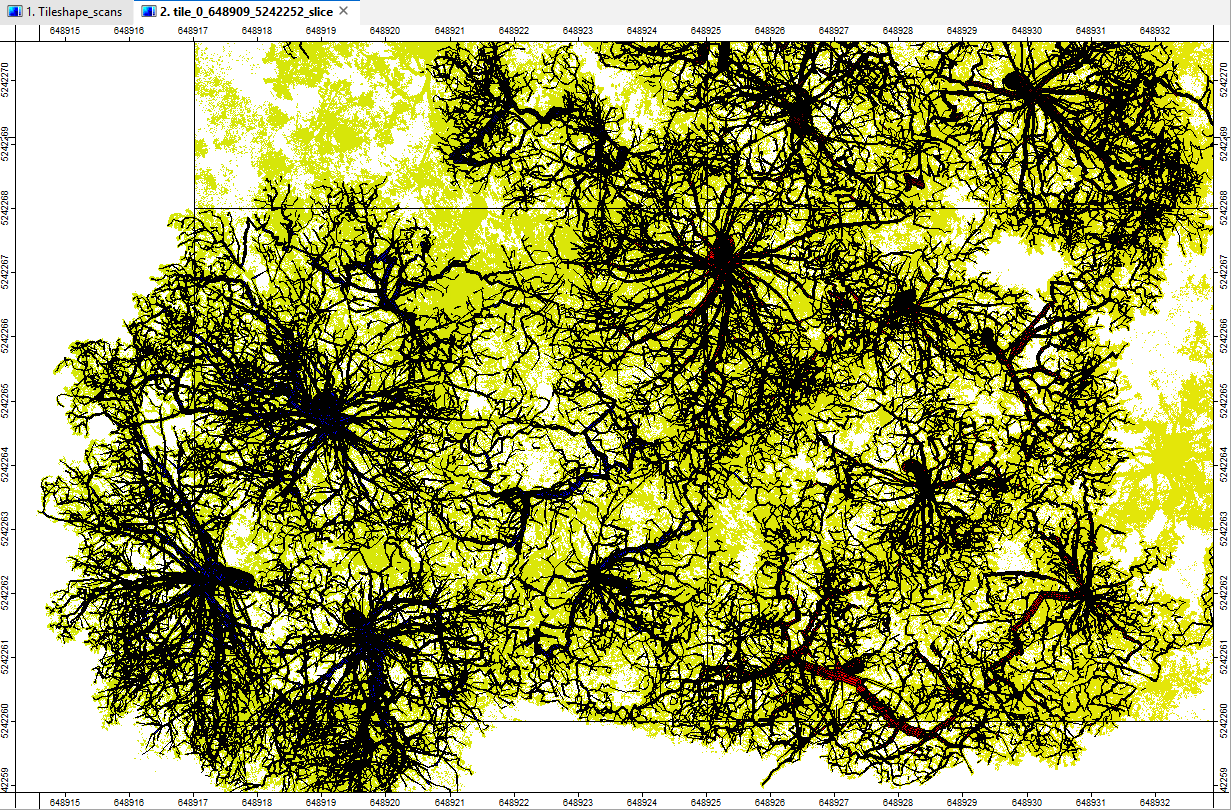
Merge Pipe Models
Next, we will merge the four pipe model datasets into a single shapes layer.
Merging the pipe models is practical for this relatively small tutorial dataset.
When processing larger forest areas, however, we recommend keeping the geometries in a tiled structure to avoid excessive memory usage and maintain efficient data handling.
Tool: Merge Layers
Geoprocessing → Shapes → Construction // Tools → Shapes → Tools
| Parameter | Setting |
|---|---|
| Data Objects | |
| Shapes | |
| >> Layers | tile_0_648917_5242260_pipes, tile_1_648925_5242260_pipes, tile_2_648917_5242268_pipes, tile_3_648925_5242268_pipes |
| << Merged Layer | <create> |
| Options | |
| Add Source Information | ☐ |
| Match Fields by Name | ☐ |
| Delete | 🗹 |
By checking Delete, we remove the four original tile layers from the GUI after merging, keeping the project organized and avoiding unnecessary clutter.
As a result, only the merged polygon layer, named Merged Layers, remains loaded in the Data tab.
Rename this layer to Merged_Pipemodels in the Settings tab and click Apply to confirm the change.
Save the merged dataset in your processing folder.
View Pipe Models with the Point Cloud
Tool: Point Cloud Editor
Geoprocessing → LIS Pro 3D → Point Cloud Editor // Tools → LIS Pro 3D → Point Cloud Editor
| Parameter | Setting |
|---|---|
| Data Objects | |
| Point Clouds | |
| >> Point Cloud | spc_subset_tiles |
| Intensity | Reflectance |
| RGB | <not set> |
| Shading | <not set> |
| Classification | grdclass |
| Random | treeid |
| Normal Vector (X) | <not set> |
| Report Attribute 1 | <not set> |
| Report Attribute 2 | <not set> |
| Grids | |
| > Elevation Grids | No objects |
| > Color Grids | No objects |
| Shapes | |
| > Shapes | Merged_Pipemodels |
| Color | RadiusModel |
| Options | |
| Work on Copy of Point Cloud | ☐ |
| Background Color | #3C3C32 |
| Classification LUT | ASPRS LAS (Formats 6-10) |
| Continue Digitizing | ☐ |
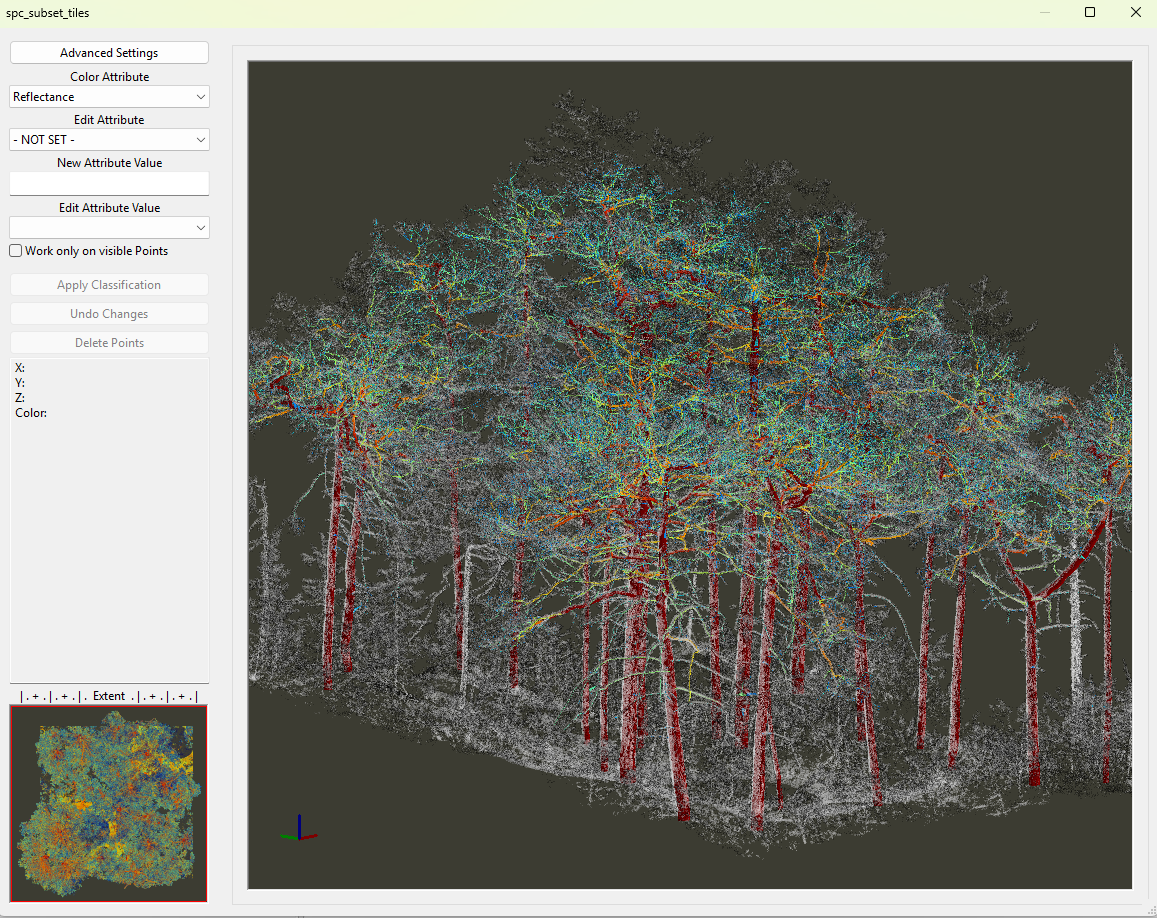
After inspecting the reconstruction results, close the Point Cloud Editor.
Load and Merge Tree Metrics
Load the four tree metrics shapefiles from the 06_tree_metrics/05_tree_metrics folder into the LIS Pro 3D project.
Merge the four datasets into a single shapes layer containing the tree metrics for the entire target area.
Tool: Merge Layers
Geoprocessing → Shapes → Construction // Tools → Shapes → Tools
| Parameter | Setting |
|---|---|
| Data Objects | |
| Shapes | |
| >> Layers | tile_0_648917_5242260_metrics, tile_1_648925_5242260_metrics, tile_2_648917_5242268_metrics, tile_3_648925_5242268_metrics |
| << Merged Layer | <create> |
| Options | |
| Add Source Information | ☐ |
| Match Fields by Name | ☐ |
| Delete | 🗹 |
Rename the merged layer to Merged_Metrics in the Settings tab and click Apply to confirm the change.
Save the dataset in your processing folder.
Add the merged layer to the map.
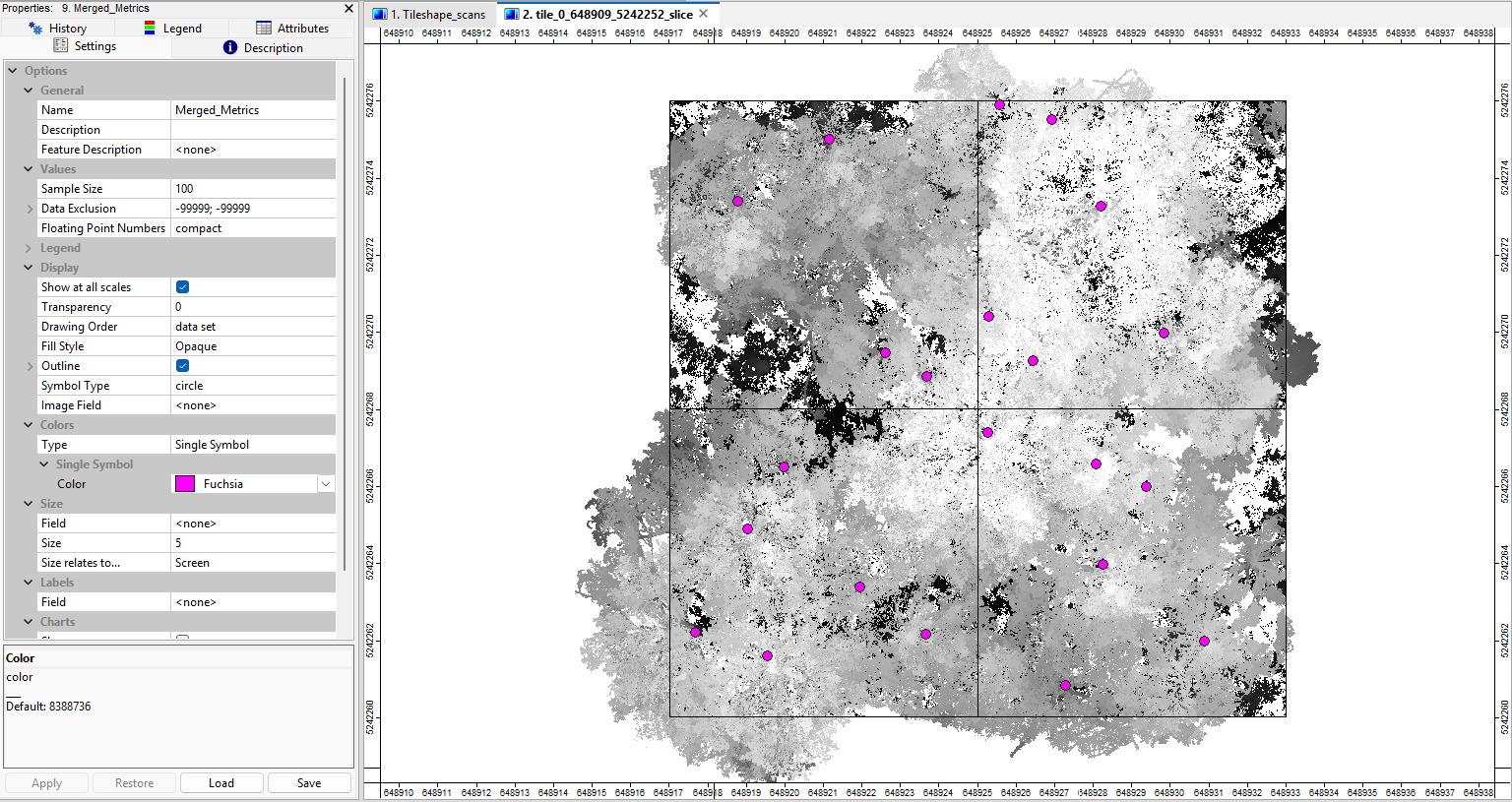
Use the Interact tool (black arrow) to select an individual tree position in the map. Then open the Attributes tab in the Properties window.
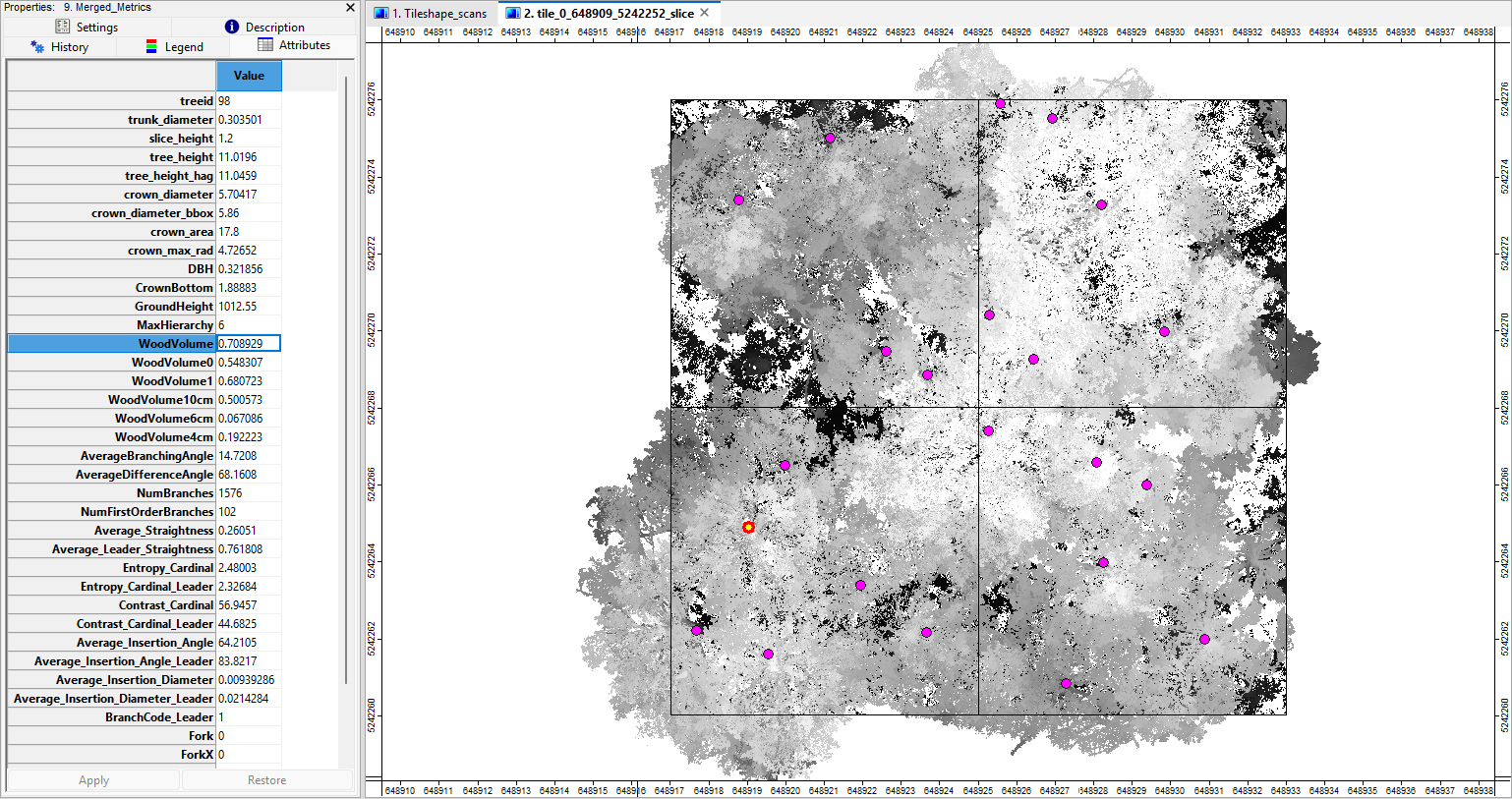
Here, you can inspect the attributes of the selected tree, including its basic dimensions and derived tree metrics.
Load and Merge Branch Axes
Tool: Merge Layers
Geoprocessing → Shapes → Construction // Tools → Shapes → Tools
| Parameter | Setting |
|---|---|
| Data Objects | |
| Shapes | |
| >> Layers | tile_0_648917_5242260_axes, tile_1_648925_5242260_axes, tile_2_648917_5242268_axes, tile_3_648925_5242268_axes |
| << Merged Layer | <create> |
| Options | |
| Add Source Information | ☐ |
| Match Fields by Name | ☐ |
| Delete | 🗹 |
Rename the merged layer to Merged_Axes in the Settings tab and click Apply to confirm the change.
Save the dataset in your processing folder.
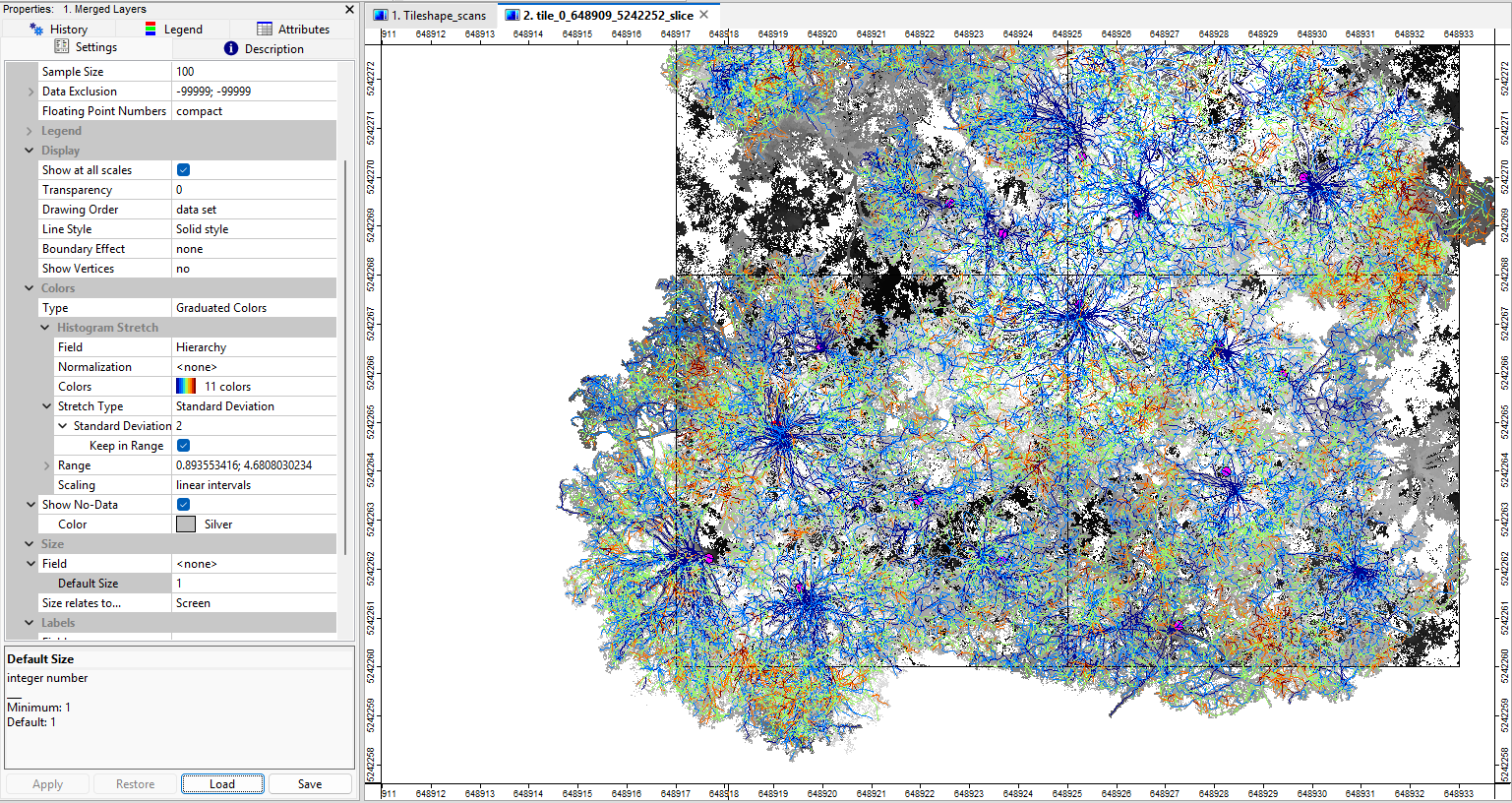
Add the merged layer to the map.
Aggregate Tree Information into Tables
Although the Merged_Metrics shapes layer already contains the main tree metrics, we can extract and organize this information into summary tables for further analysis.
These tables can also be exported as CSV files for use in other applications.
To do this, run the Extract Tree Information 3D tool.
Tool: Extract Tree Information 3D
Geoprocessing → LIS Pro 3D → Forestry → Point Cloud // Tools → LIS Pro 3D → Forestry
| Parameter | Setting |
|---|---|
| Data Objects | |
| Shapes | |
| >> Tree Metrics | Merged_Metrics |
| Tree ID | treeid |
| DBH | DBH |
| Tree Height | tree_height |
| Wood Volume | WoodVolume |
| Crown Diameter | crown_diameter |
| Crown Area | crown_area |
| Crown Bottom Height | CrownBottom |
| Crown Maximum Radius | crown_max_rad |
| >> Branches | Merged_Axes |
| > Stem Axes | <not set> |
| Tables | |
| << Tree Information | Tree Information |
| << Stem Information | Stem Information |
| < Branches Information | Branches Information |
| Options | |
| Metadata | |
| Population Name | LISPro3D trials |
| Stratum Name | scots_pine |
| Plot Name | mieming_fair_CMP |
| DBH Height | 1.3 |
| Branch Analysis | |
| Analyze Branches | 🗹 |
| Define Height Range | ☐ |
| Above Ground Biomass | |
| Calculate Biomass | 🗹 |
| Basic Wood Density | 0.44 |
| Tree Crown Information | |
| Add Crown Information | 🗹 |
In the Calculate Biomass section, we use a value of 0.44 for Basic Wood Density.
This value for Scots pine (Pinus sylvestris) is taken from the Global Wood Density Database v.2:
Fischer, F. J., Chave, J., Zanne, A., Jucker, T., Fajardo, A., Fayolle, A., Ferreira de Lima, R. A., Vieilledent, G., Beeckman, H., Hubau, W., De Mil, T., Wallenus, D., Aldana, A. M., Alvarez-Davila, E., Alves, L., Apgaua, D. M. G., Arcanjo, F., Bastin, J.-F., Bilous, A., … Zieminska, K. (2026): Global Wood Density Database v.2 (GWDD v.2) [Data set]. Zenodo. https://doi.org/10.5281/zenodo.18262736
After running the tool, three additional table datasets are generated:
Merged_Metrics_info: Summary information for each tree, including tree dimensions, wood volume, and biomass estimates.Merged_Metrics_stem: Detailed information about stem geometry and individual stem sections.Merged_Metrics_branches: Information about the reconstructed branches and their geometric properties.
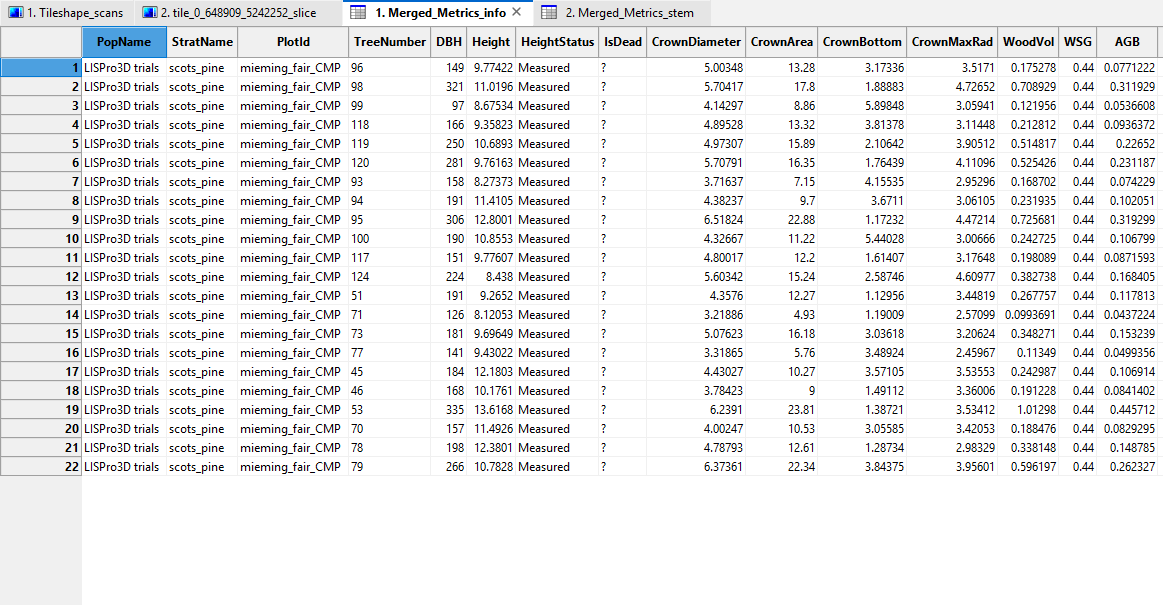
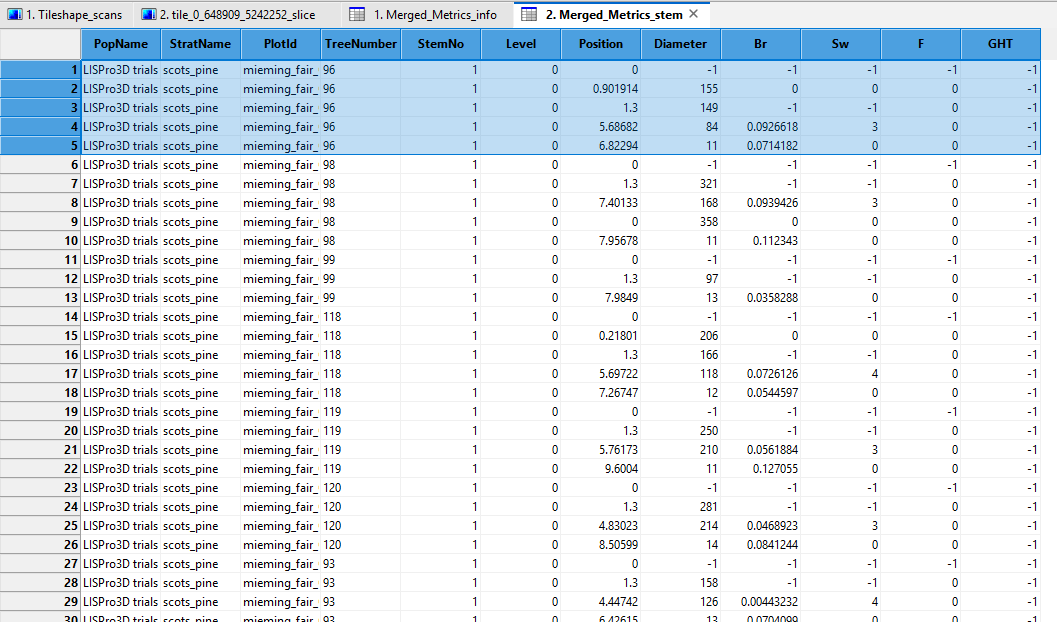
For a more detailed explanation of these tables and their attributes, refer to the Getting Started and In-Depth Forestry-TLS tutorials.
Export all three tables as CSV files and save them in your processing folder for further analysis.
Summary
In this tutorial section, we applied the complete TLS-based forestry analysis workflow to a tiled point cloud dataset. Building on the data preparation steps from the previous tutorial section, we performed stem detection, individual tree segmentation, and 3D tree reconstruction across multiple processing units.
We demonstrated how to preserve complete tree crowns across tile boundaries, organize intermediate results, and combine tiled outputs into consistent datasets. Finally, we extracted tree-level information, including stem and branch characteristics, wood volume, and biomass estimates, and exported the results for further analysis.
These workflows provide the foundation for processing larger forest areas while keeping memory requirements manageable. However, so far, we have controlled the individual processing steps manually through the LIS Pro 3D graphical user interface.
In the next tutorial section, we will translate this workflow into Python code. Our goal is to automate the individual processing steps, reduce manual interaction, and introduce parallel processing to make large-scale TLS forestry analysis more efficient and reproducible.