Getting Started - Single Tree Delineation
< Previous section Next section >
Recap
In the previous tutorial section, we detected individual tree stems and estimated their diameters at breast height (DBH) using the Tree Trunk and Diameter Detection tool. We explored the Single Slice and Multi Slice detection modes, applied filtering criteria to improve the results, and compared the detected stem positions with reference measurements.
We also assigned reference tree IDs to our detections, providing a consistent basis for identifying individual trees.
In this tutorial section, we will build on these results by segmenting the point cloud into individual trees based on the detected stem positions. This will allow us to derive additional tree metrics, such as tree height and crown diameter, alongside the existing attributes treeid and stem diameter.
Load the Project
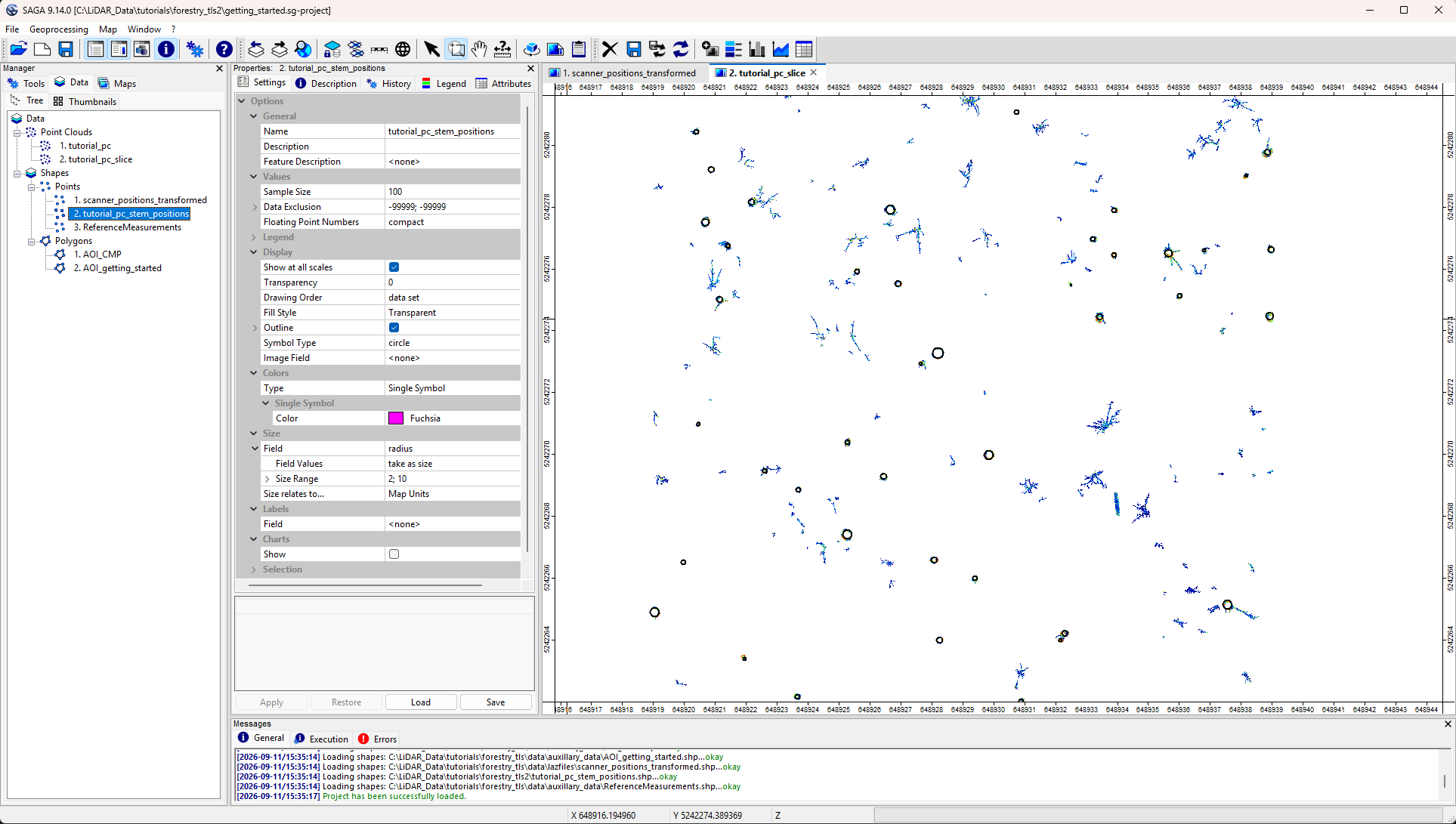
To continue where we left off, we first need to open the LIS Pro 3D project saved in the previous tutorial section.
From the top menu, select File > Project > Open Project and navigate to your saved project file.
Click below to learn about the basic principles of individual tree segmentation.
Basic Principles
The individual tree segmentation algorithm identifies trees by calculating lowest-cost paths through the point cloud, starting near the forest floor and extending upward into the canopy.
Initially, a set of seed points is distributed near ground level. These seeds compete to capture LiDAR points based on the accumulated path cost. Each point is assigned to the seed that provides the lowest-cost connection.
Conceptually, this process can be interpreted as a simulation of competition for light, where each seed attempts to capture as much crown volume as possible in the upper canopy.
Seed Initialization
The density and distribution of seeds are controlled by two parameters:
Step Size: Defines the horizontal spacing between seeds distributed across the forest floor.Seed Height: Defines the vertical offset of the seeds above ground level.
A smaller Step Size results in more seeds and potentially finer segmentation, but also increases the risk of over-segmentation (splitting individual trees into multiple segments).
In general, denser understory vegetation requires smaller seed spacing. Typical values range from 0.5 m in dense understory to 2.0 m in forests with little or no understory.
In a standard workflow, the user provides Known Tree Positions from the Tree Trunk and Diameter Detection tool. These positions are treated as primary seeds, along with available attributes such as stem diameter.
Maximum Gap Size
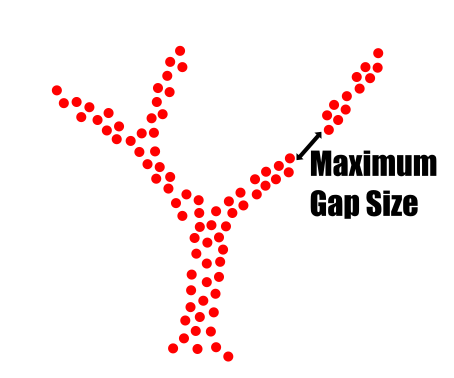
The Maximum Gap Size is one of the key parameters controlling individual tree segmentation. It defines the maximum distance between points that the algorithm considers connected.
This parameter helps bridge gaps in the point cloud caused by incomplete scanning or occlusions. In forest environments, capturing a complete representation of all branches is practically impossible, particularly in the upper canopy.
By allowing connections across small gaps, the algorithm can reconstruct more complete tree structures.
Choosing the Correct Value
The Maximum Gap Size should be as small as possible while still accounting for gaps caused by incomplete data capture.
In general:
- More complete datasets allow smaller gap sizes.
- Smaller values generally improve the separation of neighboring structures.
- Larger values help bridge missing data but increase the risk of connecting separate trees.
The main challenge is distinguishing between actual gaps separating different objects and artificial gaps caused by incomplete scanning.
- Too small: Tree segments may remain incomplete or become disconnected (over-segmentation).
- Too large: Neighboring trees or branches may be incorrectly connected (under-segmentation).
The appropriate value depends on point cloud completeness, forest density, and the structure of the trees.
Cost Weighting
The Cost Weighting parameter controls the relative cost of vertical and horizontal connections during segmentation.
It is a dimensionless parameter:
1: Neutral weighting without a directional preference.- Values greater than
1: Reduce the relative cost of vertical growth compared to lateral growth.
Increasing this value introduces a preference for upward connections, encouraging vertical rather than lateral expansion.
Higher values (e.g., 3–4) are generally suitable for forests with tall trees and relatively narrow crowns.
For trees with broad crowns and extensive lateral branching, a value of 1 is usually recommended.
The parameter should be adjusted according to the expected tree architecture to achieve stable and realistic segmentation results.
Pre-Segmentation Filtering – Intensity and Deviation
Similar to stem detection, individual tree segmentation can benefit from distinguishing solid surfaces from noisy or porous structures.
The algorithm uses this distinction to identify the main tree structure while treating foliage and other less reliable points separately.
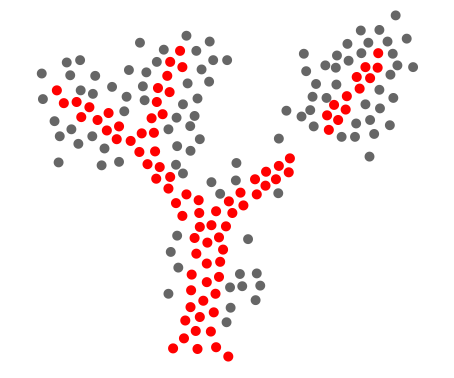
This separation is controlled by two parameters:
Minimum Intensity(or RIEGLReflectance)Maximum Deviation(if available)
Points meeting the filtering criteria are treated as potential solid surface points (red), while the remaining points are considered less reliable for structural connections (gray).
Foliage Labelling Distance
Although the segmentation algorithm primarily uses solid surface points to identify tree structures, foliage and other excluded points can still be assigned to the final tree segments.
The Foliage Labelling Distance defines the maximum distance within which these points can be assigned to an already segmented tree structure.
After identifying the core tree structure, nearby foliage or noisy points are assigned to the corresponding tree segment if they fall within this distance.
The parameter influences the completeness of the final segmentation:
- Smaller values:
- Include only points close to the identified tree structure.
- Reduce the risk of including outliers or neighboring vegetation.
- May leave parts of the upper canopy unsegmented (e.g., labels
0or-1).
- Larger values:
- Include more foliage and porous structures.
- Provide a more complete representation of the canopy.
- Increase the risk of assigning outliers or neighboring vegetation to the wrong tree.
Minimum Tree Height
The Minimum Tree Height parameter allows us to exclude trees below a specified height from the final segmentation results.
For example, we can:
- Exclude small understory trees below 3 m.
- Focus on taller trees within the stand.
- Apply a minimum height threshold according to the objectives of the analysis.
This helps restrict the final results to trees relevant to the intended application.
Minimum Point Density
The Minimum Point Density defines the minimum local point density required for structural connections during segmentation.
Regions with insufficient point density are excluded from the connection process, reducing the risk of linking structures based on sparse or unreliable observations.
How It Works
For each point, the algorithm evaluates the local point density within a defined neighborhood:
- The neighborhood radius is defined by the
Maximum Gap Size. - The number of neighboring points within this radius is counted.
- If the local density falls below the specified threshold, the point is not considered for structural connections.
This criterion helps prevent connections through sparsely sampled regions.
Crown Metrics Resolution
After segmentation, each tree is assigned basic metrics such as tree height, crown area, and crown radius.
The Crown Metrics Resolution controls the spatial resolution used to estimate crown area.
Tree crowns contain both actual gaps in the canopy and apparent gaps caused by incomplete scanning or low point density. At very fine resolutions, these gaps may strongly influence the estimated crown area.
However, in many applications, we are interested in the outer crown envelope rather than individual gaps within the canopy.
Larger resolution values (e.g., > 0.1 m) increasingly reduce the influence of small internal gaps, resulting in a smoother representation of the crown area.
Typical starting values are:
- TLS (Terrestrial Laser Scanning): 0.1 m
- ULS (Uncrewed Laser Scanning): 0.2 m
- ALS (Airborne Laser Scanning): 0.5 m
The appropriate resolution depends on point density, data completeness, and the desired level of detail.
Iterations
For most datasets, the Iterations parameter can be left at 1.
Additional iterations are mainly intended for very tall trees captured by ground-based scanning systems, such as TLS. In these datasets, larger vertical gaps may occur in the upper canopy, preventing the algorithm from establishing continuous connections from the ground to the tree top.
As a result, segmentation may stop before reaching the upper crown.
To address this, additional iterations progressively increase the allowed vertical Maximum Gap Size, while keeping the horizontal gap size unchanged.
For example, with an initial Maximum Gap Size of 0.5 m:
- 1st iteration: Vertical gap size = 0.5 m
- 2nd iteration: Vertical gap size = 1.0 m
- 3rd iteration: Vertical gap size = 2.0 m
This allows the algorithm to bridge increasingly large vertical gaps while maintaining the original horizontal connection threshold.
Use additional iterations with caution. Increasing the vertical gap size may improve segmentation completeness, but it should only be considered when a single iteration does not produce satisfactory results.
Single Tree Derivation 3D – Run the Tool
Now, we run the Single Tree Derivation 3D tool to segment our point cloud into individual trees.
As the input point cloud, select the tutorial_pc dataset and assign the following attributes:
Reflectance(orIntensity)Deviation(if available, otherwise leave as<not set>)grdclassdz
For Known Tree Positions, select the tutorial_pc_stem_positions dataset generated in the previous tutorial and assign the corresponding diameter_mean and slice_height attributes.
For the tree ID attribute, select ID_Reference, which contains the reference tree IDs joined to our stem detections in the previous tutorial section.
If no reference tree IDs are available, simply use the automatically generated treeid attribute instead.
Tool: Single Tree Derivation 3D
Geoprocessing → LIS Pro 3D → Forestry → Point Cloud // Tools → LIS Pro 3D → Forestry
| Parameter | Setting |
|---|---|
| Data Objects | |
| Point Clouds | |
| >> Point Cloud | tutorial_pc |
| Intensity | Reflectance |
| Deviation | Deviation |
| Classification | grdclass |
| DZ | dz |
| Shapes | |
| > Known Tree Positions | tutorial_pc_stem_positions |
| Tree ID | ID_Reference |
| Trunk Diameter | diameter_mean |
| Slice Height | slice_height |
| Seed Blocking Distance | <not set> |
| Initial Gap Size | <not set> |
| Synthetic Stem Height | <not set> |
| Grids | |
| Grid system | <not set> |
| > Seed Mask | <not set> |
| Options | |
| Copy existing attributes | 🗹 |
| Exclude Point Classes | 2;6;9 |
| Output | |
| < Point Cloud Segmented | <not set> |
| Attribute Suffix | |
| << Tree Positions | <create> |
| < Boundaries | <create> |
| Segmentation | |
| Step Size | 0.5 |
| Cost Weighting | 6 |
| Maximum Gap Size | 0.4 |
| Foliage Label Distance | 1.5 |
| Minimum Intensity | -7 |
| Maximum Deviation | 14 |
| Minimum Point Density | 0 |
| Minimum Tree Height | 8 |
| Crown Metrics Resolution | 0.1 |
| Iterations | 1 |
| Output All Trees | ☐ |
| Start Cost Synthetic Seeds | 0 |
| Automation | |
| Specify Tile Origin | ☐ |
Inspect the Segmentation Results
After running the tool, the colorization of the tutorial_pc layer should update automatically in the map. Each detected tree is now assigned a unique ID and color.
The existing tutorial_pc layer has been updated with the segmentation results, rather than creating a separate segmented point cloud layer.
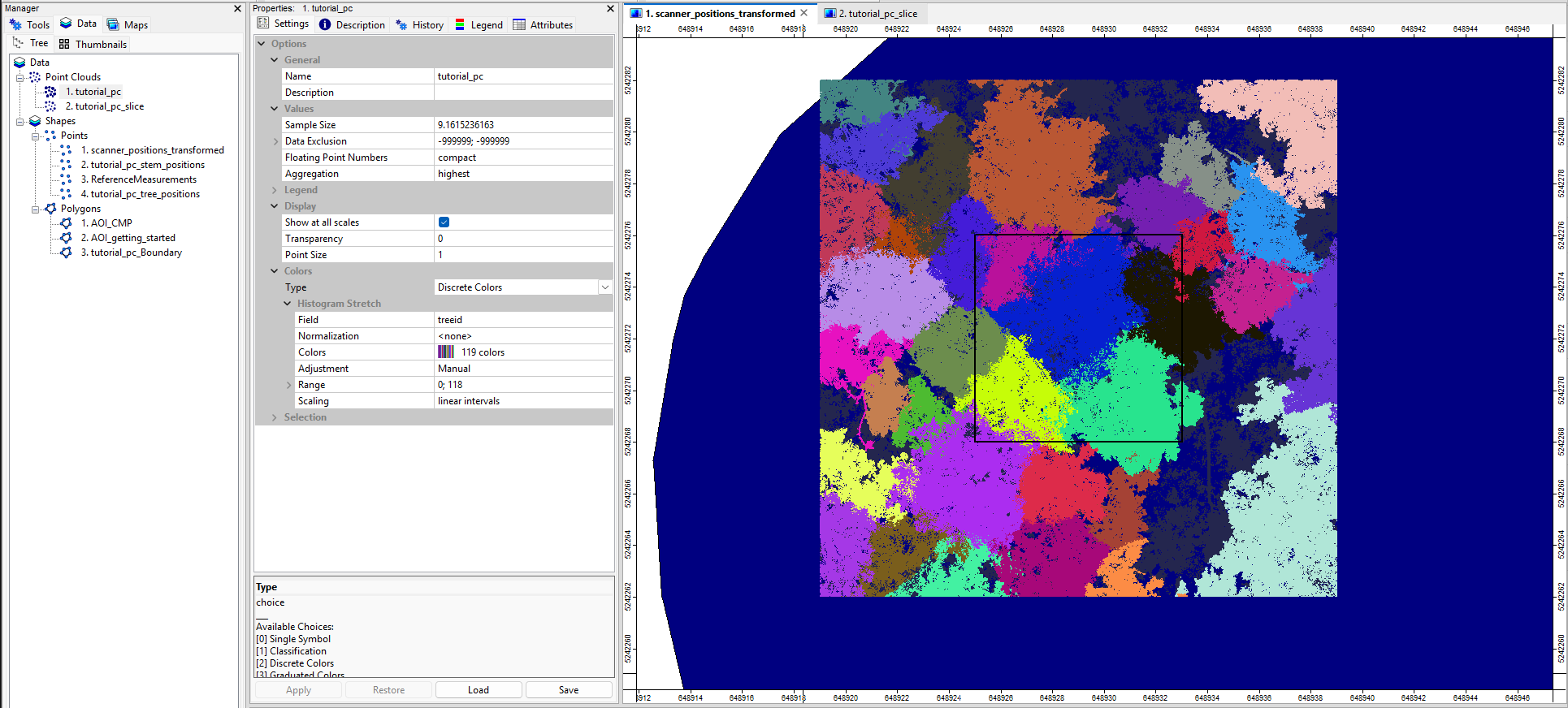
The tool also creates two additional layers:
tutorial_pc_tree_positions: Contains the derived tree positions.tutorial_pc_Boundary: Contains the derived crown boundaries.
Add both layers to the map. For tutorial_pc_Boundary, set the Fill Style to Transparent so that the crown boundaries can be inspected alongside the segmented point cloud.
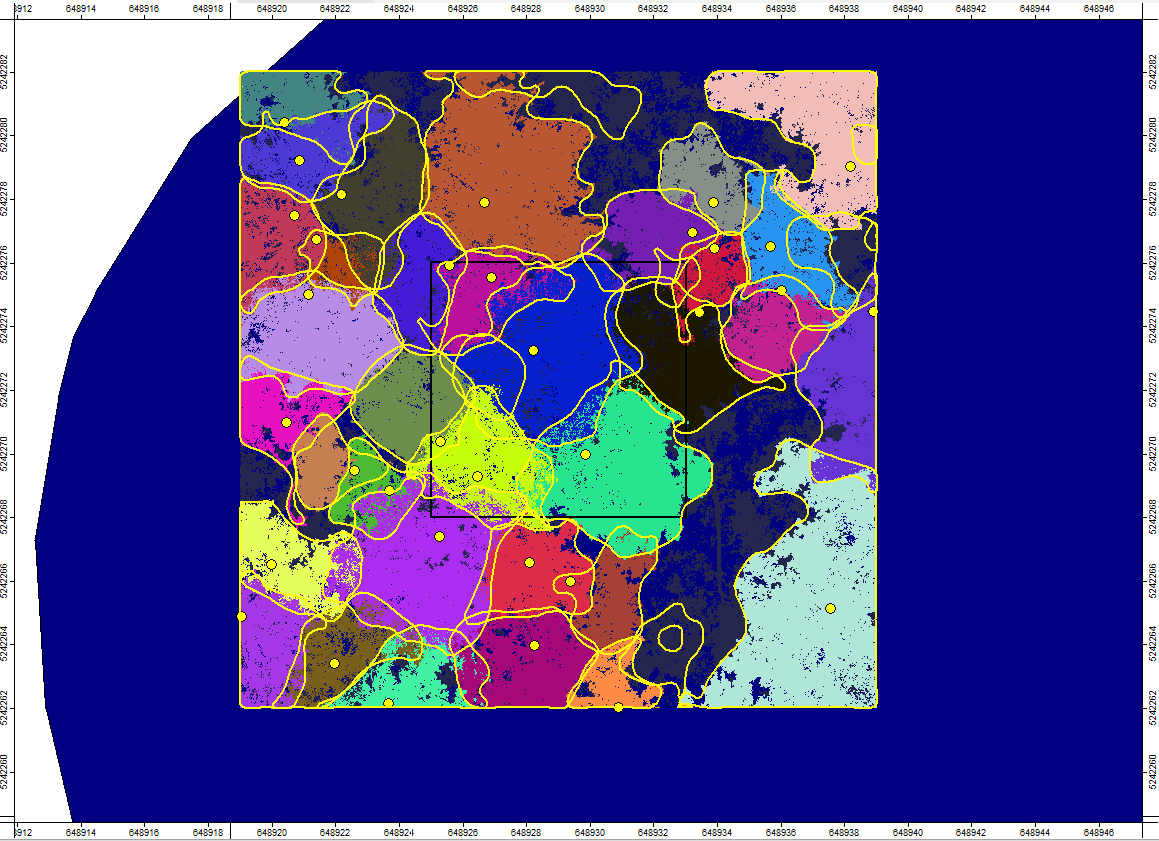
You can see that the tree segments outside our target area, AOI_getting_started, show clear edge effects. However, these surrounding trees provide a sufficient buffer to support reliable segmentation within the target area.
To obtain a clean final result, we will remove the buffer region in the next step.
Remove the Overlap from the Datasets
To remove the buffer region while avoiding edge effects in the final segmentation results, we use the Tree Segment Aware Overlap Removal tool with the following settings.
Tool: Tree Segment Aware Overlap Removal
Geoprocessing → LIS Pro 3D → Forestry → Point Cloud // Tools → LIS Pro 3D → Forestry
| Parameter | Setting |
|---|---|
| Options | |
| Segmented Point Cloud | |
| >> Point Cloud | tutorial_pc |
| Tree ID | treeid |
| Stem Positions | |
| >> Stem Positions | tutorial_pc_tree_positions |
| Tree ID | treeid |
| Position X | <not set> |
| Position Y | <not set> |
| Tree Skeleton (Optional) | |
| > Skeletons | <not set> |
| Tree ID | <no attributes> |
| Pipe Model (Optional) | |
| > Pipe Models | <not set> |
| Tree ID | <no attributes> |
| Outputs | |
| << Clipped Point Cloud | <create> |
| < Clipped Stem Positions | <create> |
| < Clipped Skeletons | <not set> |
| < Clipped Pipe Models | <not set> |
| Selection | |
| > Polygon | AOI_getting_started |
| X-Extent | 0;0 |
| Y-Extent | 0;0 |
After running the tool, two new layers are created: tutorial_pc_clip and tutorial_pc_tree_positions_clip.
Add both layers to a new map.
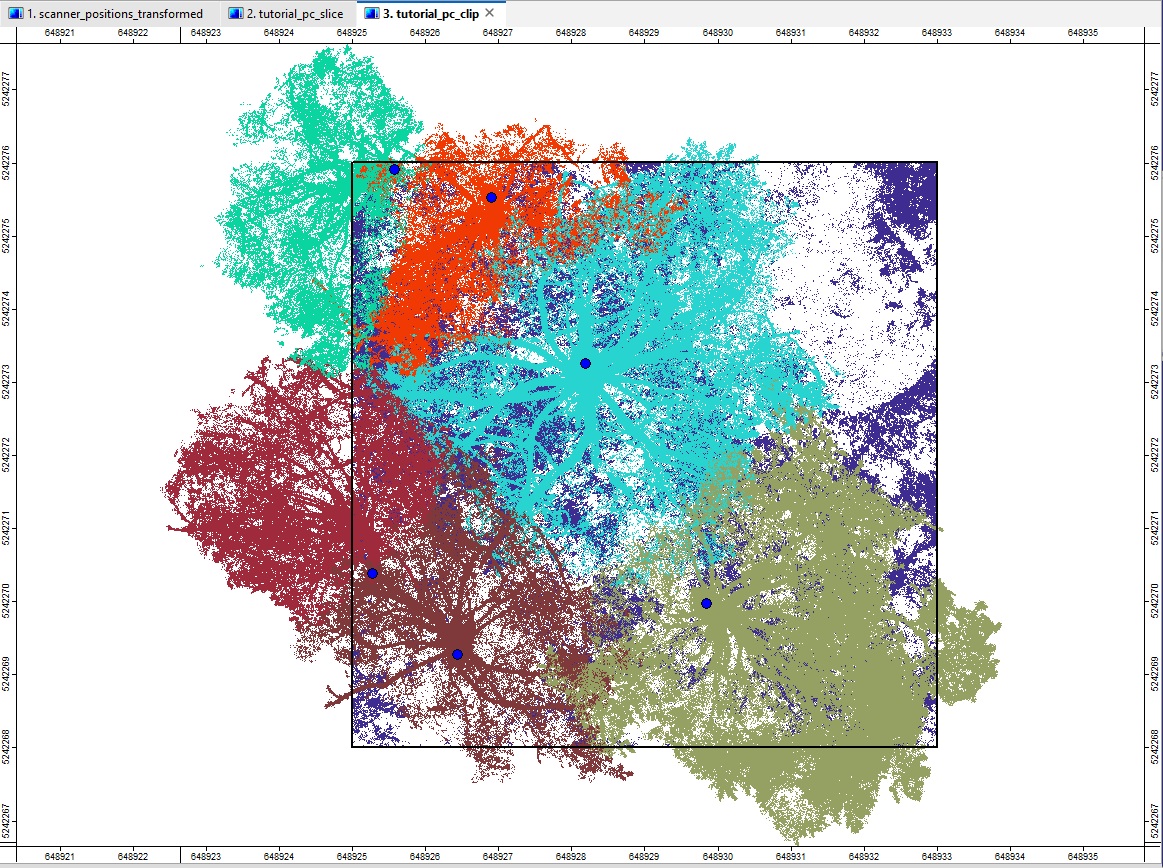
In the map, you can see that only six valid trees remain. These are the trees whose stem positions fall strictly within the AOI.
Notice that the trees are not cut at the AOI boundary. Each tree is preserved in its entirety and assigned to the AOI, even if parts of its crown extend beyond the boundary.
In contrast, point cloud sections that are not assigned to an individual tree (e.g., ground points or vegetation below the minimum tree height threshold) are clipped at the AOI boundary.
Remove the Overlap from Crown Boundaries
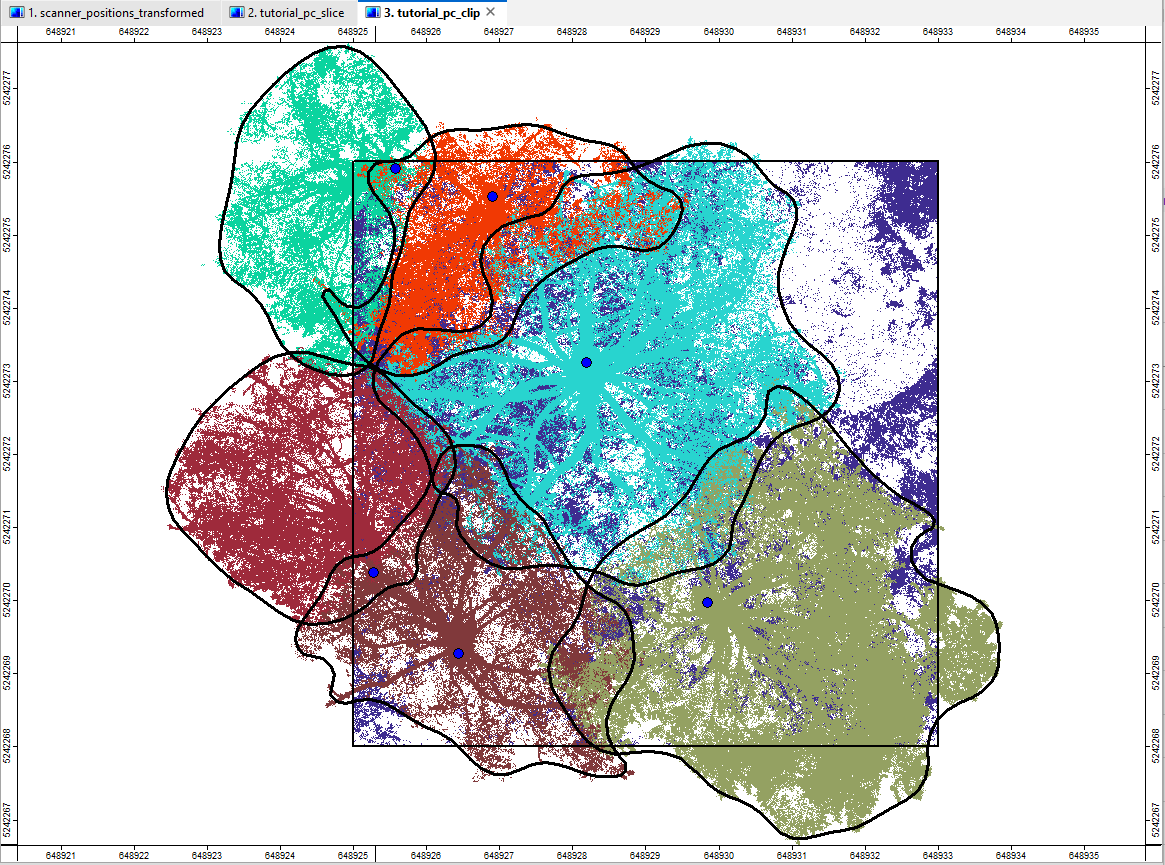
To retain only the crown boundaries of trees within our AOI, we intersect the tutorial_pc_Boundary layer with the tutorial_pc_tree_positions_clip layer and copy the matching features to a new shape layer.
Tool: Select by Location…
Geoprocessing → Shapes → Selection // Tools → Shapes → Tools
| Parameter | Setting |
|---|---|
| Data Objects | |
| Shapes | |
| >> Shapes to Select From | tutorial_pc_Boundary |
| >> Locations | tutorial_pc_tree_positions_clip |
| << Copy | <create> |
| Options | |
| Condition | intersect |
| Method | new selection |
| Post Job | copy |
As a result, we obtain a new dataset called tutorial_pc_Boundary [Selection], containing only the crown outlines of the six remaining trees.
View the Segmentation Results in 3D
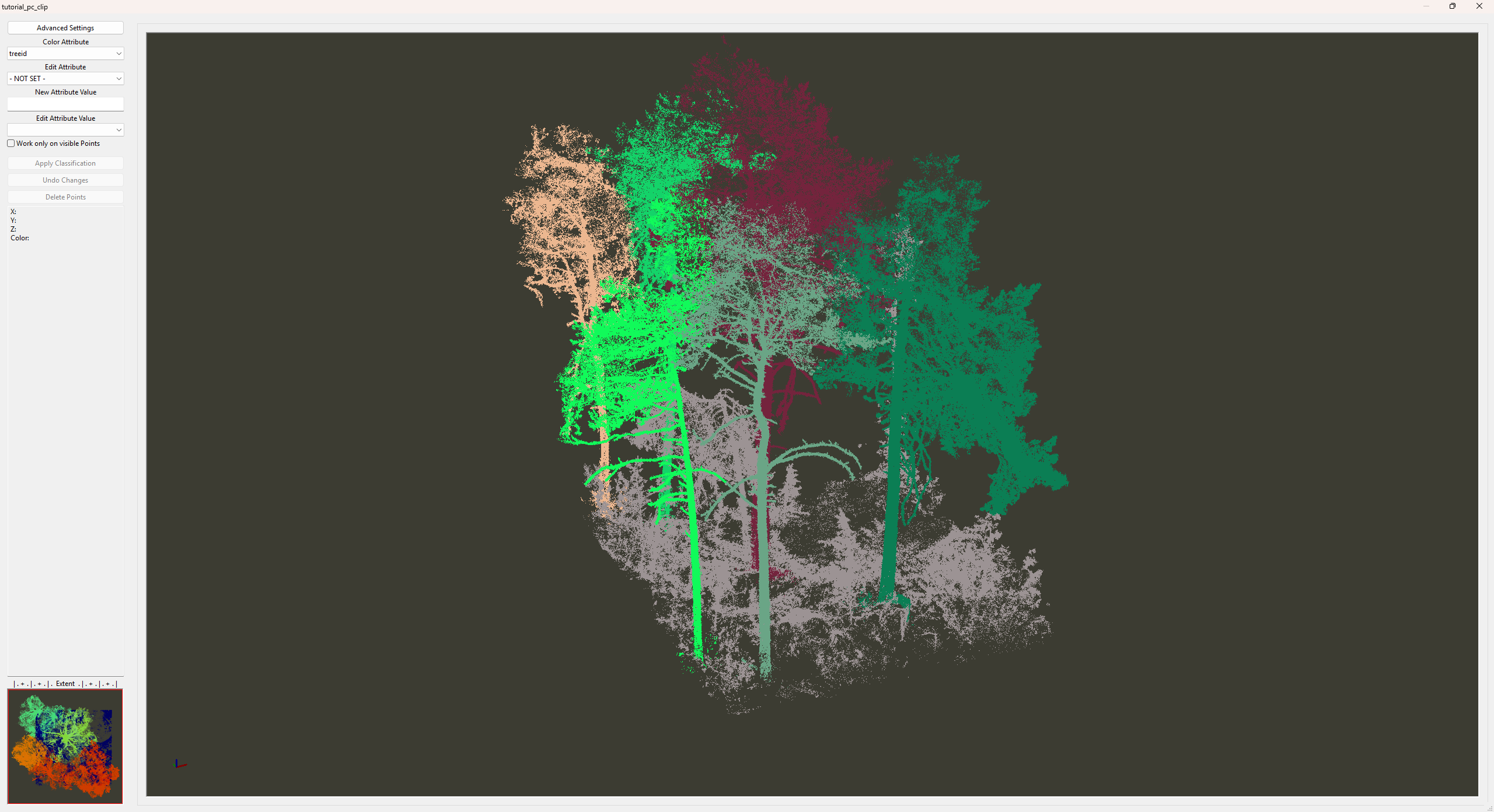
Open the segmented point cloud in the Point Cloud Editor to inspect the individual trees in 3D.
Use the following keyboard shortcuts to switch between different colorization modes and visualization settings:
Q: Random colors for individual trees. PressQrepeatedly to generate different color palettes.2: Intensity colorization.5: Ground/non-ground classification.1: Elevation (Z) colorization.S: Toggle Eye-Dome Lighting (EDL).
Tool: Point Cloud Editor
Geoprocessing → LIS Pro 3D → Point Cloud Editor // Tools → LIS Pro 3D → Point Cloud Editor
| Parameter | Setting |
|---|---|
| Data Objects | |
| Point Clouds | |
| >> Point Cloud | tutorial_pc_clip |
| Intensity | Reflectance |
| RGB | <not set> |
| Shading | <not set> |
| Classification | grdclass |
| Random | treeid |
| Normal Vector (X) | <not set> |
| Report Attribute 1 | <not set> |
| Report Attribute 2 | <not set> |
| Grids | |
| > Elevation Grids | No objects |
| > Color Grids | No objects |
| Shapes | |
| > Shapes | <not set> |
| Options | |
| Work on Copy of Point Cloud | ☐ |
| Background Color | #3C3C32 |
| Classification LUT | ASPRS LAS (Formats 6-10) |
View the Segmented Dataset Outside of LIS Pro 3D
Convert Tree IDs to RGB Colors
To visualize the individual tree segments in other point cloud software, use the following tool to convert the treeid values into RGB colors.
Tool: Assign Random Colors as RGB
Geoprocessing → LIS Pro 3D → Colors // Tools → LIS Pro 3D → Colors
| Parameter | Setting |
|---|---|
| Data Objects | |
| Point Clouds | |
| >> Point Cloud | tutorial_pc_clip |
| Attribute | treeid |
| < Point Cloud | <not set> |
| Options | |
| Copy existing attributes | 🗹 |
| Attribute Suffix | |
| Output SAGA RGB | 🗹 |
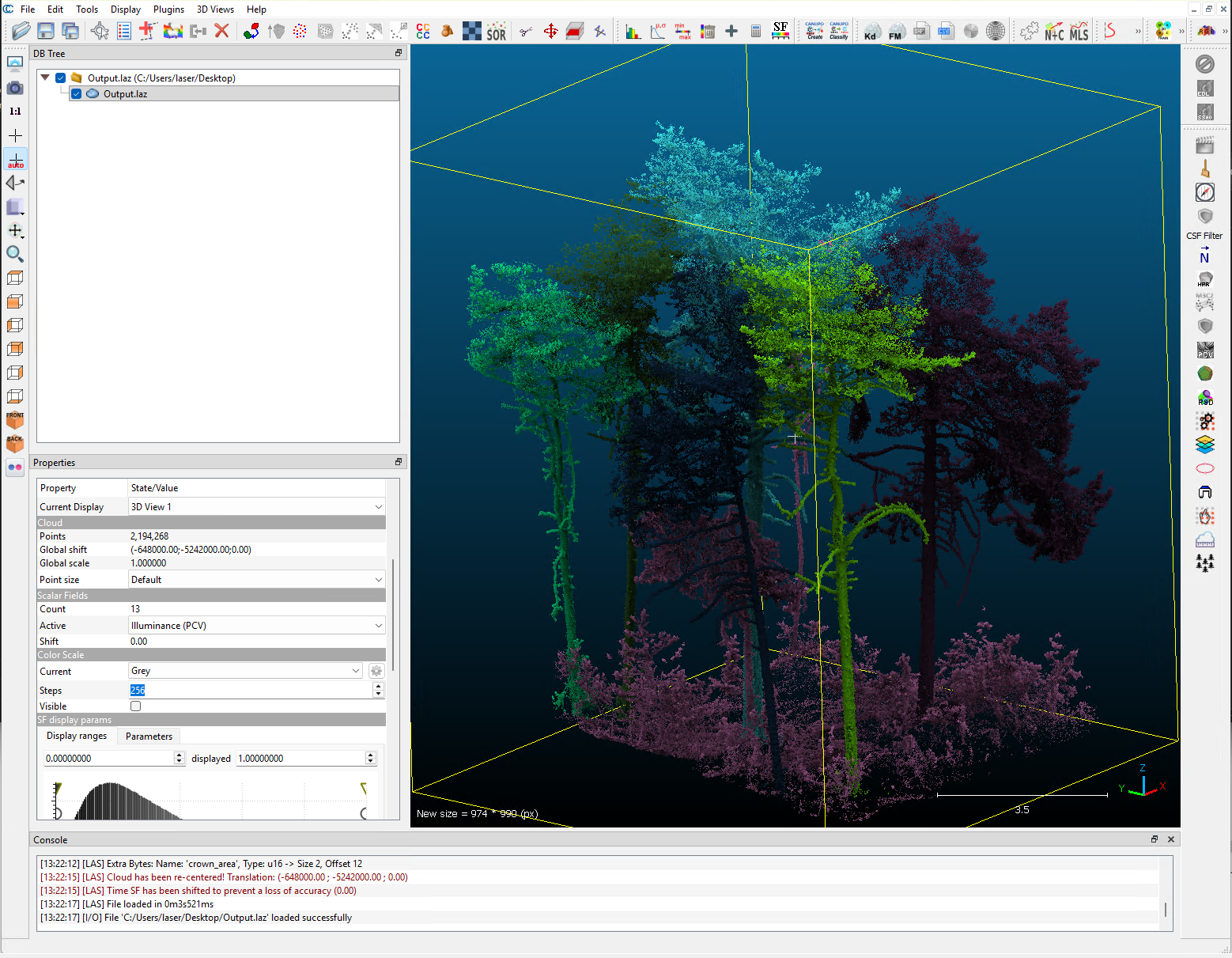
The tutorial_pc_clip dataset now contains an additional attribute, treeid_rgb, which stores the RGB colors assigned to the individual tree segments.
Export the Point Cloud to LAZ
We can now export the segmented point cloud to LAZ format, including the treeid_rgb color information and additional attributes that can be stored as extra bytes in the LAZ file.
Tool: Export LAS/LAZ File
Geoprocessing → LIS Pro 3D → Import/Export → LAS/LAZ // Tools → LIS Pro 3D → Import/Export
| Parameter | Setting |
|---|---|
| Data Objects | |
| Point Clouds | |
| >> Point Cloud | tutorial_pc_clip |
| gps-time | gps-time |
| number of the return | number of the return |
| number of returns of given pulse | number of returns of given pulse |
| intensity | intensity |
| classification | grdclass |
| classification flags | <not set> |
| synthetic flag | <not set> |
| keypoint flag | <not set> |
| withheld flag | <not set> |
| overlap flag | <not set> |
| scanner channel | <not set> |
| red channel color | <not set> |
| green channel color | <not set> |
| blue channel color | <not set> |
| SAGA RGB color | treeid_rgb |
| scan angle | <not set> |
| direction of scan flag | <not set> |
| edge of flight line flag | <not set> |
| user data | <not set> |
| point source ID | <not set> |
| amplitude | Amplitude |
| reflectance | Reflectance |
| deviation | Deviation |
| pulse width | <not set> |
| extra bytes | choose treeid, tree_height and crown_area |
| Options | |
| Riegl extra bytes | 🗹 |
| Output File | C:/LiDAR_Data/tutorials/forestry_tls/results/segmented_pc.laz |
| File Format | LAS 1.4 |
| Point Data Record Format | 3 |
| Offset X | 648000 |
| Offset Y | 5.242e+06 |
| Offset Z | 1000 |
| Scale X | 0.001 |
| Scale Y | 0.001 |
| Scale Z | 0.001 |
Open the exported LAZ file in a point cloud viewer of your choice to inspect the segmentation results.
Save the Results
Save the tutorial_pc_clip, tutorial_pc_tree_positions_clip, and tutorial_pc_Boundary [Selection] datasets to disk.
Finally, save the LIS Pro 3D project to preserve the updated layers and map settings.
Summary
In this tutorial, we have learned how to:
- Segment a point cloud into individual trees using the
Single Tree Derivation 3Dtool and the stem positions detected in the previous tutorial section. - Understand the basic principles of individual tree segmentation and how parameters such as
Maximum Gap Size,Cost Weighting, andFoliage Labelling Distanceinfluence the results. - Inspect the segmented trees and their derived attributes, including tree height and crown metrics.
- Remove the overlap around our area of interest using
Tree Segment Aware Overlap Removal, preserving complete trees whose stem positions fall within the AOI. - Visualize the segmentation results in 3D and export the point cloud to LAZ format with RGB colors representing individual trees.
Finally, we saved the segmented point cloud, tree positions, and crown boundaries, along with the updated LIS Pro 3D project.