Putting It into Practice - Data Preparation
< Previous section Next section >
Recap
In the previous tutorial sections, we explored the general workflow for TLS-based individual tree analysis using a small subset of just six trees. We also examined the functionality of individual tools in greater detail and learned how to select and adjust their parameters for different tree structures and analytical objectives.
We will now move from these small-scale examples to processing larger areas. As the amount of point cloud data increases, memory requirements and processing time become important considerations.
To handle larger datasets efficiently without exceeding the computer’s available memory, we will introduce spatial tiling and overlap-based processing. We will explain why overlapping tiles are important for analyzing trees near tile boundaries and demonstrate how to run the tools in Multi Tile mode.
Open an Empty Project
To begin processing the larger forest area, we first need to create a new, empty project.
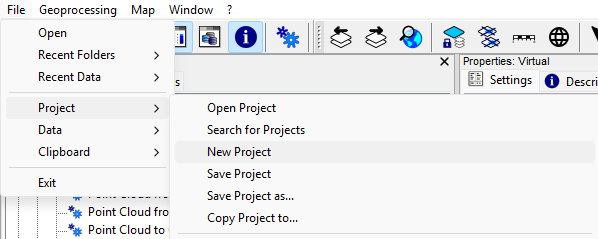
Select File > Project > New Project.
Find the Input Data
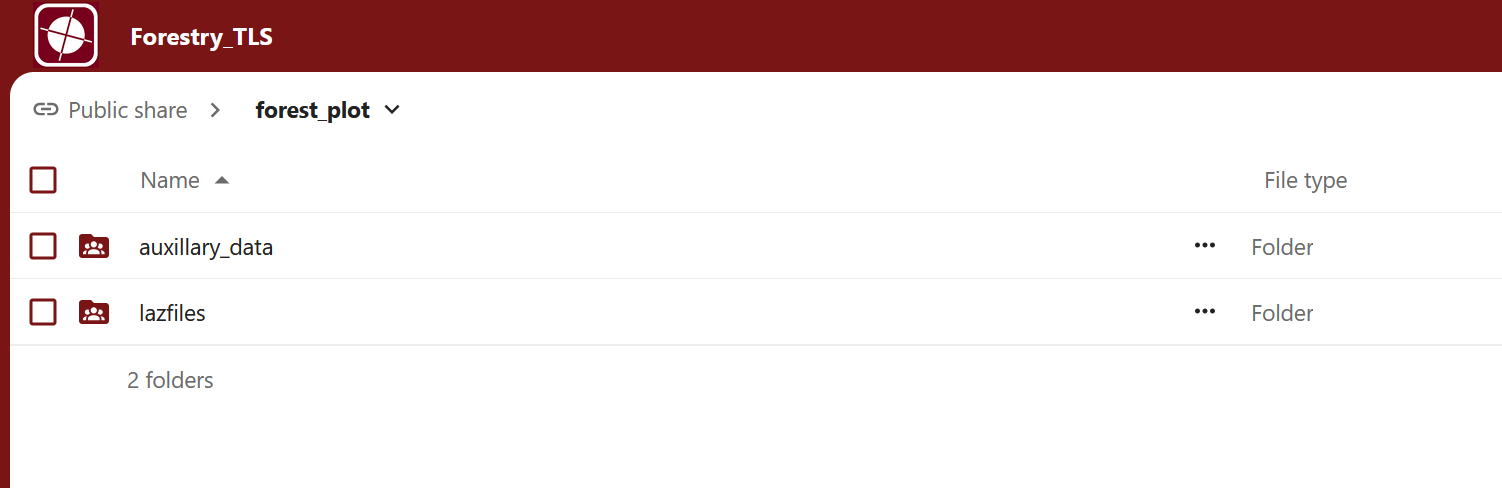
You can download the input data for the TLS tutorial sections here.
The forest_plot/lazfiles folder contains 22 LAZ files and a shapefile with the scan positions. We will use these scans to process the larger forest area.
The forest_plot/auxillary_data folder contains a set of shapefiles defining the area of interest.
Download both folders to follow this tutorial.
Prerequisites
This tutorial requires the LIS Pro 3D Forestry Addon if you want to process the data yourself.
After downloading the input data, make sure your local folder structure looks like this:
project # top-level folder
└── data
    ├── auxillary_data
    │   └── ...
    └── lazfiles
        └── ...
Add Processing Directories
To reduce memory usage when processing larger datasets, we will write intermediate results and final outputs directly to disk rather than keeping everything in memory.
For this purpose, create a processing folder inside your project directory, with the following subfolders for the different processing steps:
project # top-level folder
├── data
│   ├── auxillary_data
│   └── lazfiles
└── processing
    ├── 01_shapes
    ├── 02_grids
    ├── 03_classification
    ├── 04_stem_detection
    ├── 05_segmentation
    └── 06_tree_metrics
These directories will help us organize the processing results and keep track of the different stages of the workflow.
Run the First Tool – Create LAS/LAZ Index
In the Tools tab, select LIS Pro 3D > Import/Export > Create LAS/LAZ Index.
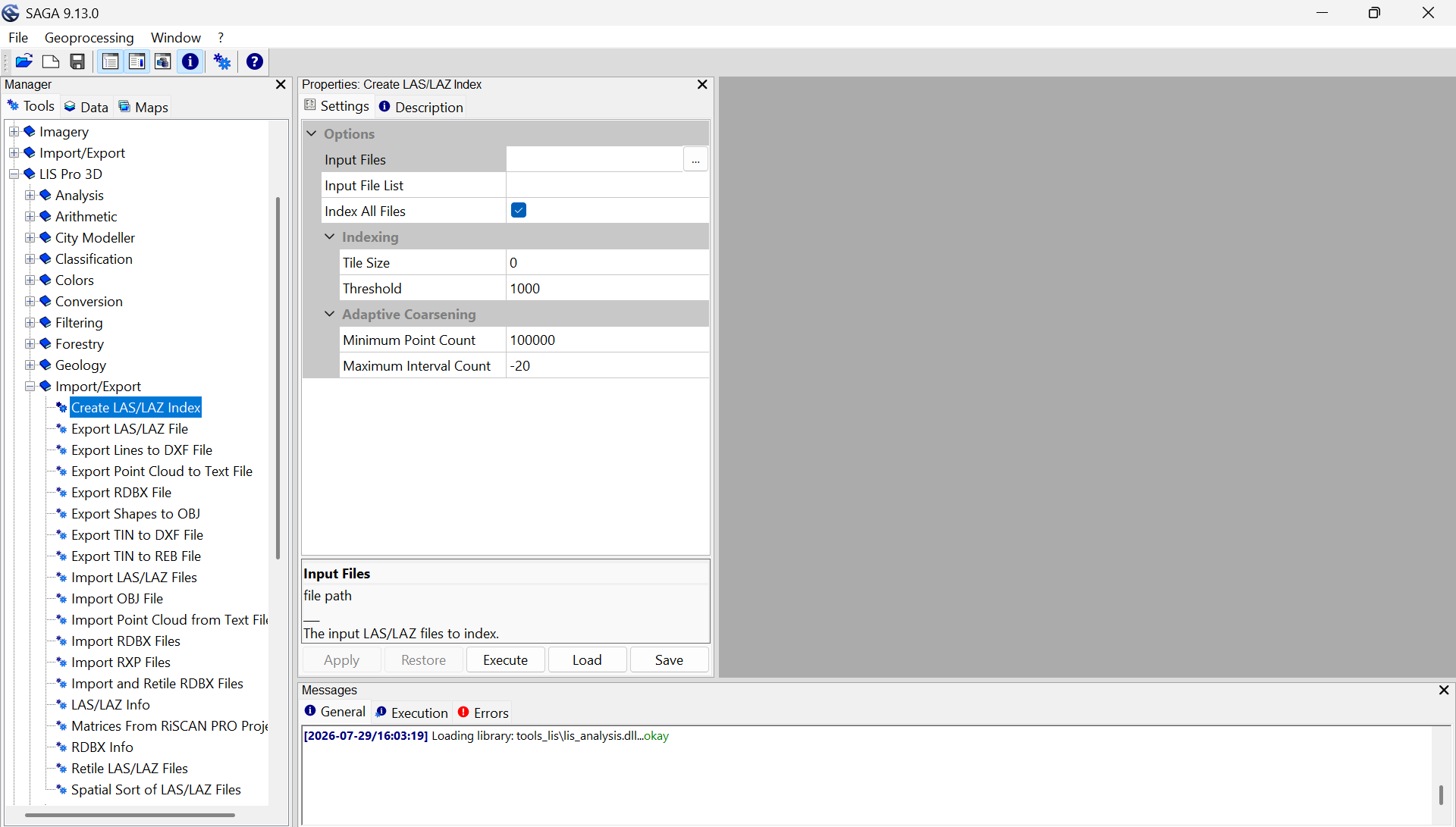
Under Input Files, click the browse button and navigate to the data/lazfiles folder.
Select all 22 .laz files.
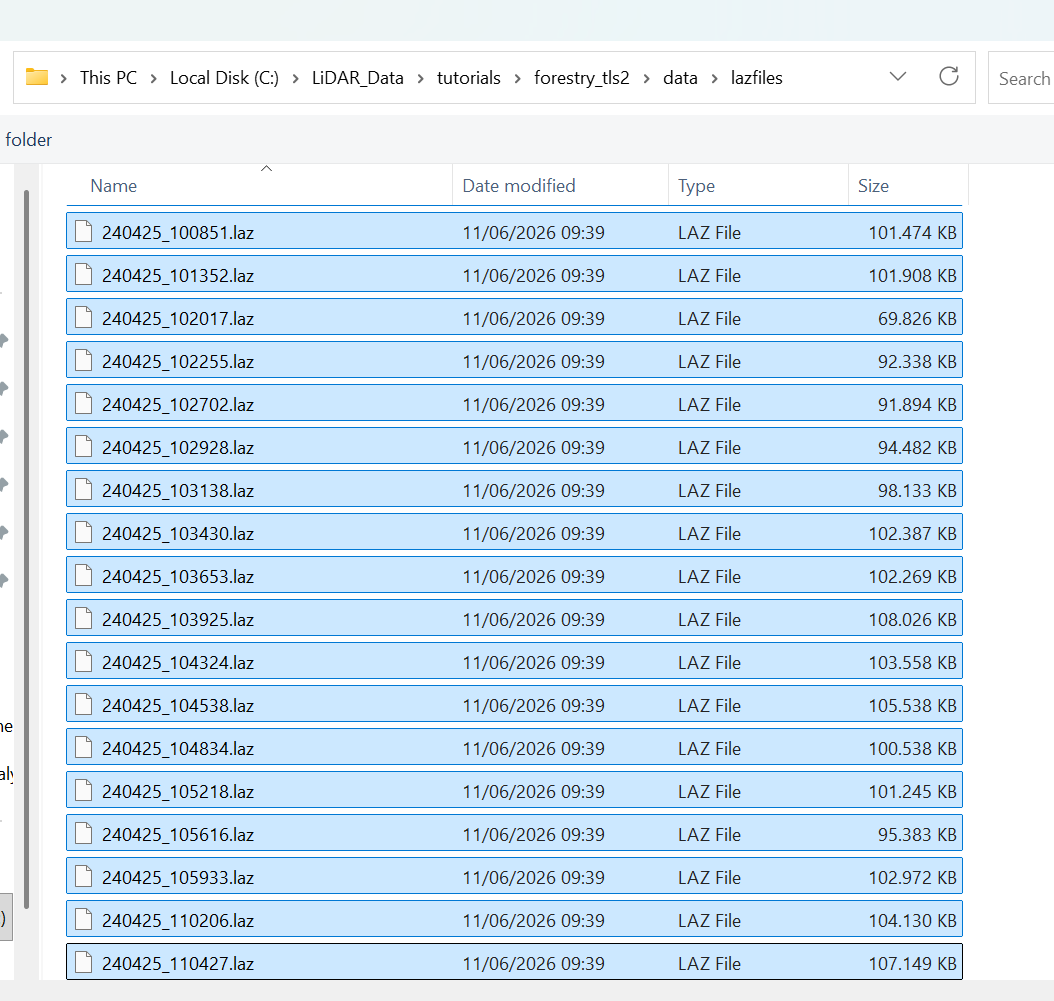
The tool dialog should now look like this:
Tool: Create LAS/LAZ Index
Geoprocessing → LIS Pro 3D → Import/Export → LAS/LAZ // Tools → LIS Pro 3D → Import/Export
| Parameter | Setting |
|---|---|
| Options | |
| Input Files | “C:/LiDAR_Data/tutorials/forestry_tls/data/lazfiles/240425_095411.laz” “C:/LiDAR_Data/tutorials/forestry_tls/data/lazfiles/240425_095952.laz” “C:/LiDAR_Data/tutorials/forestry_tls/data/lazfiles/240425_100315.laz” “C:/LiDAR_Data/tutorials/forestry_tls/data/lazfiles/240425_100605.laz” “C:/LiDAR_Data/tutorials/forestry_tls/data/lazfiles/240425_100851.laz” “C:/LiDAR_Data/tutorials/forestry_tls/data/lazfiles/240425_101352.laz” “C:/LiDAR_Data/tutorials/forestry_tls/data/lazfiles/240425_102017.laz” “C:/LiDAR_Data/tutorials/forestry_tls/data/lazfiles/240425_102255.laz” “C:/LiDAR_Data/tutorials/forestry_tls/data/lazfiles/240425_102702.laz” “C:/LiDAR_Data/tutorials/forestry_tls/data/lazfiles/240425_102928.laz” “C:/LiDAR_Data/tutorials/forestry_tls/data/lazfiles/240425_103138.laz” “C:/LiDAR_Data/tutorials/forestry_tls/data/lazfiles/240425_103430.laz” “C:/LiDAR_Data/tutorials/forestry_tls/data/lazfiles/240425_103653.laz” “C:/LiDAR_Data/tutorials/forestry_tls/data/lazfiles/240425_103925.laz” “C:/LiDAR_Data/tutorials/forestry_tls/data/lazfiles/240425_104324.laz” “C:/LiDAR_Data/tutorials/forestry_tls/data/lazfiles/240425_104538.laz” “C:/LiDAR_Data/tutorials/forestry_tls/data/lazfiles/240425_104834.laz” “C:/LiDAR_Data/tutorials/forestry_tls/data/lazfiles/240425_105218.laz” “C:/LiDAR_Data/tutorials/forestry_tls/data/lazfiles/240425_105616.laz” “C:/LiDAR_Data/tutorials/forestry_tls/data/lazfiles/240425_105933.laz” “C:/LiDAR_Data/tutorials/forestry_tls/data/lazfiles/240425_110206.laz” “C:/LiDAR_Data/tutorials/forestry_tls/data/lazfiles/240425_110427.laz” |
| Input File List | |
| Index All Files | 🗹 |
| Indexing | |
| Tile Size | 0 |
| Threshold | 1000 |
| Adaptive Coarsening | |
| Minimum Point Count | 100000 |
| Maximum Interval Count | -20 |
This operation may take some time, as the tool needs to scan all selected files to create their spatial indices.
The tool creates a .lax file for each selected .las or .laz file.
A .lax file is a spatial index that allows software to quickly locate points within a specific geographic area without scanning the entire point cloud. It does not contain the point data itself but stores information about where points are located within the corresponding LAS/LAZ file.
This makes operations such as spatial clipping, filtering, and displaying selected areas much faster, especially when working with large datasets.
The .lax format was originally introduced by the LAStools project and is now supported by various LiDAR applications.
Create a Virtual Point Cloud
In the Tools tab, select LIS Pro 3D > Virtual > Create Virtual LAS/LAZ Dataset.
Tool: Create Virtual LAS/LAZ Dataset
Geoprocessing → LIS Pro 3D → Virtual → LAS/LAZ // Tools → LIS Pro 3D → Virtual
| Parameter | Setting |
|---|---|
| Options | |
| Input Files | “C:/LiDAR_Data/tutorials/forestry_tls/data/lazfiles/240425_095411.laz” “C:/LiDAR_Data/tutorials/forestry_tls/data/lazfiles/240425_095952.laz” “C:/LiDAR_Data/tutorials/forestry_tls/data/lazfiles/240425_100315.laz” “C:/LiDAR_Data/tutorials/forestry_tls/data/lazfiles/240425_100605.laz” “C:/LiDAR_Data/tutorials/forestry_tls/data/lazfiles/240425_100851.laz” “C:/LiDAR_Data/tutorials/forestry_tls/data/lazfiles/240425_101352.laz” “C:/LiDAR_Data/tutorials/forestry_tls/data/lazfiles/240425_102017.laz” “C:/LiDAR_Data/tutorials/forestry_tls/data/lazfiles/240425_102255.laz” “C:/LiDAR_Data/tutorials/forestry_tls/data/lazfiles/240425_102702.laz” “C:/LiDAR_Data/tutorials/forestry_tls/data/lazfiles/240425_102928.laz” “C:/LiDAR_Data/tutorials/forestry_tls/data/lazfiles/240425_103138.laz” “C:/LiDAR_Data/tutorials/forestry_tls/data/lazfiles/240425_103430.laz” “C:/LiDAR_Data/tutorials/forestry_tls/data/lazfiles/240425_103653.laz” “C:/LiDAR_Data/tutorials/forestry_tls/data/lazfiles/240425_103925.laz” “C:/LiDAR_Data/tutorials/forestry_tls/data/lazfiles/240425_104324.laz” “C:/LiDAR_Data/tutorials/forestry_tls/data/lazfiles/240425_104538.laz” “C:/LiDAR_Data/tutorials/forestry_tls/data/lazfiles/240425_104834.laz” “C:/LiDAR_Data/tutorials/forestry_tls/data/lazfiles/240425_105218.laz” “C:/LiDAR_Data/tutorials/forestry_tls/data/lazfiles/240425_105616.laz” “C:/LiDAR_Data/tutorials/forestry_tls/data/lazfiles/240425_105933.laz” “C:/LiDAR_Data/tutorials/forestry_tls/data/lazfiles/240425_110206.laz” “C:/LiDAR_Data/tutorials/forestry_tls/data/lazfiles/240425_110427.laz” |
| Input File List | |
| Filename | C:/LiDAR_Data/tutorials/forestry_tls/data/lazfiles/scans.lasvf |
| File Paths | relative |
| Color Depth | 16 bit |
| Extra Bytes | 🗹 |
| Ignore LAS File Version | ☐ |
| Ignore Point Data Record Format | ☐ |
| Ignore Coordinate Reference System | ☐ |
The tool creates a .lasvf file in the lazfiles folder. Since the individual LAZ files represent the TLS scans acquired from different scan positions, we name the virtual dataset scans.lasvf.
By using this .lasvf file instead of the individual LAZ files in the following processing steps, we can treat the entire dataset as a single virtual point cloud without physically merging the scans into one large file.
Create a Tile Shape from the Virtual LAS/LAZ Dataset
Next, we want to get an overview of the spatial extent of our data and assess the coverage of the individual scans.
For this purpose, we use the Create Tileshape from Virtual LAS/LAZ tool.
Tool: Create Tileshape from Virtual LAS/LAZ
Geoprocessing → LIS Pro 3D → Virtual → LAS/LAZ // Tools → LIS Pro 3D → Virtual
| Parameter | Setting |
|---|---|
| Data Objects | |
| Shapes | |
| << Tileshape | <create> |
| Options | |
| Filename | C:/LiDAR_Data/tutorials/forestry_tls2/data/lazfiles/scans.lasvf |
A new polygon shapes layer appears in the Data tab. Double-click the layer to add it to the map.
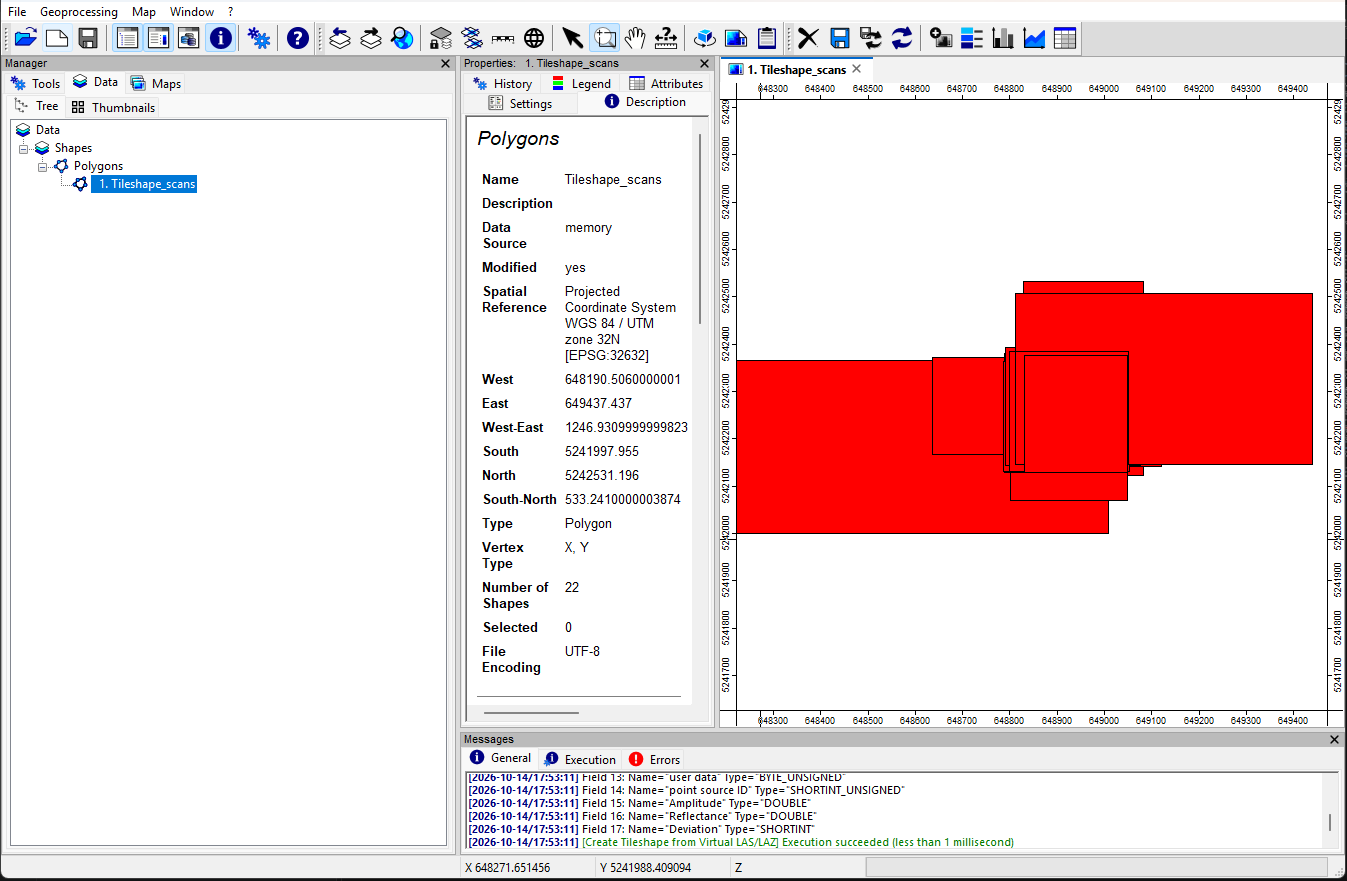
The layer contains multiple rectangular polygons, one for each scan position. These polygons show the spatial extent of the individual scans and provide an overview of the area covered by the dataset.
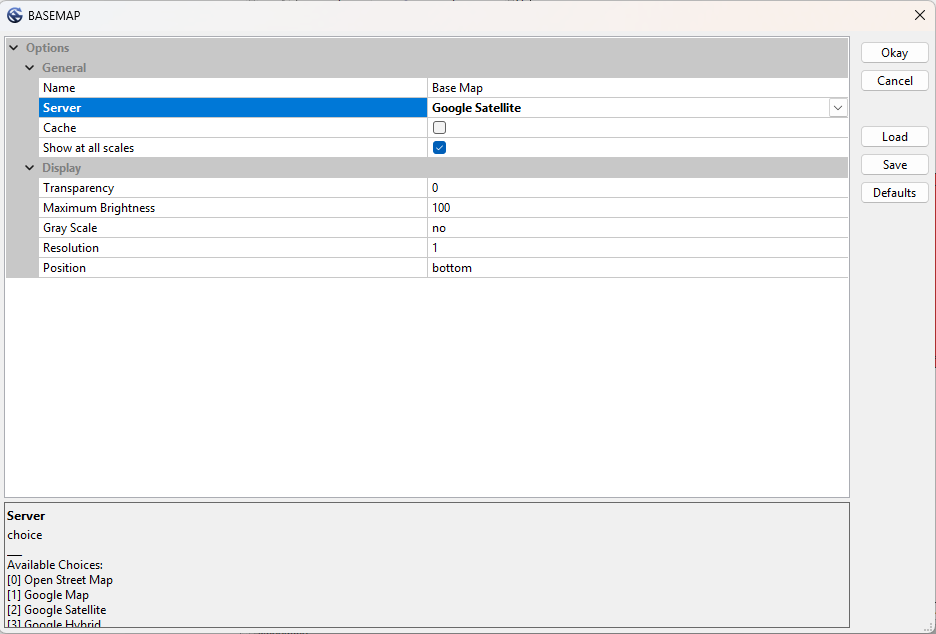
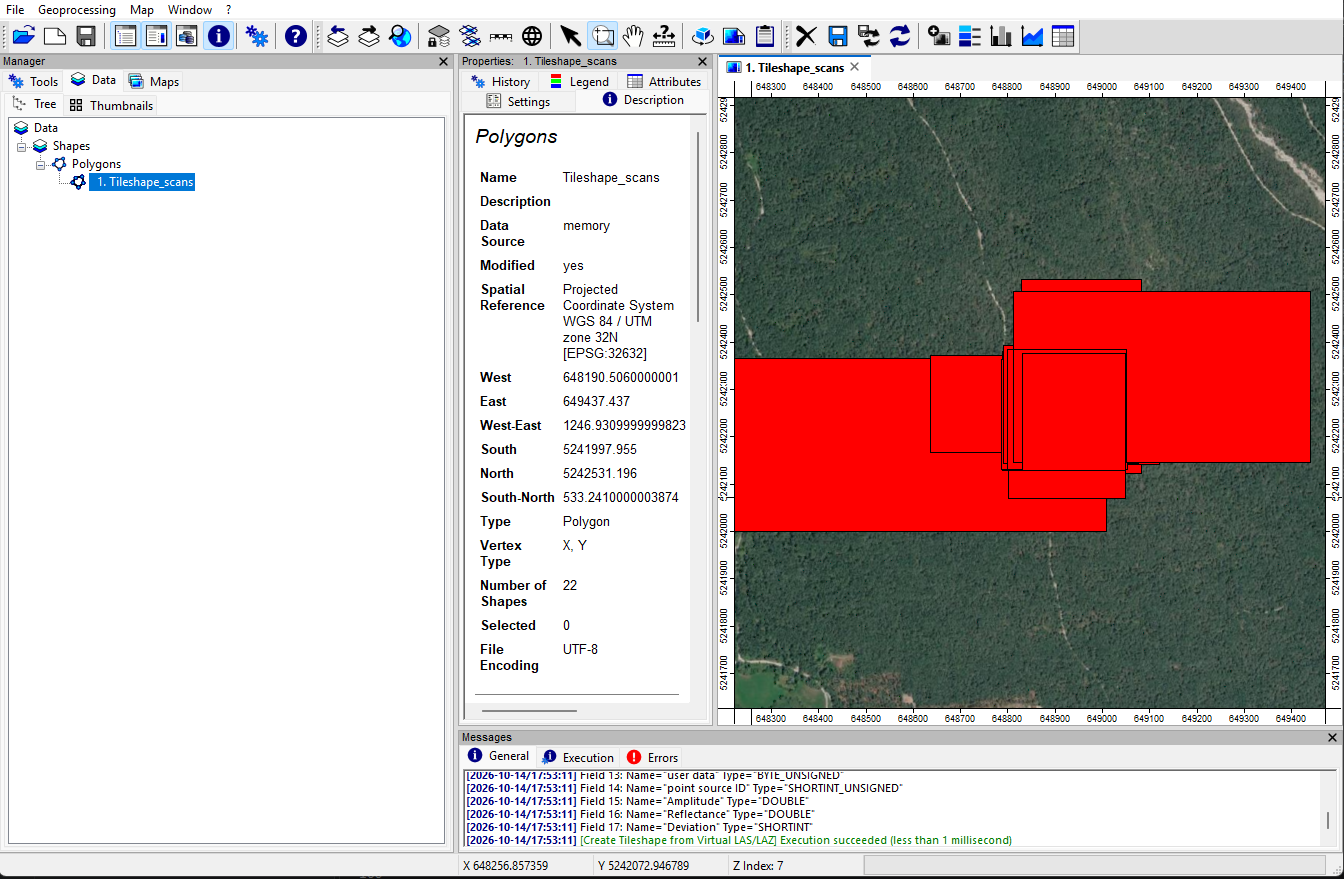
To add a background map, select Map > Add Basemap from the main menu and choose Google Satellite as the Server. Click Okay.
The satellite imagery now appears as a background layer in the map view, allowing you to compare the scan coverage with the surrounding landscape.
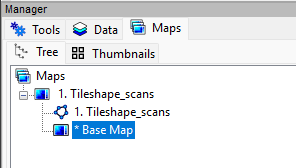
In the Maps tab, double-click BASEMAP to hide the background map again. The asterisk indicates that the layer is not currently visible.
Derive the Overall Extent
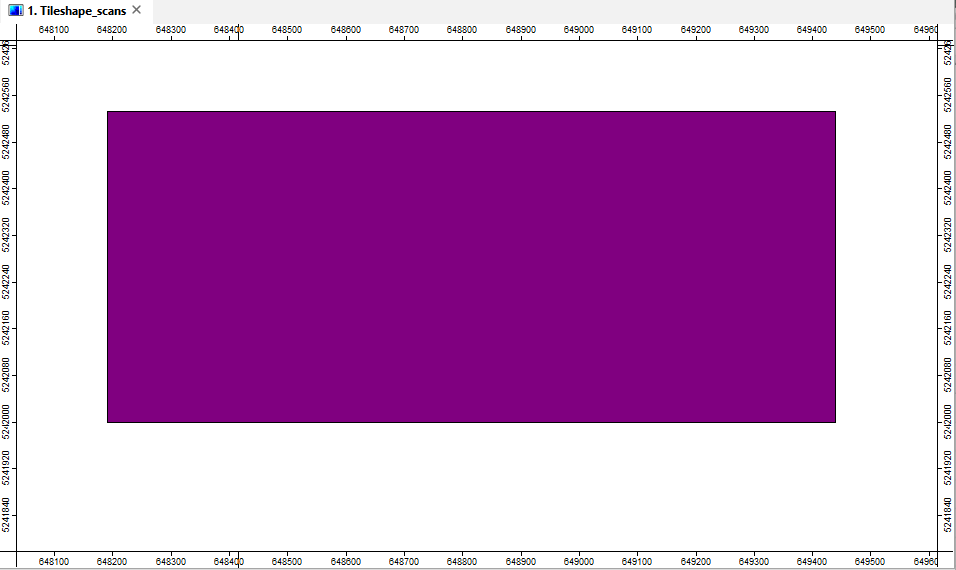
Next, we want to derive a single polygon representing the overall spatial extent of our dataset, covering all available TLS scans.
Tool: Get Shapes Extents
Geoprocessing → Shapes → Tools // Tools → Shapes → Tools
| Parameter | Setting |
|---|---|
| Data Objects | |
| Shapes | |
| >> Shapes | Tileshape_scans |
| << Extents | <create> |
| Options | |
| Get Extent for … | all shapes |
| Add Buffer | 0 |
A new shapes layer named Tileshape_scans [Extent] appears in the Data tab.
Double-click the layer to add it to the map.
Generate an Overview Digital Elevation Model
We can now use this polygon to define the area for generating an overview Digital Elevation Model (DEM) from our point cloud data.
Tool: Get Grid from Virtual LAS/LAZ
Geoprocessing → LIS Pro 3D → Virtual → LAS/LAZ // Tools → LIS Pro 3D → Virtual
| Parameter | Setting |
|---|---|
| Options | |
| Filename | [Example Path] C:/LiDAR_Data/tutorials/forestry_tls/data/lazfiles/scans.lasvf |
| Optional Output Filepath | |
| Attribute Field to Grid | Z |
| Cell Size | 0.25 |
| Grid System Fit | cells |
| Aggregation | maximum |
| Classes | |
| Last Returns | ☐ |
| Constrain Query | ☐ |
| AOI | |
| > Shape | Tileshape_scans [Extent] |
| Tilename | <not set> |
| Grid system | <not set> |
| > Grid | <not set> |
| X-Extent | 0;0 |
| Y-Extent | 0;0 |
| Add Overlap | ☐ |
This processing step may take some time, as the tool processes all 208,207,653 LiDAR points from the 22 individual TLS scans.
The individual point clouds are not physically merged during this process. Instead, the scans are processed sequentially, and their data are incorporated into the resulting elevation model one scan at a time.
This approach reduces memory requirements and allows us to work with larger datasets without loading all points into memory simultaneously.
After processing, a new Grid layer appears in the Data tab.
Double-click the layer to add it to the map.
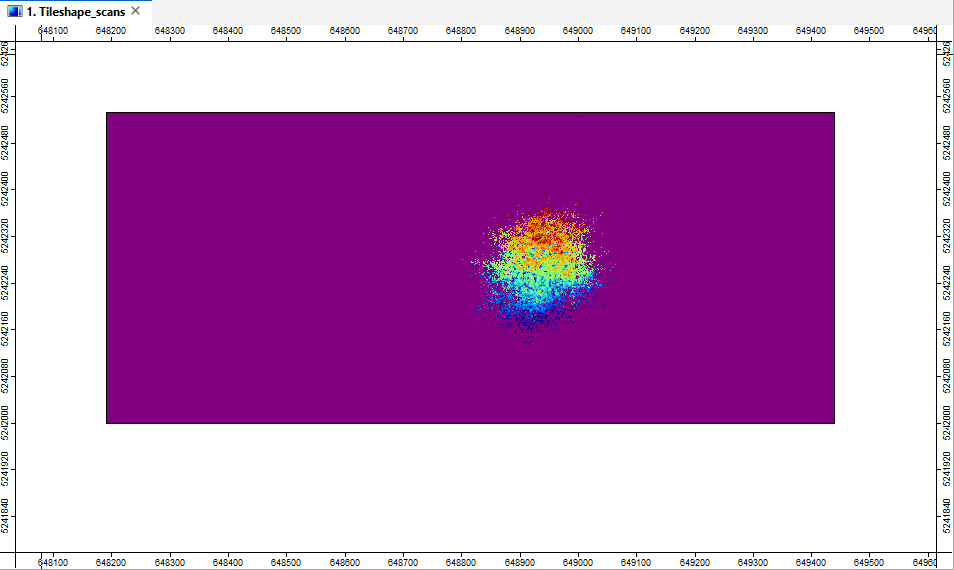
The elevation model reveals that the overall spatial extent is strongly influenced by isolated outliers and occasional long-range returns. The actual area of interest is a circular forest plot that covers only a small portion of the raw data extent.
Save the generated grid in the processing/02_grids folder of your project.
project # top-level folder
├── data
└── processing
   ├── 01_shapes
   ├── 02_grids
   ├── ...
You can now right-click Tileshape_scans and Tileshape_scans [Extent] in the Data tab and close both layers, as they are no longer needed for the following steps.
Load the Area of Interest
Locate the AOI_CMP.shp and AOI_tutorial.shp datasets in the data/auxillary_data folder of your project.
project # top-level folder
└── data
    └── auxillary_data
        ├── AOI_CMP.shp
        └── AOI_tutorial.shp
Load both datasets into your LIS Pro 3D project and add them to the map.
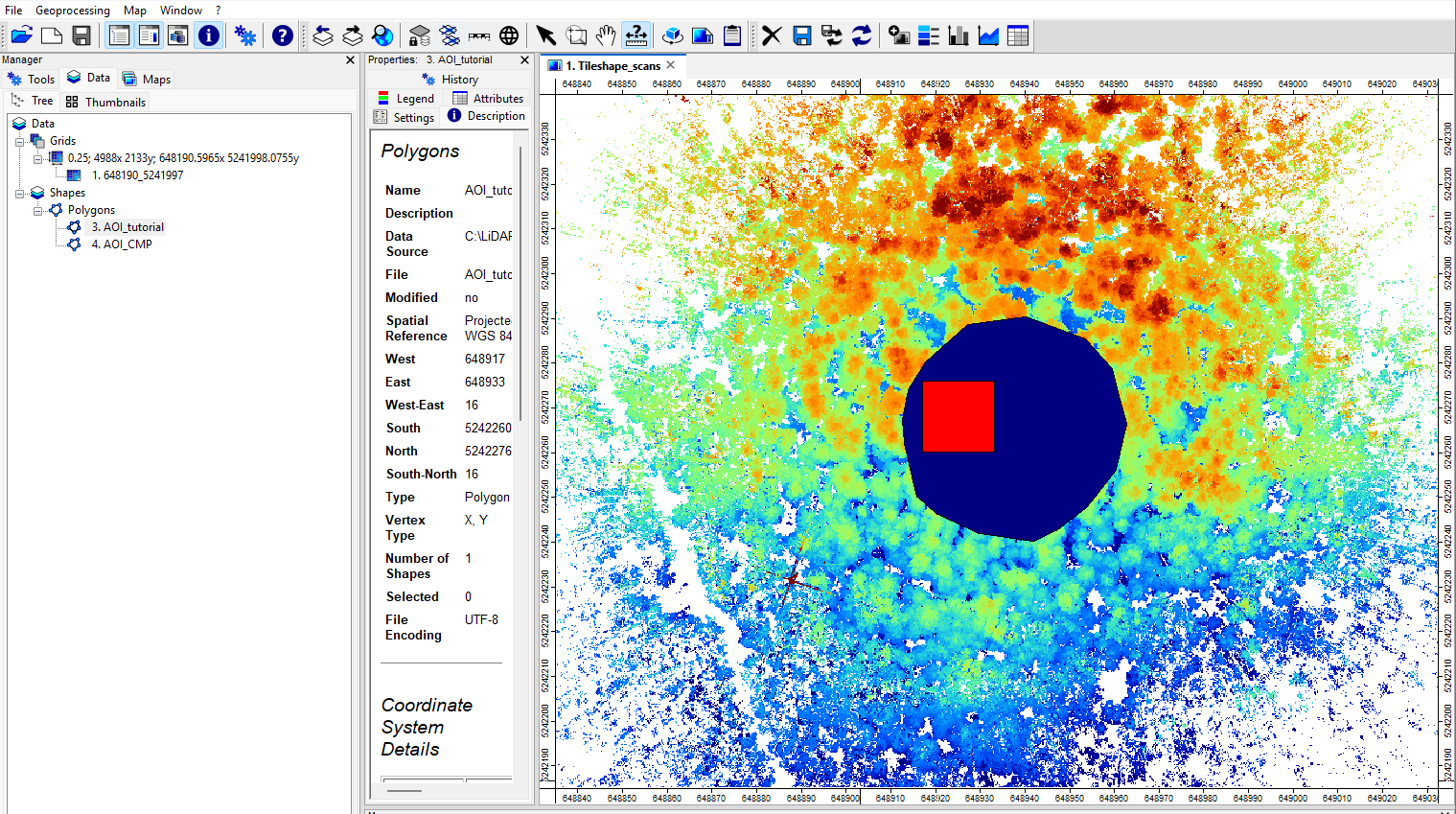
You can see that the actual area covered by sufficiently dense scan data is considerably smaller than the overall point cloud extent. Much of the surrounding area consists of long-range returns that are too sparse for reliable tree analysis.
The circular area represents a Continuous Monitoring Plot (CMP) at the Forest Atmosphere Interaction Research (FAIR) Field Site of the University of Innsbruck. You can find more information about the research site here.
We will process the entire circular plot later in this tutorial series. For now, we will focus on the smaller rectangular area to obtain results more quickly.
The processing strategy will be the same for both areas, allowing us to apply the workflow to the complete circular plot later.
Load Scan Positions into the Project
To better understand how the TLS data were acquired and how the individual scans are distributed across the plot, load scanner_positions_transformed.shp from the data/lazfiles folder into your LIS Pro 3D project.
project # top-level folder
└── data
    └── lazfiles
        └── scanner_positions_transformed.shp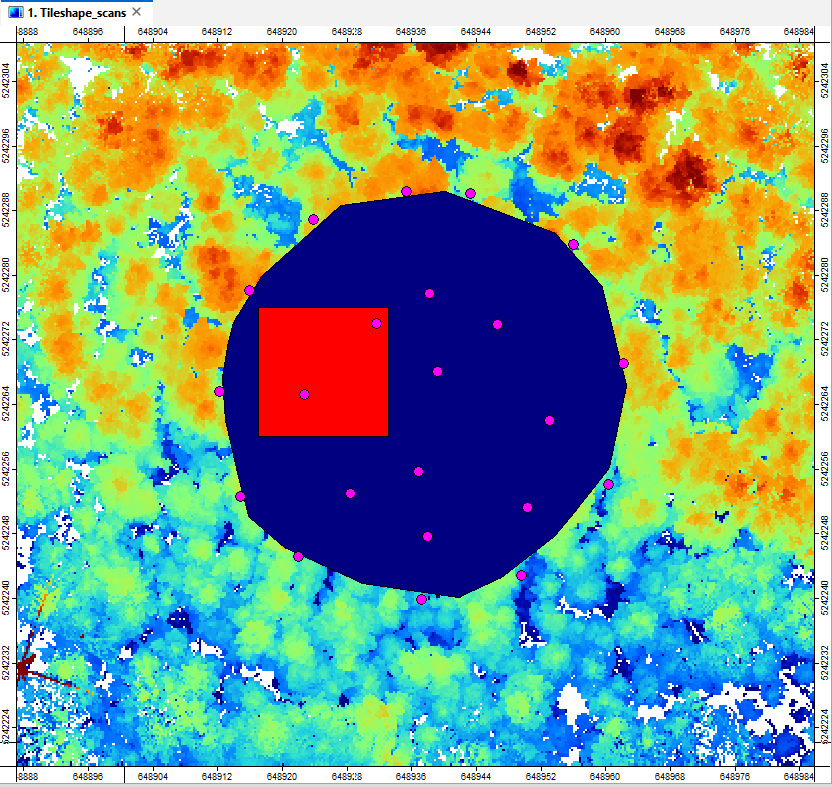
Set Polygon Layers to Transparent
In the Data tab, select the AOI_CMP dataset. In the Settings tab, change Fill Style from Opaque to Transparent.
Repeat this step for AOI_tutorial so that both area-of-interest polygons are displayed as outlines without obscuring the underlying map layers.
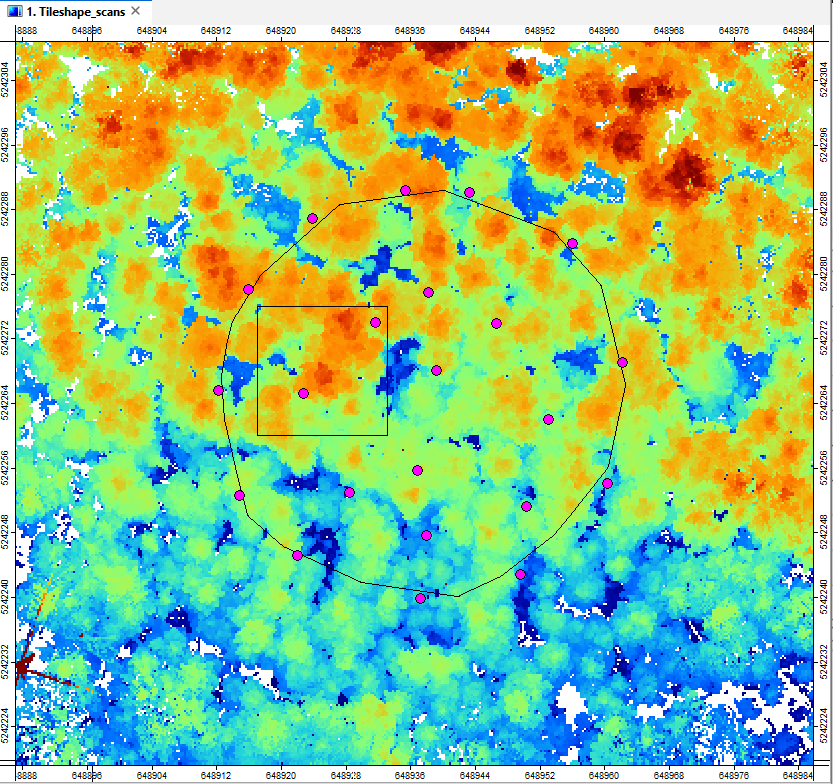
Save the current project to disk.
Create Processing Units
To make our processing workflow scalable, we want to avoid processing the entire LiDAR dataset as one large point cloud. Instead, we will divide the area into smaller, manageable processing units.
These processing units are generated from a given area-of-interest (AOI) polygon, which defines the spatial extent to be subdivided.
Tool: Create Spatial Processing Units
Geoprocessing → LIS Pro 3D → Tools → Shapes // Tools → LIS Pro 3D → Tools
| Parameter | Setting |
|---|---|
| Data Objects | |
| Shapes | |
| << Units | <create> |
| Options | |
| Extent and Tile Size | |
| > Extent | AOI_tutorial |
| Round Lower-Left Origin | 🗹 |
| Tile Size | 8 |
| Adaptive Subdivision | |
| Subdivision | none |
After running the tool, a new polygon layer containing the generated processing units appears in the Data tab.
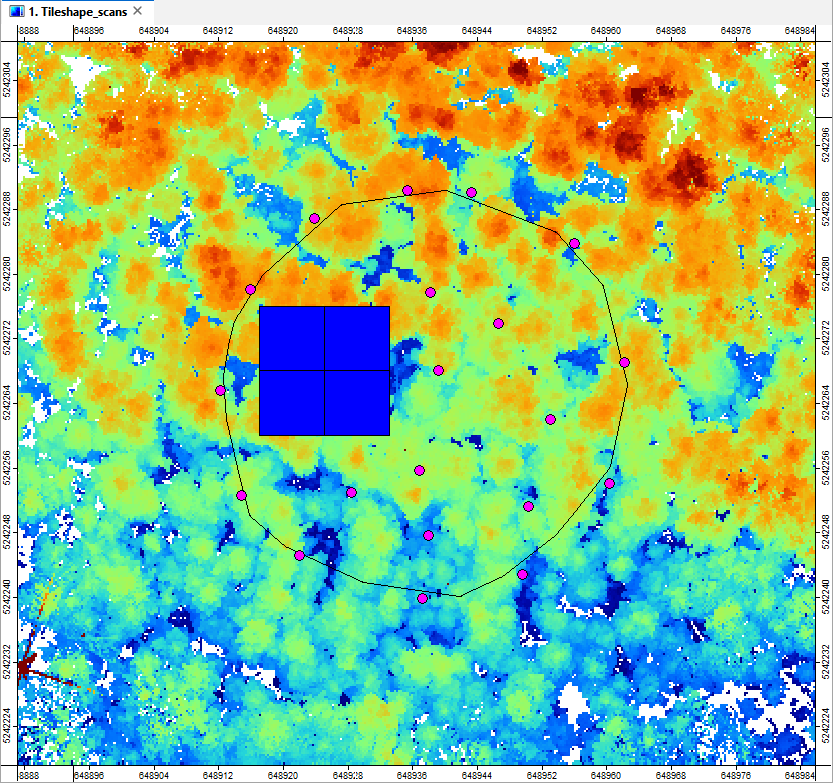
Try running the tool with AOI_CMP as the input polygon. Since this area is considerably larger, the tool generates many more processing units.
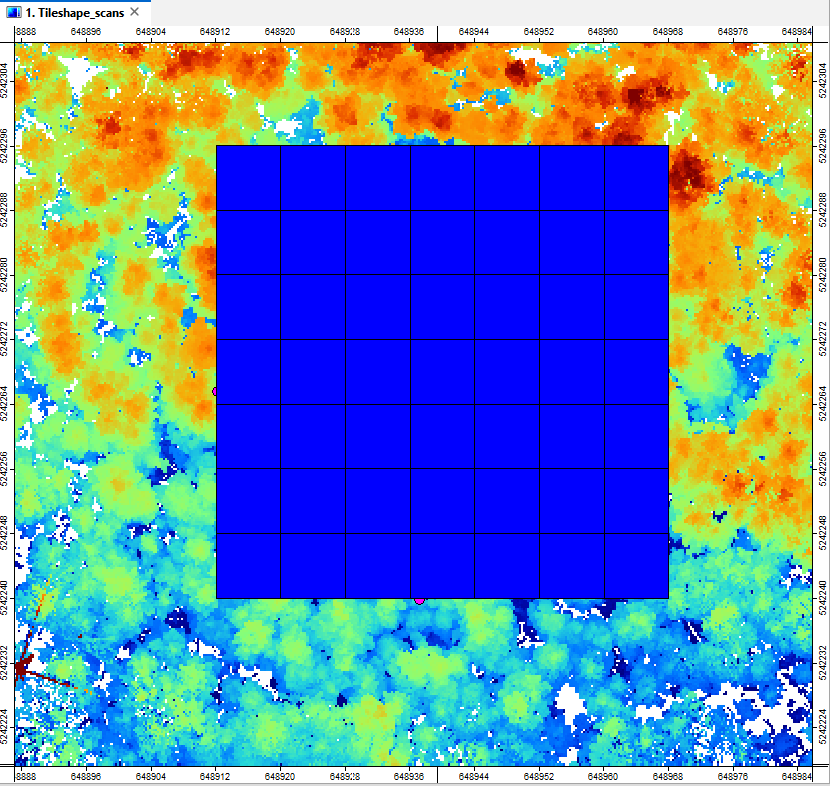
To continue with the tutorial, run the tool again using AOI_tutorial as the input polygon. This ensures that you have the correct processing_units dataset for the following steps.
Save the processing_units dataset in the processing/01_shapes folder of your project.
Buffer the Area of Interest
Next, we will prepare the input data for processing the area defined by AOI_tutorial.
For reliable individual tree analysis, we need to consider more than just the area within the AOI boundary.
Trees located outside the AOI may have crowns that extend into the target area or overlap with the crowns of trees inside it. Excluding these neighboring trees could lead to inaccurate crown boundaries and tree segmentation results.
As a rule of thumb, the processing area should extend beyond the AOI by at least one typical crown diameter. This allows us to include the neighboring trees that directly compete for space with the trees of interest.
To account for these boundary effects, we will add a buffer around our area of interest.
Tool: Shapes Buffer
Geoprocessing → Shapes → Tools // Tools → Shapes → Tools
| Parameter | Setting |
|---|---|
| Data Objects | |
| Shapes | |
| >> Shapes | AOI_tutorial |
| Buffer Distance | <not set> |
| << Buffer | <create> |
| Options | |
| Default | 8 |
| Dissolve Buffers | 🗹 |
| Number of Buffer Zones | 1 |
| Inner Buffer | ☐ |
| Arc Vertex Distance [Degree] | 5 |
| Join Type | Round |
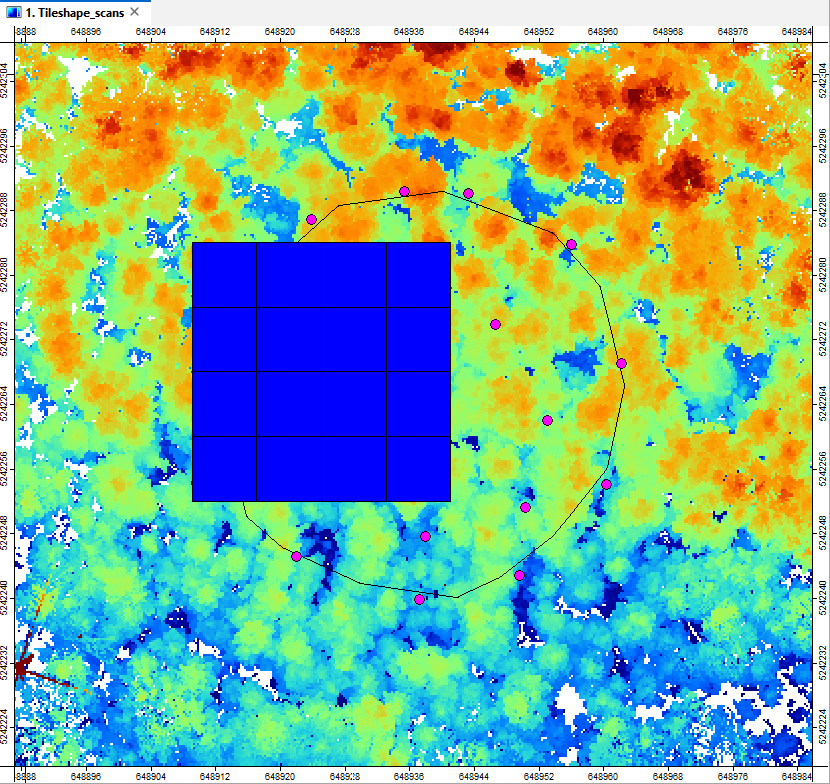
The buffered area appears as a new polygon layer in the Data tab and should look like this:
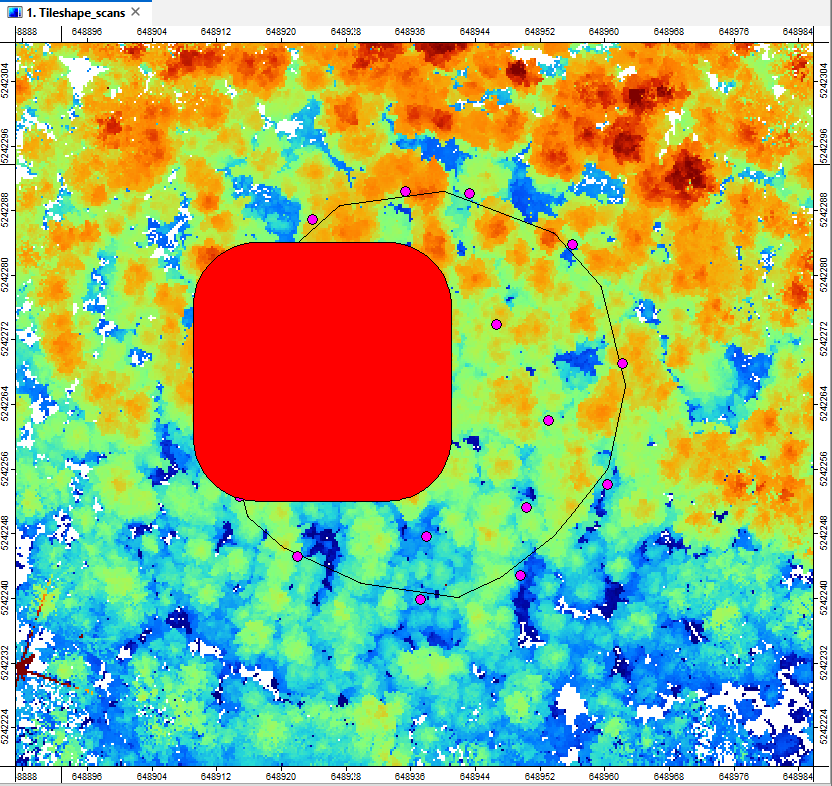
Create Processing Units for the Buffered Area
Next, we will generate a separate set of processing_units for the buffered area.
Make sure to set << Units to <create> so that a new output dataset is generated instead of overwriting the processing units previously created for the core area.
Tool: Create Spatial Processing Units
Geoprocessing → LIS Pro 3D → Tools → Shapes // Tools → LIS Pro 3D → Tools
| Parameter | Setting |
|---|---|
| Data Objects | |
| Shapes | |
| << Units | <create> |
| Options | |
| Extent and Tile Size | |
| > Extent | AOI_tutorial [Buffer] |
| Round Lower-Left Origin | 🗹 |
| Tile Size | 8 |
| Adaptive Subdivision | |
| Subdivision | none |
As a result, a second layer named processing_units appears in the Data tab.
Rename this layer to processing_units_buffered by selecting it in the Data tab and changing the Name field in the Settings tab.
Click Apply to confirm the new name.
Save All Datasets and the Project
Save all remaining unsaved datasets in the processing/01_shapes folder.
Then save the project to ensure that all datasets and processing units are properly organized and the project is ready for the next processing steps.
Point Cloud Classification
For forestry analysis, the point cloud must be classified into at least ground and non-ground points. This allows us to calculate a dz attribute for each point, representing its height above the ground.
In addition, we strongly recommend homogenizing the point cloud density and removing isolated outliers to improve data quality and ensure more reliable results in the subsequent analysis.
Tool: Ground Classification and Basic Filtering [multi-tile]
Geoprocessing → LIS Pro 3D → Classification → [multi-tile] Processing // Tools → LIS Pro 3D → Classification
| Parameter | Setting |
|---|---|
| Options | |
| Virtual Point Cloud File | C:/LiDAR_Data/tutorials/forestry_tls/data/lazfiles/scans.lasvf |
| Tiling | |
| >> Tiling Scheme | processing_units_buffered |
| Overlap | 2.5 |
| Output | |
| Output Folder | C:/LiDAR_Data/tutorials/forestry_tls/processing/03_classification |
| File Compression | 🗹 |
| Filtering | |
| Search Radius Outlier | 0.1 |
| Maximum Points Outlier | 1 |
| Thinning | 🗹 |
| Point Spacing | 0.01 |
| Elevation Filtering | ☐ |
| Intensity Filtering | ☐ |
| Deviation Filtering | 🗹 |
| Deviation Fieldname | deviation |
| Maximum Deviation | 10 |
| Ground Classification | 🗹 |
| Ground Classification | |
| Search Radius Cluster | 0.03 |
| Minimum Points Cluster | 1 |
| Seed Generation | |
| Initial Cellsize | 2 |
| Final Cellsize | 0.5 |
| TIN Densification | |
| Terrain Angle | 88 |
| Minimum Edge Length | 0.3 |
| Maximum Angle | 25 |
| Maximum Distance | 0.8 |
| Z Tolerance | 0.1 |
The tool processes the point cloud tile by tile. You can monitor its progress by observing how the 03_classification folder gradually fills with output files.
This processing step may take some time, depending on the size of the dataset and your computer’s performance.
For now, the tiles are processed sequentially. Later in this tutorial series, we will explore how to speed up the workflow using parallel processing.
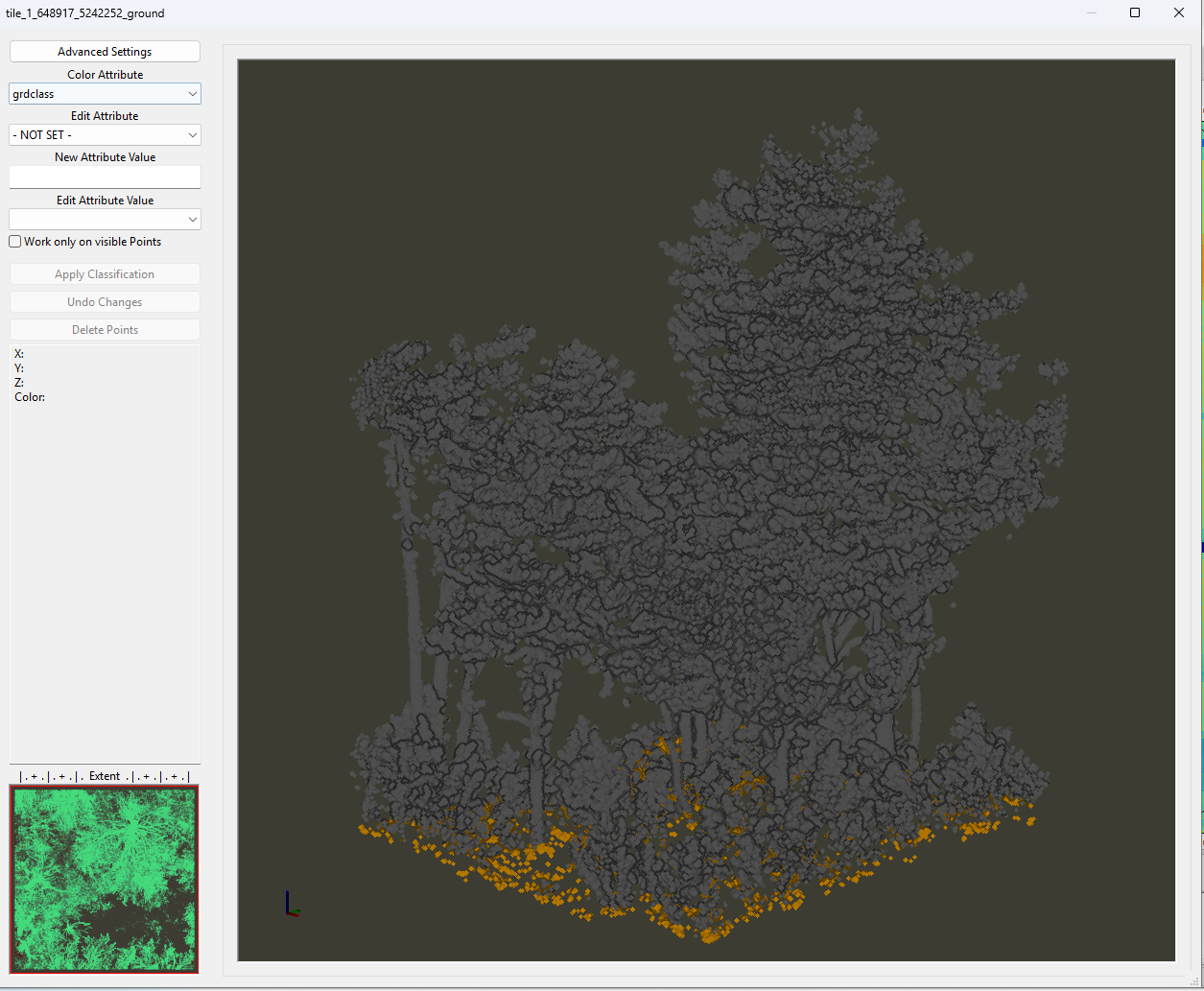
After the tool has finished, drag and drop a few files from the 03_classification folder into the LIS Pro 3D interface.
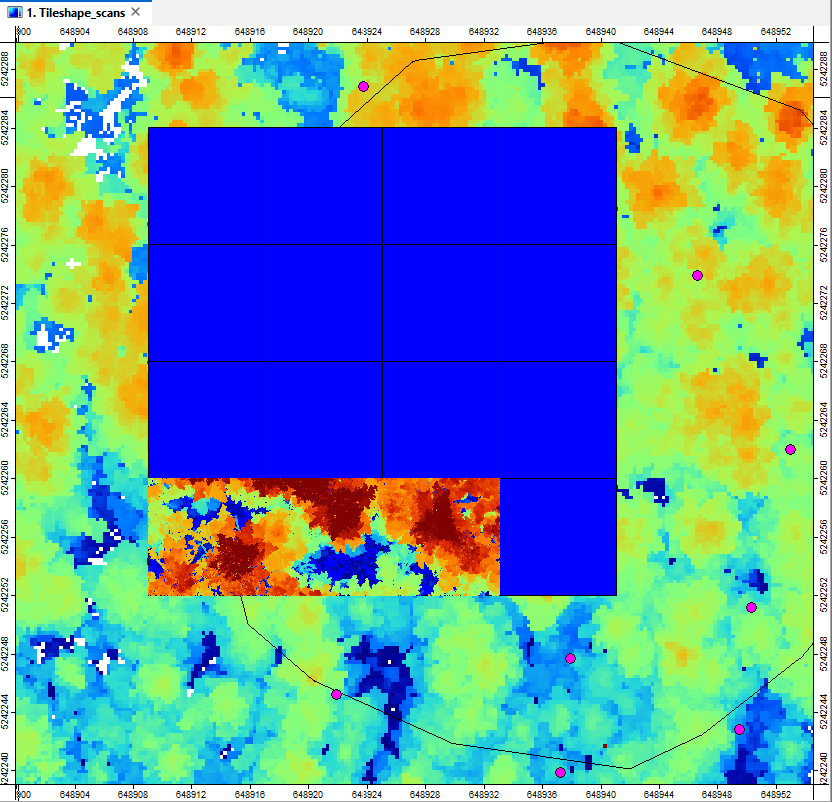
Instead of individual scan files, we now have smaller, more manageable point cloud tiles. Each tile contains the points from all scan positions that overlap its spatial extent.
Together, these tiles form a consistent, spatially organized point cloud dataset.
Create a Virtual Point Cloud from the Results
At the beginning of this tutorial section, we used a virtual point cloud to treat all individual TLS scans as a single dataset without physically merging them.
We can now apply the same approach to our classified point cloud tiles.
To do this, we will create a new virtual point cloud that references all classified tiles, allowing us to work with the entire tiled dataset as a single point cloud in the following processing steps.
Tool: Create Virtual Point Cloud Dataset
Geoprocessing → LIS Pro 3D → Virtual → SPC // Tools → LIS Pro 3D → Virtual
| Parameter | Setting |
|---|---|
| Options | |
| Input Files | “C:/LiDAR_Data/tutorials/forestry_tls/processing/03_classification/tile_0_648909_5242252_ground.sg-pts-z” “C:/LiDAR_Data/tutorials/forestry_tls/processing/03_classification/tile_1_648917_5242252_ground.sg-pts-z” “C:/LiDAR_Data/tutorials/forestry_tls/processing/03_classification/tile_2_648925_5242252_ground.sg-pts-z” “C:/LiDAR_Data/tutorials/forestry_tls/processing/03_classification/tile_3_648933_5242252_ground.sg-pts-z” “C:/LiDAR_Data/tutorials/forestry_tls/processing/03_classification/tile_4_648909_5242260_ground.sg-pts-z” “C:/LiDAR_Data/tutorials/forestry_tls/processing/03_classification/tile_5_648917_5242260_ground.sg-pts-z” “C:/LiDAR_Data/tutorials/forestry_tls/processing/03_classification/tile_6_648925_5242260_ground.sg-pts-z” “C:/LiDAR_Data/tutorials/forestry_tls/processing/03_classification/tile_7_648933_5242260_ground.sg-pts-z” “C:/LiDAR_Data/tutorials/forestry_tls/processing/03_classification/tile_8_648909_5242268_ground.sg-pts-z” “C:/LiDAR_Data/tutorials/forestry_tls/processing/03_classification/tile_9_648917_5242268_ground.sg-pts-z” “C:/LiDAR_Data/tutorials/forestry_tls/processing/03_classification/tile_10_648925_5242268_ground.sg-pts-z” “C:/LiDAR_Data/tutorials/forestry_tls/processing/03_classification/tile_11_648933_5242268_ground.sg-pts-z” “C:/LiDAR_Data/tutorials/forestry_tls/processing/03_classification/tile_12_648909_5242276_ground.sg-pts-z” “C:/LiDAR_Data/tutorials/forestry_tls/processing/03_classification/tile_13_648917_5242276_ground.sg-pts-z” “C:/LiDAR_Data/tutorials/forestry_tls/processing/03_classification/tile_14_648925_5242276_ground.sg-pts-z” “C:/LiDAR_Data/tutorials/forestry_tls/processing/03_classification/tile_15_648933_5242276_ground.sg-pts-z” |
| Input File List | |
| Filename | C:/LiDAR_Data/tutorials/forestry_tls/processing/03_classification/tiles.spcvf |
| File Paths | relative |
| Use Header File | 🗹 |
| Ignore Table Structure | ☐ |
Summary
In this tutorial section, we prepared the TLS dataset for scalable forestry analysis across larger areas. We started by organizing the input scans into a virtual point cloud, allowing us to work with the complete dataset without physically merging the individual scan files.
We then defined our area of interest, added a buffer to account for neighboring trees, and divided both the core and buffered areas into manageable processing units. Using these units, we performed the initial point cloud filtering and classification steps, producing a consistent, spatially tiled dataset while keeping memory requirements manageable.
Finally, we combined the resulting tiles into a new virtual point cloud, providing a convenient starting point for further analysis.
In the next tutorial section, we will build on these preparations and apply the actual forestry analysis tools, including stem detection, individual tree segmentation, and tree metric extraction, to the larger dataset.